This is the full developer documentation for Doprax
# Doprax documentation
> Run virtual machines and containers on Doprax, from the dashboard, from your own scripts, or from an AI tool.
[Create your first VM](/docs/get-started/first-vm/)From sign-in to a running server you can log in to, in about two minutes.
[Deploy your first app](/docs/app-space/first-app/)Run a container on App Space and open it on a public address with HTTPS.
[Plans and prices](/docs/virtual-machines/plans/)Every ProVM plan with its price per hour and per month.
[When your credit runs low](/docs/billing/when-credit-runs-low/)The warnings you get, what stops and when, and how to get it back.
[Create a VM with the API](/docs/api/first-vm/)Five requests, each shown with the answer it got.
[Connect an AI tool](/docs/ai/mcp/)Let Claude Code, Cursor or another assistant manage your Doprax account.
[API reference](/docs/api/reference/)Every public endpoint, generated from the platform's own description.
## For AI tools
[Section titled “For AI tools”](#for-ai-tools)
These docs are also published as plain text: [`llms.txt`](/docs/llms.txt) lists the pages, and [`llms-full.txt`](/docs/llms-full.txt) holds all of them in one file.
# Account settings
> What each item of the Account menu is for: your profile, email preferences, password, quotas, API key and early access to new features.
The **Account** menu of the dashboard has four items.
| Menu item | What you do there |
| --------------------------- | -------------------------------------------------------- |
| **Profile & Settings** | Edit your public profile and choose which emails you get |
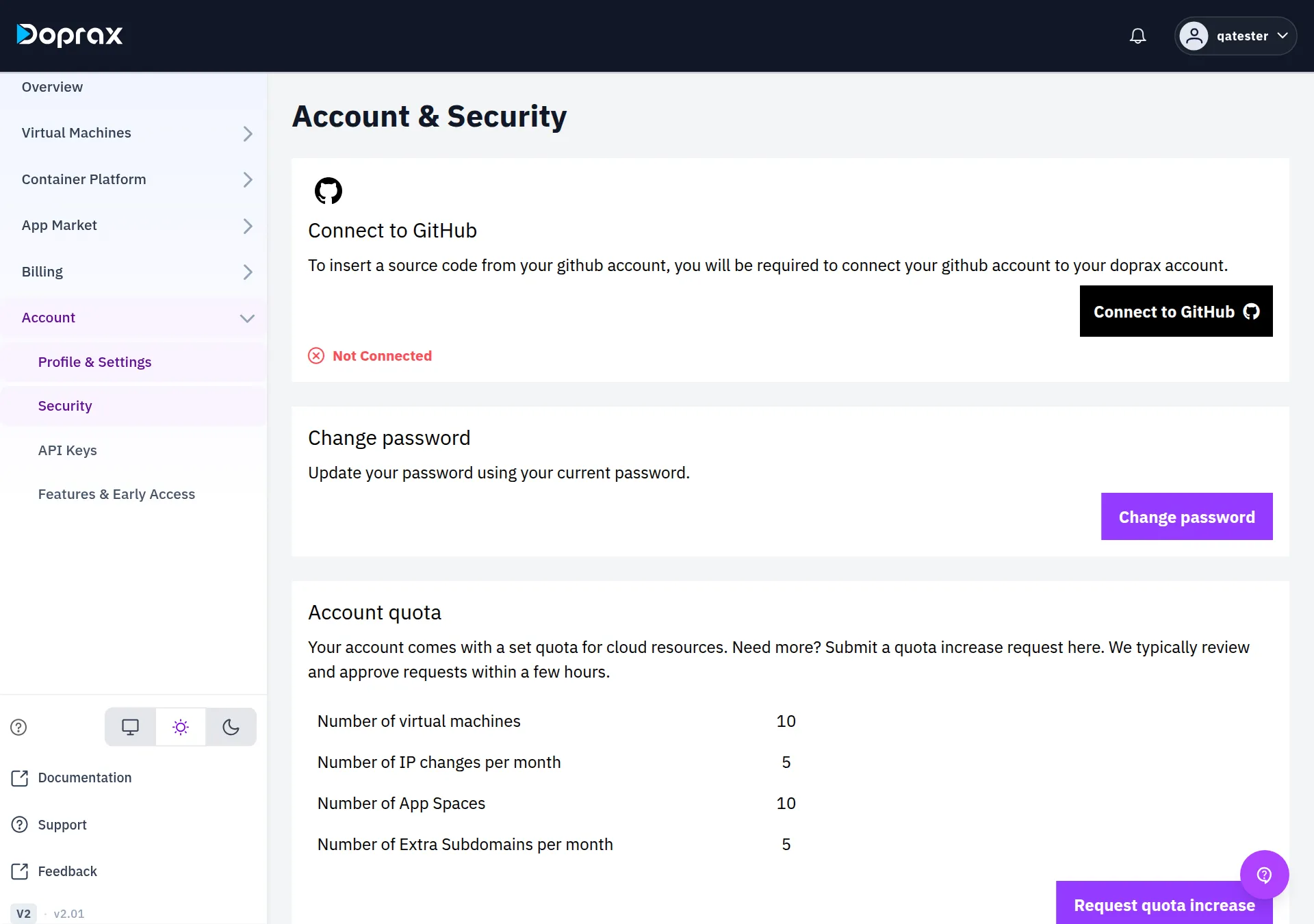
| **Security** | Change your password, see your quotas and ask for more |
| **API Keys** | Create or replace your API key |
| **Features & Early Access** | See new features and ask for early access |
## Profile & Settings
[Section titled “Profile & Settings”](#profile--settings)
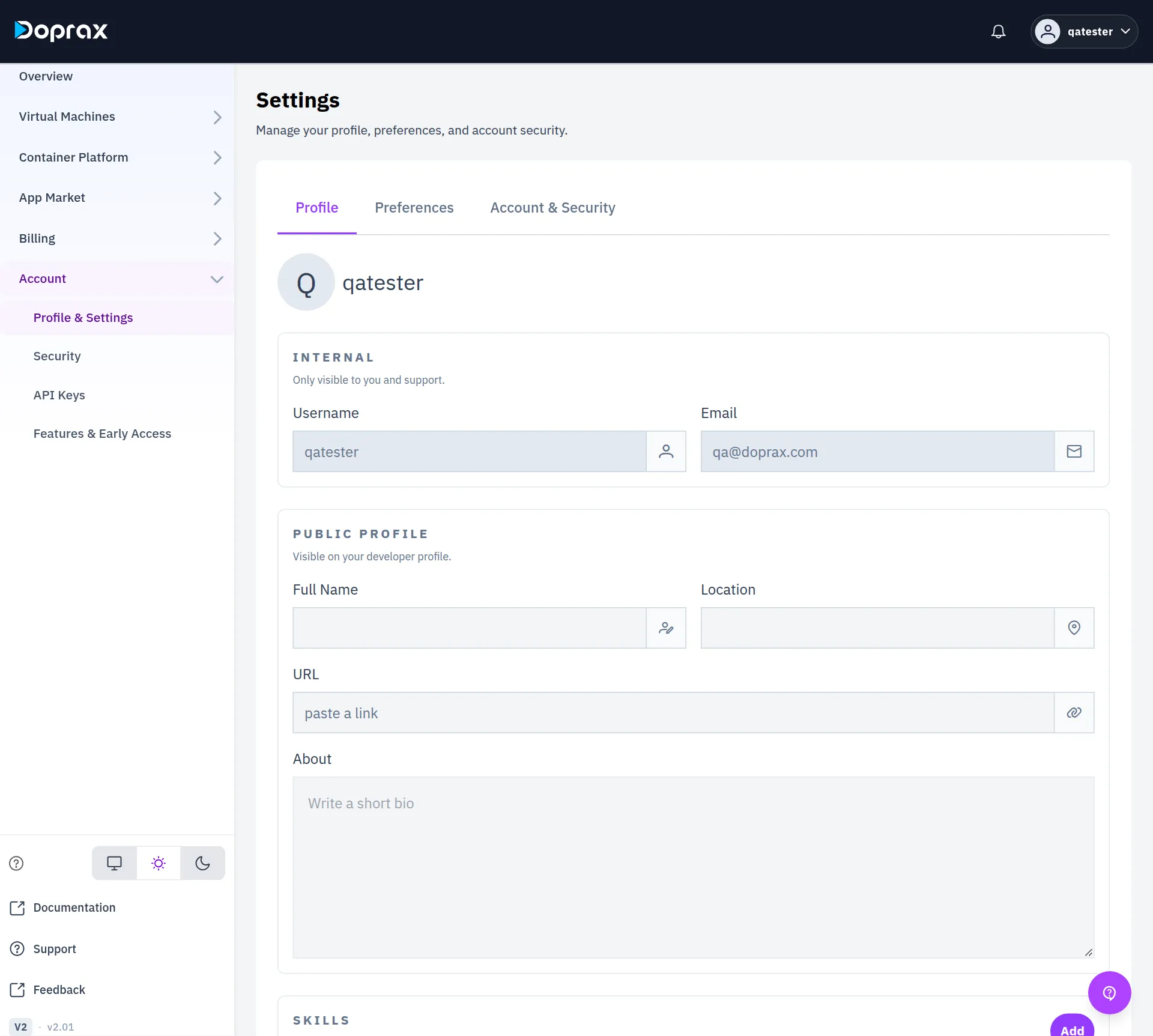
The **Settings** screen has three tabs: **Profile**, **Preferences** and **Account & Security**.
### Profile
[Section titled “Profile”](#profile)
| Part | Fields | Who sees it |
| ------------------ | ----------------------------------------------- | ----------------------------------------------------------- |
| **INTERNAL** | **Username**, **Email** | Only you and support. Neither can be changed on this screen |
| **PUBLIC PROFILE** | **Full Name**, **Location**, **URL**, **About** | Anyone who opens your developer profile |
| **SKILLS** | A list you build with **Add** | Anyone who opens your developer profile |
| **LINKS** | **GitHub**, **LinkedIn**, **X**, **Website** | Anyone who opens your developer profile |
Select **Save Changes** when you are done.
Your developer profile is the page under **App Market > Publisher Profile**. See [Your public profile](/docs/app-market/public-profile-doprax-app-market/).
### Preferences
[Section titled “Preferences”](#preferences)
**Preferences** has one switch for each kind of email:
* **Marketing & Promotions**
* **Newsletter & Content**
* **Surveys & Research**
* **Product Updates & Announcements**
* **Educational & Tips**
* **Account Notifications**
### Account & Security
[Section titled “Account & Security”](#account--security)
This tab holds three shortcuts: **Open account settings** opens the **Security** screen, **Manage API keys** opens **API Keys**, and **Open affiliates** opens the [affiliate programme](/docs/account/affiliate/).
## Security
[Section titled “Security”](#security)
### Change your password
[Section titled “Change your password”](#change-your-password)
1. Open **Account > [Security](https://www.doprax.com/v/settings/account/)**.
2. Select **Change password**.
3. Fill in **Current password**, **New password** and **Confirm new password**.
4. Select **Update password**.
The new password needs at least 8 characters, with a letter and a number. It must be different from the current one.
If you do not know your current password, sign out and use **Forgot Password?** on the sign-in page. We email you a link to set a new one. This is also how you set a password if you signed up with Google and never chose one.
### Account quota
[Section titled “Account quota”](#account-quota)
The **Account quota** table shows how much your account may have. A new account starts with:
| Quota | Start value |
| ------------------------------------ | ----------- |
| Number of virtual machines | 10 |
| Number of IP changes per month | 5 |
| Number of App Spaces | 10 |
| Number of Extra Subdomains per month | 5 |
To ask for more:
1. Select **Request quota increase**.
2. Type the new number for each quota you want raised. It must be higher than the present one.
3. Select **Submit request**.
Our team reviews each request. The screen says requests are typically reviewed and approved within a few hours.
### Connect to GitHub
[Section titled “Connect to GitHub”](#connect-to-github)
**Connect to GitHub** lets Doprax read the repositories of your GitHub account, and it is used only by the older app platform to import source code. App Space does not use it: it builds from public repositories without any connection.
## API Keys
[Section titled “API Keys”](#api-keys)
An account has one API key. **Account > API Keys** shows whether you have one and when it was last used.
* With no key yet, select **Generate API Key**.
* **Regenerate** makes a new key. The old key stops working at once.
* The full key is shown once, right after it is made. Copy it then.
* Send the key in the `X-API-Key` header of every request.
How to use the key is in the [API documentation](/docs/api/).
## Features & Early Access
[Section titled “Features & Early Access”](#features--early-access)
This screen lists new features. Each one carries a label:
| Label | Meaning |
| ---------------- | ------------------------------------------------------------------------------ |
| **Available** | Open to every account |
| **Early Access** | Open only to accounts that were given access. Select **Request Access** to ask |
| **Closed** | Not taking requests |
After you ask, the feature shows **Pending Review** until our team decides. It then shows **Access Granted** or **Not Approved**.
# Affiliate programme
> How to earn 5% of what the people you refer pay to Doprax, what the numbers on the Affiliates screen mean, and how to turn earnings into credit or cash.
Every Doprax account has an affiliate link. When someone signs up through your link, you earn 5% of every payment they make to Doprax, for as long as they keep paying.
## Find your link
[Section titled “Find your link”](#find-your-link)
1. In the dashboard, open **Account > Profile & Settings**.
2. Open the **Account & Security** tab and select **Open affiliates**. The direct address is [www.doprax.com/v/settings/affiliates/](https://www.doprax.com/v/settings/affiliates/).
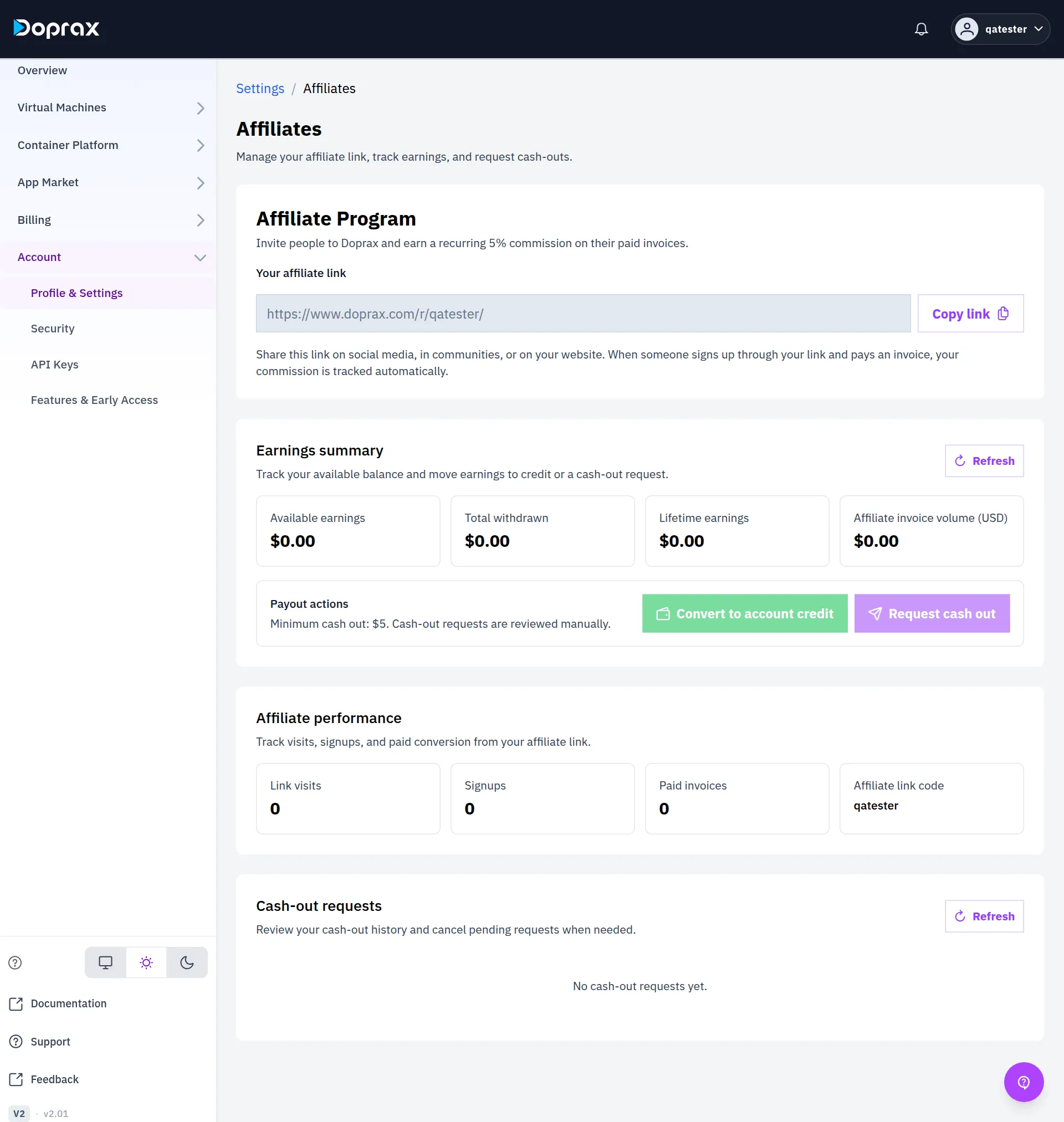
3. Under **Your affiliate link**, select **Copy link**.
The link has the form `https://www.doprax.com/r/your-username/`. You do not have to create it.
## How a referral is counted
[Section titled “How a referral is counted”](#how-a-referral-is-counted)
1. A person opens your link. This is one **Link visit**.
2. The person signs up within 30 days, in the same browser. This is one **Signup**.
3. Each time that person adds credit, the payment is counted under **Paid invoices** and you earn 5% of it.
Only money paid to Doprax counts. Credit from a promo, credit added by our team, and affiliate earnings that a person converts to credit earn no commission.
## The numbers on the screen
[Section titled “The numbers on the screen”](#the-numbers-on-the-screen)
| Number | Meaning |
| ---------------------------------- | ------------------------------------------------------ |
| **Available earnings** | What you can convert or cash out now |
| **Total withdrawn** | What you have already converted to credit or been paid |
| **Lifetime earnings** | Your commission since the start |
| **Affiliate invoice volume (USD)** | The total your referred users have paid |
| **Link visits** | How many times your link was opened |
| **Signups** | How many people signed up through it |
| **Paid invoices** | How many payments those people have made |
| **Affiliate link code** | The last part of your link. It is your username |
**Available earnings** is **Lifetime earnings**, minus **Total withdrawn**, minus any cash-out request our team is processing.
## Turn earnings into credit
[Section titled “Turn earnings into credit”](#turn-earnings-into-credit)
**Convert to account credit** moves all your available earnings to your Doprax credit at once. You can then spend it on any service.
* You can convert once an hour.
* You cannot convert while a cash-out request of yours is pending.
## Cash out
[Section titled “Cash out”](#cash-out)
You need at least $5 in **Available earnings**.
1. Select **Request cash out**.
2. Check the **Amount (USD)**. It starts at your available earnings. You can lower it, but not below $5.
3. Type the **PayPal email** the money should go to.
4. Select **Submit request**.
Cash-out requests are reviewed by our team by hand. You can have one pending request at a time.
The **Cash-out requests** table shows each request and its status.
| Status | Meaning |
| ---------- | ----------------------------------------------------------------------------------- |
| Pending | Waiting for our team. You can still cancel it with the bin button under **Actions** |
| Processing | Our team is paying it. The amount has left **Available earnings** |
| Completed | It has been paid and is counted in **Total withdrawn** |
| Rejected | It was not paid. The amount stays in **Available earnings** |
# Connect an AI tool with MCP
> Let Claude Code, Cursor or another AI assistant work with your Doprax account through the Doprax MCP server.
Doprax runs an MCP server. MCP (Model Context Protocol) is the standard way for an AI assistant to use outside tools, so any assistant that speaks it can list your VMs, create one, deploy an app to App Space or read your balance when you ask it to in plain words.
* **Address:** `https://www.doprax.com/api/v1/mcp/`
* **Transport:** HTTP (streamable)
* **Sign-in:** your API key as `Authorization: Bearer `
Get the key in the dashboard under **Account**, **API Keys**. See [The Doprax API](/docs/api/#get-an-api-key).
Caution
The key gives the assistant full access to your account, including creating services that cost money and deleting ones you have. Use an assistant that asks before it acts, and read what it is about to do.
## Connect
[Section titled “Connect”](#connect)
* Claude Code
```bash
claude mcp add --transport http doprax https://www.doprax.com/api/v1/mcp/ \
--header "Authorization: Bearer $DOPRAX_API_KEY"
```
* Other tools
Most tools read a JSON file with a list of servers. The entry for Doprax:
```json
{
"mcpServers": {
"doprax": {
"url": "https://www.doprax.com/api/v1/mcp/",
"headers": { "Authorization": "Bearer YOUR_API_KEY" }
}
}
}
```
Where that file lives, and whether the address field is called `url`, depends on the tool: check its own documentation for “remote MCP server”.
## Try it
[Section titled “Try it”](#try-it)
Ask the assistant something that only reads:
> What is my Doprax balance, and which services do I have?
It should call `get_finance_balance` and `list_services` and answer with your real numbers. Then try something that acts:
> Create the smallest ProVM virtual machine in Poland with Ubuntu, and tell me how to log in.
## What it can do
[Section titled “What it can do”](#what-it-can-do)
The server offers tools for virtual machines, App Space, deployments, the App Market, SSH keys, secrets and billing. The [tool list](/docs/ai/mcp-tools/) is produced from the server itself.
## See what it did
[Section titled “See what it did”](#see-what-it-did)
Every tool call made with your key is recorded with the time, the tool and the outcome:
```bash
curl -sS "$DOPRAX_API_URL/api/v2/mcp/actions/" \
-H "X-API-Key: $DOPRAX_API_KEY"
```
Answer
```json
{
"success": true,
"data": {
"actions": [
{
"id": "",
"at": "2026-10-10T21:59:11.198747+00:00",
"actor": "you@example.com",
"agent": null,
"tool": "get_service",
"summary": "Read service my-first-vm",
"access": "read",
"outcome": "success",
"error": null,
"duration_ms": 14,
"arguments": null,
"conversation_id": null,
"turn_id": null,
"tool_call_id": null,
"approval": null
}
]
}
}
```
# MCP tool list
> Every tool the Doprax MCP server offers to an AI assistant, produced from the server's own list.
This page is produced from the answer of the MCP server’s own `tools/list` call each time the docs are built. To connect an assistant, see [Connect an AI tool with MCP](/docs/ai/mcp/).
91 tools, server version 2.13.3.
### add_appspace_container
Add a new container definition to an App Space.
Inputs: `appspace_id` (string, required), `name` (string, required), `image` (string, required), `tag` (string), `role` (string)
### add_service_to_appspace
Add a standard, curated database/service to an App Space — durable and wired in one call. Works with ANY codebase in the App Space (an AI-built app, a market app, the user's own image): creates the service container from an official image with a generated password and a persistent volume, and (if bind_to is given) injects the connection env into the app container AND records the dependency so it starts first. Then start/restart the App Space.
Inputs: `appspace_id` (string, required), `service` (string, required), `bind_to` (string), `name` (string), `version` (string)
### append_agent_note
Append a timestamped note to the project's running notes file (default notes/agent-notes.md). Use this to durably record decisions, TODOs, and context the agent should remember about a project across conversations. Pass the active \`project\` id.
Inputs: `note` (string, required), `project` (string), `path` (string)
### call_connection
Call one of the acting user's connections with its stored credential.
Inputs: `name` (string, required), `method` (string, required), `path` (string, required), `params` (object), `json_body` (any), `body` (string), `headers` (object)
### check_vm_connectivity
Test whether a VM's public IP is reachable FROM INSIDE specific countries, using check-host.net probe nodes located there — a real-world censorship/reachability check no server-side test can give you. Essential for anti-censorship / VPN use: it answers "can someone in Iran actually reach this box?". Ping (ICMP) by default; pass a \`port\` to TCP-test a specific service (e.g. 443 for a VPN protocol). Returns per-country reachable / blocked / partial + latency; if a country is blocking the IP, rotate or reprovision to a fresh IP. Note: check-host has \~8 Iran nodes but NO mainland-China nodes — pass 'hk' only as a weak proxy for China (it sits outside the Great Firewall).
Inputs: `vm_code` (string, required), `port` (integer), `countries` (string)
### create_appspace_volume
Create a new volume for an App Space (required for stateful containers).
Inputs: `appspace_id` (string, required), `name` (string, required), `size_gb` (integer, required), `mount_path` (string, required)
### create_secret
Store a new encrypted secret.
Inputs: `name` (string, required), `value` (string, required), `description` (string)
### create_service
Provision a new service (VM or App Space) from a catalogue product version.
Inputs: `product_version_id` (string, required), `idempotency_key` (string), `name` (string), `description` (string), `selections` (object), `metadata` (object)
### create_ssh_key
Upload a new SSH public key to the user's account.
Inputs: `name` (string, required), `public_key` (string, required)
### create_vm_snapshot
Create a snapshot of a VM. A one-time charge may apply.
Inputs: `service_id` (string, required), `description` (string, required)
### delete_container_env
LEGACY MyCP container — NOT for App Spaces (use set_appspace_container_env with merge=False).
Inputs: `app_code` (string, required), `container_code` (string, required), `env_id` (integer, required)
### delete_secret
Delete a secret from the user's account.
Inputs: `secret_code` (string, required)
### delete_ssh_key
Delete an SSH key from the user's account.
Inputs: `ssh_key_code` (string, required)
### delete_workspace_file
Delete a file from the workspace. \`path\` is relative to the project root; pass the active \`project\` id. This is irreversible.
Inputs: `path` (string, required), `project` (string)
### deploy_blueprint
Assemble an App Space from a blueprint in one call: create the app container (a pre-built image OR build-from-source) with its exposure + release command, then add and wire each required curated service. This is how a complex app (app + its databases/services) is composed from curated pieces rather than a black-box compose.
Inputs: `appspace_id` (string, required), `blueprint` (object, required)
### deploy_project
Deploy your workspace code into an App Space and VERIFY it — in ONE call. THE reliable way to ship a web app. Reuse ONE App Space (create it once with quick_create_service, then pass its id here every time). In one move it snapshots your code, builds the app container from your Dockerfile, wires any database it needs, starts it, waits for it to become healthy, and returns the public URL — so you never hand-run deploy -> poll get_deployment_status -> verify.
Inputs: `appspace_id` (string, required), `project` (string), `subpath` (string), `dockerfile` (string)
### deploy_repo
Deploy a GitHub repo into an App Space in one move: read its manifests, detect its stack (framework, port, release command, needed services), then build the app from source and provision + wire the curated services it needs. After it returns, start the App Space and (if a release command was detected) run_appspace_release. Requires a Dockerfile in the repo; if the repo ships a docker-compose, use import_appspace_compose instead.
Inputs: `appspace_id` (string, required), `github_url` (string, required), `branch` (string)
### deploy_workspace
Snapshot the workspace and start a deploy, returning a \`deploy_operation_id\` to poll.
Inputs: `appspace_id` (string, required), `project` (string), `subpath` (string), `dockerfile` (string), `deploy` (boolean)
### describe_workspace
Describe the agent's workspace: whether object storage is configured, the S3 endpoint, and the path prefix files live under. Pass the active \`project\` id to scope to that project (user\_\/proj\_\/); omit it for the user root. Use this before reading/writing.
Inputs: `project` (string)
### detect_app_stack
Read a GitHub repo's manifests and propose how to deploy it: the framework, whether it has a Dockerfile, the app port, the release/migrate command, and the curated services it likely needs (from its dependencies). Use this before deploy_repo, or to plan a deployment.
Inputs: `github_url` (string, required), `branch` (string)
### diagnose_appspace
Diagnose WHY an App Space's workloads are failing — one call, whole App Space. Returns a \`headline\` (the problem in one line), every container's runtime state + failure \*\*verdict\*\* (\`healthy\` / \`crash_loop\` / \`exited\` / \`oom\` / \`not_deployed\` / \`starting\`) with \`exit_code\`, real \`restart_count\`, \`lifetime_seconds\`, \`oom_killed\`, and a plain-English \`likely_cause\`, plus the deployment's recent orchestration logs. ALWAYS call this when a container is not running, when a deploy/start didn't come up, or before telling the user an app is healthy — it turns "it won't start" into an actionable cause (wrong image / no foreground server / app error / out of memory). Read-only.
Inputs: `appspace_id` (string, required)
### diff_deployment
Show what changed between the snapshot currently RUNNING and the latest one you deployed — a real file-level diff (via the workspace git history). Use it so the user sees exactly what a deploy will change / did change. Renders as a Diff card.
Inputs: `appspace_id` (string, required), `ctx` (any)
### disable_vm_rescue_mode
Return a VM from rescue mode to normal boot.
Inputs: `vm_code` (string, required)
### enable_vm_rescue_mode
Boot a VM into rescue mode for emergency recovery.
Inputs: `vm_code` (string, required)
### export_appspace_compose
Export the full compose YAML for an App Space (snapshot of current state).
Inputs: `appspace_id` (string, required)
### generate_app_project
Generate a deployable app (a Docker Compose project) from a description.
Inputs: `intent` (string, required)
### get_appspace_logs
Fetch an App Space container's runtime STATE and recent LOGS. Use this to debug why an app isn't working: each container now reports a \*\*verdict\*\* with \`exit_code\`, real \`restart_count\`, \`lifetime_seconds\`, \`oom_killed\`, and a plain-English \`likely_cause\` — so a restart loop is explained ("exits in 0.17s with code 0 → the image has no long-running server / wrong start command"), not just flagged. The service can read "running" while a container crash-loops; this shows the truth. NOTE: the \`logs\` here are buildcp \*\*orchestration\*\* events, not the app's own stdout — rely on the per-container verdict/exit_code for the cause, and run_appspace_command on a live container to inspect further. Prefer \`diagnose_appspace\` for a whole-App-Space summary. Read-only.
Inputs: `appspace_id` (string, required), `container_id` (string), `tail` (integer)
### get_appspace_resource_profile
Get CPU/RAM/disk allocation for an App Space.
Inputs: `appspace_id` (string, required)
### get_container_logs
LEGACY MyCP container — NOT for App Spaces (use diagnose_appspace / get_appspace_logs).
Inputs: `app_code` (string, required), `container_code` (string, required), `tail` (integer)
### get_container_metrics
LEGACY MyCP container — NOT for App Spaces (use diagnose_appspace).
Inputs: `app_code` (string, required), `container_code` (string, required)
### get_container_realtime_status
LEGACY MyCP container — NOT for App Spaces (use diagnose_appspace / get_deployment_status).
Inputs: `app_code` (string, required), `container_code` (string, required)
### get_deployment_status
Show exactly what is deployed for an App Space: the live snapshot ref actually running, each container's health, the public URL, whether it's serving, and whether the workspace has changes not yet deployed. Use this instead of guessing from separate list/diagnose calls, and after any deploy to confirm what shipped. Renders as a Deployment card.
Inputs: `appspace_id` (string, required), `ctx` (any)
### get_finance_balance
Get the user's current available balance and accrued charges.
Inputs: `action` (string)
### get_finance_ledger
Get the ledger of individual charge and payment events.
Inputs: `page` (integer), `size` (integer)
### get_finance_summary
Get a billing summary: balance, burn rate, runway days, and projection.
### get_market_app
Get one App Market app's details and the inputs an install needs.
Inputs: `slug` (string, required)
### get_market_installation
Check the status and access outputs of an App Market installation.
Inputs: `installation_code` (string, required)
### get_operation
Poll the status of an asynchronous service operation.
Inputs: `operation_id` (string, required)
### get_secret
Retrieve a secret. If reveal=True, the decrypted value is returned. Every reveal is recorded in the account's audit log.
Inputs: `secret_code` (string, required), `reveal` (boolean)
### get_service
Get full detail of a service instance including specs, selections, pricing, linked VM or App Space, and access information.
Inputs: `service_id` (string, required)
### get_services_summary
Get a dashboard overview: count of running VMs and App Spaces.
### get_vm_access
Retrieve access credentials (username, password, IPs) for a VM.
Inputs: `vm_code` (string, required)
### get_vm_file
Read a text file from a VM over SFTP.
Inputs: `vm_code` (string, required), `remote_path` (string, required), `max_bytes` (integer)
### get_vm_metrics
Read live in-guest metrics from a VM over SSH — CPU cores, load, memory, disk, uptime. Read-only; complements get_vm_realtime_status (provider power state).
Inputs: `vm_code` (string, required)
### get_vm_realtime_status
Query the provider API directly for live VM status (not the cached DB value).
Inputs: `vm_code` (string, required)
### get_vm_traffic
Get bandwidth/traffic usage for a VM (egress is a billable meter).
Inputs: `vm_code` (string, required)
### get_workspace_file
Read a text file from the workspace. \`path\` is relative to the project root (e.g. "code/main.py"); pass the active \`project\` id. Errors on non-UTF-8 binaries — the workspace holds source, config, notes, and text artifacts.
Inputs: `path` (string, required), `project` (string)
### import_appspace_compose
Deploy from a compose YAML. This is the fastest way to make multi-container changes.
Inputs: `appspace_id` (string, required), `yaml_content` (string, required), `override` (boolean)
### install_market_app
Install a published App Market app onto one of the user's VMs.
Inputs: `vm_code` (string, required), `slug` (string), `version_code` (string), `inputs` (object)
### install_market_app_to_appspace
Install a compose-based App Market app into an App Space (the container platform), NOT a VM. The app's recipe is rendered — generated secrets filled, host bind-mounts adapted to persistent volumes — and its containers are added to the App Space; start/restart to deploy. This runs a market app on the general compute substrate alongside your own app. (For a plain database prefer add_service_to_appspace, which wires the connection URL for you.)
Inputs: `appspace_id` (string, required), `slug` (string, required), `inputs` (object)
### list_appspace_containers
List container definitions inside an App Space, with their public URLs.
Inputs: `appspace_id` (string, required)
### list_appspace_networks
List network items and container attachments for an App Space.
Inputs: `appspace_id` (string, required)
### list_appspace_volumes
List volumes attached to an App Space.
Inputs: `appspace_id` (string, required)
### list_catalogue
List available plans to provision, one compact row each.
Inputs: `service_type` (string), `provider` (string)
### list_connections
List the acting user's ENABLED connections the agent may call.
### list_container_deployments
LEGACY MyCP container — NOT for App Spaces (use get_deployment_status).
Inputs: `app_code` (string, required), `container_code` (string, required)
### list_container_env
LEGACY MyCP container — NOT for App Spaces (use list_appspace_containers, which shows env keys).
Inputs: `app_code` (string, required), `container_code` (string, required)
### list_curated_services
List the curated standard services (databases, caches, search, vector DBs, queues, object storage, analytics, time-series, graph) that add_service_to_appspace can deploy and wire into ANY app in one call — official images, sane defaults, durable, connection injected. Use this to choose the right backing service for a codebase. Optionally filter by category.
Inputs: `category` (string)
### list_secrets
List secret names and codes stored in the user's account.
### list_service_alerts
Retrieve billing and lifecycle alerts for services.
Inputs: `service_id` (string)
### list_service_operations
List recent operations for a service.
Inputs: `service_id` (string, required), `status` (string), `limit` (integer)
### list_services
List the user's service instances (VMs and App Spaces).
Inputs: `service_type` (string), `status` (string), `provider` (string), `search` (string), `page` (integer), `size` (integer), `sort_by` (string), `sort_dir` (string)
### list_ssh_keys
List SSH keys stored in the user's account.
### list_vm_snapshots
List snapshots for a VM-backed service instance.
Inputs: `service_id` (string, required)
### list_workspace_files
List files in the workspace, optionally under a sub-path \`prefix\` (e.g. "code/"). Pass the active \`project\` id to scope to that project. Returns each file's path (relative to the project root), size, and last-modified; those paths are what get/write/delete take.
Inputs: `prefix` (string), `project` (string)
### manage_vm_service
Manage a systemd service on a VM (systemctl). A first-class service primitive instead of raw shell.
Inputs: `vm_code` (string, required), `service` (string, required), `action` (string, required)
### perform_service_operation
Trigger a lifecycle action on an existing service.
Inputs: `service_id` (string, required), `action` (string), `operation` (string), `idempotency_key` (string), `ip_version` (integer), `container_code` (string), `container_codes` (array), `new_product_version_id` (string), `new_plan` (string)
### promote_appspace
Promote (clone) an App Space's PRODUCTION containers into a new dedicated App Space for a target environment. The model: one App Space per app-creation holds both the app's production containers AND our build/test (sandbox) containers; promote graduates just the production ones — leaving the sandbox behind — into a fresh, owned App Space for the user's staging or production environment. Each environment is its own App Space.
Inputs: `source_appspace_id` (string, required), `environment` (string), `name` (string), `tier` (string), `teardown_source` (boolean)
### push_workspace_to_git
Snapshot the project's workspace into a git repository and return a pinned build context (repo_url#commit) the container platform can build a reproducible image from. This is the studio build bridge: the platform builds only from git URLs, so to turn generated/local code into an immutable artifact for staging/production, push it here, then deploy with a compose \`build.context\` set to the returned \`build_context\`.
Inputs: `project` (string), `dockerfile` (string), `subpath` (string)
### put_vm_file
Write a text file onto a VM over SFTP (creating parent dirs). Use this to drop a script, config, or small asset onto the box instead of heredoc-ing it through a shell command.
Inputs: `vm_code` (string, required), `remote_path` (string, required), `content` (string, required), `mode` (string)
### query_app_logs
Search an App Space's DURABLE historical logs (the central log store, Loki via logate). Unlike get_appspace_logs/diagnose_appspace (live \`docker logs\`, which vanish when a container is removed or redeployed), this survives restarts and teardown — use it for a post-mortem after a container is gone, to search across time, or to grep for an error. Scoped to YOUR App Space only. Read-only.
Inputs: `appspace_id` (string, required), `contains` (string), `since` (string), `limit` (integer), `container_id` (string)
### quick_create_service
Create a VM or App Space from FRIENDLY inputs — no UUIDs. Prefer this over create_service.
Inputs: `service_type` (string, required), `plan` (string), `provider` (string), `ram_gb` (integer), `location` (string), `os` (string), `name` (string), `idempotency_key` (string)
### read_vm_logs
Read logs from a VM — a systemd unit's journal (default: whole system journal), or tail a log file. Read-only.
Inputs: `vm_code` (string, required), `unit` (string), `path` (string), `lines` (integer)
### rebuild_vm
Reinstall the OS on an existing VM. The VM keeps its IP but all data is wiped.
Inputs: `vm_code` (string, required), `os_slug` (string, required)
### remove_appspace_container
Remove a container definition from an App Space.
Inputs: `appspace_id` (string, required), `container_id` (string, required)
### restart_container
LEGACY MyCP container — NOT for App Spaces (use deploy_project, or perform_service_operation reboot).
Inputs: `app_code` (string, required), `container_code` (string, required)
### restore_vm_snapshot
Restore a VM from a snapshot.
Inputs: `service_id` (string, required), `snapshot_code` (string, required)
### rollback_container
LEGACY MyCP container — NOT for App Spaces (use deploy_project with the previous code).
Inputs: `app_code` (string, required), `container_code` (string, required), `target_deployment_id` (string, required)
### run_appspace_command
Run a shell command INSIDE a running App Space container and return its stdout, stderr, and exit code. This is the sandbox's hands for INSTALL / RUN / TEST / INSPECT — e.g. "pip install -r requirements.txt", "pytest -q", "curl -s localhost:8000", "ls -la /app". The App Space must be started (its container attached to a running deployment).
Inputs: `appspace_id` (string, required), `container_id` (string, required), `command` (string, required), `timeout_seconds` (integer)
### run_appspace_release
Run an app's release/init command ONCE, after its dependencies are up — e.g. database migrations. Waits until the container is running (its data services must be reachable first), then executes the command and returns its output. Use after starting an App Space that has a database: e.g. command="python manage.py migrate" for a Django app, or a schema/seed step. This is what makes a real app (with a DB) come up correctly instead of erroring on a missing schema.
Inputs: `appspace_id` (string, required), `container_id` (string, required), `command` (string, required), `wait_seconds` (integer), `timeout_seconds` (integer)
### run_vm_command
Run a shell command on a VM over SSH and return stdout, stderr, and the exit code. This is the agent's hands inside a customer VM — install packages, inspect the box, run a script, deploy. Uses the VM's platform-managed keypair. WRITE action (it can change the machine).
Inputs: `vm_code` (string, required), `command` (string, required), `timeout_seconds` (integer)
### search_app_market
Search the Doprax App Market for installable, published apps.
Inputs: `query` (string), `limit` (integer)
### set_appspace_container_env
Set environment variables on an App Space container. Takes effect on the next start/restart. Use this to wire configuration (e.g. a connection string) into a container.
Inputs: `appspace_id` (string, required), `container_id` (string, required), `env` (object, required), `merge` (boolean)
### set_container_env
LEGACY MyCP container — NOT for App Spaces (use set_appspace_container_env).
Inputs: `app_code` (string, required), `container_code` (string, required), `key` (string, required), `value` (string, required), `is_secret` (boolean), `description` (string)
### start_container
LEGACY MyCP container — NOT for App Spaces (use deploy_project, or perform_service_operation start).
Inputs: `app_code` (string, required), `container_code` (string, required)
### stop_container
LEGACY MyCP container — NOT for App Spaces (use perform_service_operation(service_id, action='stop')).
Inputs: `app_code` (string, required), `container_code` (string, required)
### sync_workspace_to_appspace
Copy the project's workspace files into a RUNNING App Space container so generated code can build and run there. Reads every file under the project workspace (optionally just a sub-path \`prefix\`) and writes it into \`dest_dir\` (default /app) inside the container, keeping the directory layout.
Inputs: `appspace_id` (string, required), `container_id` (string, required), `dest_dir` (string), `prefix` (string), `project` (string), `timeout_seconds` (integer)
### sync_workspace_to_vm
Copy the code YOU generated (the per-project agent workspace) onto a VM over SFTP, preserving the directory tree under \`dest_dir\`. This is how you ship a project onto a raw VM.
Inputs: `vm_code` (string, required), `dest_dir` (string, required), `project` (string), `subpath` (string)
### validate_docker_image
Check whether a Docker Hub image tag exists and is publicly accessible.
Inputs: `image` (string, required)
### write_workspace_file
Create or overwrite ONE text file in the workspace. Writing a whole project? Use \`write_workspace_files\` instead — one call for the whole set, not one round trip per file. \`path\` is relative to the project root (e.g. "code/main.py", "code/requirements.txt", "uploads/data.csv"); pass the active \`project\` id. Persist generated code, configs, and uploads here so they survive across conversations and can be built/run later. Convention: code under code/, uploads under uploads/, agent notes under notes/.
Inputs: `path` (string, required), `content` (string, required), `project` (string)
### write_workspace_files
Write MANY workspace files in ONE call. Strongly preferred over calling \`write_workspace_file\` repeatedly — you almost always know the whole file set before you start writing, and one call per file costs a full model round trip each.
Inputs: `files` (array, required), `project` (string)
# The Doprax API
> The address, how to sign in with an API key, what answers and errors look like, and the waits between operations.
Everything you can do with virtual machines in the dashboard, you can do over HTTP: list plans, create and delete VMs, start and stop them, take snapshots, manage SSH keys, read your balance.
* **Address:** `https://www.doprax.com`
* **Format:** JSON in, JSON out
* **Sign-in:** an API key in the `X-API-Key` header
Every request on these pages is a file that is run against a test environment before the page is published, and the answer shown under it is what that run got.
## Get an API key
[Section titled “Get an API key”](#get-an-api-key)
In the dashboard, open **Account**, then **API Keys**.
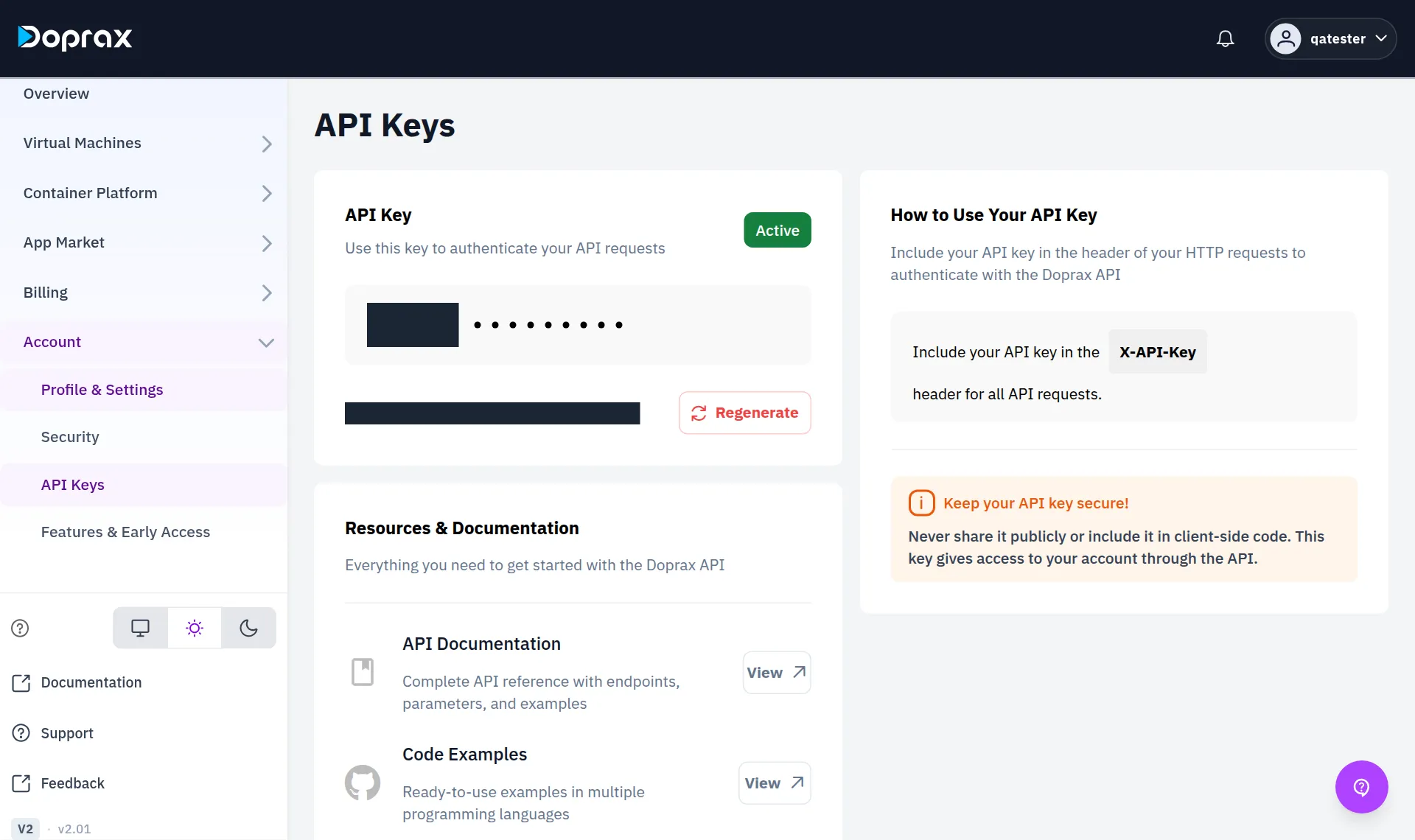
* **An account has one API key.** **Regenerate** makes a new one, and the old one stops working at once.
* **The key gives full access to your account**, the same as signing in. Keep it out of code you publish and out of anything that runs in a browser.
The examples expect the key and the address in two variables:
```bash
export DOPRAX_API_URL=https://www.doprax.com
export DOPRAX_API_KEY=your-key
```
## Your first request
[Section titled “Your first request”](#your-first-request)
Read your balance:
```bash
curl -sS "$DOPRAX_API_URL/api/v2/finance/available-balance/" \
-H "X-API-Key: $DOPRAX_API_KEY"
```
Answer
```json
{
"success": true,
"data": {
"currency": "USD",
"available_balance_cents": 2500,
"accrued_cents": 12,
"recurring_cents": 12,
"usage_cents": 0,
"min_required_cents": 300,
"is_sufficient": true,
"default_min_required_cents": 300
},
"error": null,
"meta": {
"pagination": {}
}
}
```
Amounts are in cents. `available_balance_cents` is what you can still spend: your credit minus what your services have used since the last charge.
## What an answer looks like
[Section titled “What an answer looks like”](#what-an-answer-looks-like)
An answer has `success`, and then either `data` or `error`:
```json
{ "success": true, "data": { }, "error": null, "meta": { "pagination": { } } }
```
When a request fails, `success` is `false`, the HTTP status says what kind of failure it was, and `error.message` says why in words. The same request without a key:
```bash
curl -sS "$DOPRAX_API_URL/api/v2/finance/available-balance/"
```
Answer
```json
{
"success": false,
"data": {},
"error": {
"code": "request_failed",
"message": "Authentication credentials were not provided"
},
"meta": {
"pagination": {}
}
}
```
| Status | Meaning |
| ------ | -------------------------------------------------------------------------- |
| 400 | Something in the request is missing or not allowed. The message names it |
| 403 | No key, or a key that is not valid |
| 404 | No such VM, snapshot or key on your account |
| 409 | The service is in a state that does not allow this now, for example frozen |
| 429 | Too soon after the last operation on this service. See below |
Note
The two newer `/api/v3/` endpoints answer a little differently: a successful create is not wrapped in `data`, and `error` is a short code such as `location_required` with the list of valid choices next to it. [Create a VM with the API](/docs/api/first-vm/) shows both.
## Waits between operations
[Section titled “Waits between operations”](#waits-between-operations)
Operations on one service cannot be fired faster than the service can follow. After an operation you have to wait before the next one on the same service:
| After | Wait |
| --------- | ---------- |
| Start | 60 seconds |
| Reboot | 90 seconds |
| Stop | 15 seconds |
| Change IP | 90 seconds |
A request that comes too soon gets status 429 with a `Retry-After` header holding the number of seconds to wait. There is no general limit on how many requests you may send.
## Send an idempotency key
[Section titled “Send an idempotency key”](#send-an-idempotency-key)
Requests that create or change something take an `idempotency_key`: any text you choose that is different for each thing you mean to do. If a request times out and you send it again with the same key, you do not get a second VM.
## Next
[Section titled “Next”](#next)
* [Create a VM with the API](/docs/api/first-vm/)
* [Reference](/docs/api/reference/): every endpoint with its inputs and answers
# Create a VM with the API
> Five requests from a list of plans to a running server, each shown with the answer it got.
This page creates a small VM, waits until it runs, reads how to log in, and deletes it again. You need an API key and some credit: see [The Doprax API](/docs/api/).
```bash
export DOPRAX_API_URL=https://www.doprax.com
export DOPRAX_API_KEY=your-key
```
Caution
Step 2 creates a real VM that is charged by the hour until you delete it in step 5.
## 1. Pick a plan
[Section titled “1. Pick a plan”](#1-pick-a-plan)
List the plans of one provider. `provm` is Doprax’s own hardware.
```bash
curl -sS "$DOPRAX_API_URL/api/v3/catalogue/plans/?service_type=vm&provider=provm" \
-H "X-API-Key: $DOPRAX_API_KEY"
```
Answer
```json
{
"success": true,
"data": [
{
"plan": "P1",
"product_version_id": "367e0f33-4cf5-498e-9537-cf6d74632e9c",
"service_type": "vm",
"provider": "ProVM",
"provider_code": "provm",
"cpu": 1.0,
"ram_gb": 1.0,
"disk_gb": 20.0,
"locations": [
{
"name": "Poland",
"code": "provm_019b3cb3-3bc8-73e2-8aba-7edcad26ed0f"
},
{
"name": "UK",
"code": "provm_019ac0e3-500c-7e67-a7da-e6ac9916ac1b"
}
],
"monthly_price": 7.95,
"currency": "USD"
},
{
"plan": "P2",
"product_version_id": "48178144-c6ff-4d20-b6dd-8e43d2deb396",
"service_type": "vm",
"provider": "ProVM",
"provider_code": "provm",
"cpu": 1.0,
"ram_gb": 2.0,
"disk_gb": 30.0,
"locations": [
{
"name": "Poland",
"code": "provm_019b3cb3-3bc8-73e2-8aba-7edcad26ed0f"
},
{
"name": "UK",
"code": "provm_019ac0e3-500c-7e67-a7da-e6ac9916ac1b"
}
],
"monthly_price": 12.95,
"currency": "USD"
}
]
}
```
Each plan has a name, its size, its price per month and the locations where it can run. The answer above is cut to two plans and two locations to keep the page short.
## 2. Create the VM
[Section titled “2. Create the VM”](#2-create-the-vm)
Name the plan, the location and the operating system in words. You do not need any ids.
```bash
curl -sS -X POST "$DOPRAX_API_URL/api/v3/services/" \
-H "X-API-Key: $DOPRAX_API_KEY" \
-H "Content-Type: application/json" \
-d '{
"service_type": "vm",
"plan": "P1",
"location": "Poland",
"os": "ubuntu_24_04",
"name": "my-first-vm",
"idempotency_key": "'"$IDEMPOTENCY_KEY"'"
}'
```
Answer
```json
{
"operation_id": "c725787d-7d98-40f5-b155-40ca5127e660",
"service_id": "187030b1-dd8d-4a50-95bb-7dd0ca4acf1c",
"status": "pending",
"action": "create",
"task_id": "",
"status_reason": null,
"created_at": "2026-10-12T05:36:06.703Z",
"started_at": null,
"completed_at": null,
"updated_at": "2026-10-12T05:36:06.703Z",
"success": true,
"resolved": {
"plan": "P1",
"location": "provm_019b3cb3-3bc8-73e2-8aba-7edcad26ed0f",
"os": "ubuntu_24_04"
}
}
```
* `service_id` is the VM’s id for every later request.
* `resolved` says what your words were turned into.
* `idempotency_key` is any text of your own. Sending the same request again with the same key does not create a second VM.
* `os` is optional. Without it you get Ubuntu.
If a word does not match exactly one choice, nothing is created and the answer lists the choices. For example, leaving out `location` on a plan that runs in several places gives status 400 with:
```json
{
"success": false,
"error": "location_required",
"plan": "P1",
"available_locations": [
{ "name": "Poland", "code": "provm_019b3cb3-3bc8-73e2-8aba-7edcad26ed0f" },
{ "name": "UK", "code": "provm_019ac0e3-500c-7e67-a7da-e6ac9916ac1b" }
]
}
```
| `error` | Meaning | The answer also has |
| ---------------------- | ---------------------------------------------------------------------------------------- | --------------------- |
| `plan_not_found` | No plan has that name | `available_plans` |
| `plan_ambiguous` | Several plans match | `matches` |
| `location_required` | The plan runs in several places; say which | `available_locations` |
| `location_not_allowed` | The plan does not run there | `available_locations` |
| `location_ambiguous` | Several locations match, for example two cities in one country | `matches` |
| `os_not_allowed` | The plan does not offer that system | `available_os` |
| `os_ambiguous` | Several systems match, for example `ubuntu` with two versions; use a code from `matches` | `matches` |
## 3. Wait until it runs
[Section titled “3. Wait until it runs”](#3-wait-until-it-runs)
Ask for the VM every ten seconds until `status` is `running`. On ProVM that takes about a minute. On the way you see `provisioning` and `starting`.
```bash
curl -sS "$DOPRAX_API_URL/api/v2/services/instances/$SERVICE_ID/" \
-H "X-API-Key: $DOPRAX_API_KEY"
```
Answer
```json
{
"success": true,
"data": {
"service": {
"service_id": "187030b1-dd8d-4a50-95bb-7dd0ca4acf1c",
"name": "my-first-vm",
"description": null,
"status": "running",
"status_reason": "vm_setup_complete",
"service_type": "vm",
"product_version_id": "367e0f33-4cf5-498e-9537-cf6d74632e9c",
"product": {
"name": "P1",
"version": 1
},
"provider": {
"code": "provm",
"name": "ProVM"
},
"metadata": {
"vm_code": "0eb0c974-8aff-46c6-904a-83b1053e72d8"
},
"created_at": "2026-10-12T05:36:07.545Z",
"updated_at": "2026-10-12T05:36:06.698Z",
"activated_at": "2026-10-12T05:37:08.142Z",
"location": null,
"open_alerts": 0
},
"access": {
"username": "root",
"public_ipv4": "203.0.113.10",
"public_ipv6": "2001:db8::10",
"active_ssh_key": null,
"authentication_type": "password",
"web_ui_url": null
}
}
}
```
`access.public_ipv4` is the address to connect to. `metadata.vm_code` is needed for the next step.
## 4. Read how to log in
[Section titled “4. Read how to log in”](#4-read-how-to-log-in)
```bash
curl -sS "$DOPRAX_API_URL/api/v2/vms/$VM_CODE/actions/access/" \
-H "X-API-Key: $DOPRAX_API_KEY"
```
Answer
```json
{
"success": true,
"data": {
"tempPass": "",
"vmUsername": "root",
"accessMethod": "password",
"userPublicSSHKeyFingerprint": null,
"userPublicSSHKeyTitle": null
},
"error": null,
"meta": {
"pagination": {}
}
}
```
`$VM_CODE` is `metadata.vm_code` from step 3. This VM was created without an SSH key, so it got a generated password: log in with `ssh root@` and the value of `tempPass`.
## 5. Delete it
[Section titled “5. Delete it”](#5-delete-it)
```bash
curl -sS -X POST "$DOPRAX_API_URL/api/v2/services/instances/$SERVICE_ID/operations/" \
-H "X-API-Key: $DOPRAX_API_KEY" \
-H "Content-Type: application/json" \
-d '{"action": "delete", "idempotency_key": "'"$IDEMPOTENCY_KEY-delete"'"}'
```
Answer
```json
{
"success": true,
"data": {
"operation_id": "6cc2ca76-3ae7-4fc0-bad8-e44746cb8c65",
"service_id": "187030b1-dd8d-4a50-95bb-7dd0ca4acf1c",
"status": "pending",
"action": "delete",
"task_id": "",
"status_reason": null,
"created_at": "2026-10-12T05:37:11.673Z",
"started_at": null,
"completed_at": null,
"updated_at": "2026-10-12T05:37:11.673Z"
},
"error": null,
"meta": {
"pagination": {}
}
}
```
Deleting ends the charge and cannot be undone. Other operations go to the same address with a different `action`: `start`, `stop`, `reboot`. See the [reference](/docs/api/reference/).
# What the App Market is
> What the App Market offers, who publishes its apps, what an install costs, and what it cannot do today.
The App Market is a list of ready-to-run apps. You choose an app and one of your virtual machines, and Doprax installs the app on that VM for you. You can also add an app of your own.
On 12 October 2026 the App Market listed 24 apps, all of them for virtual machines: VPN and proxy panels, WordPress, code-server, Ollama, Vaultwarden, MongoDB, Home Assistant and others.
## Open the App Market
[Section titled “Open the App Market”](#open-the-app-market)
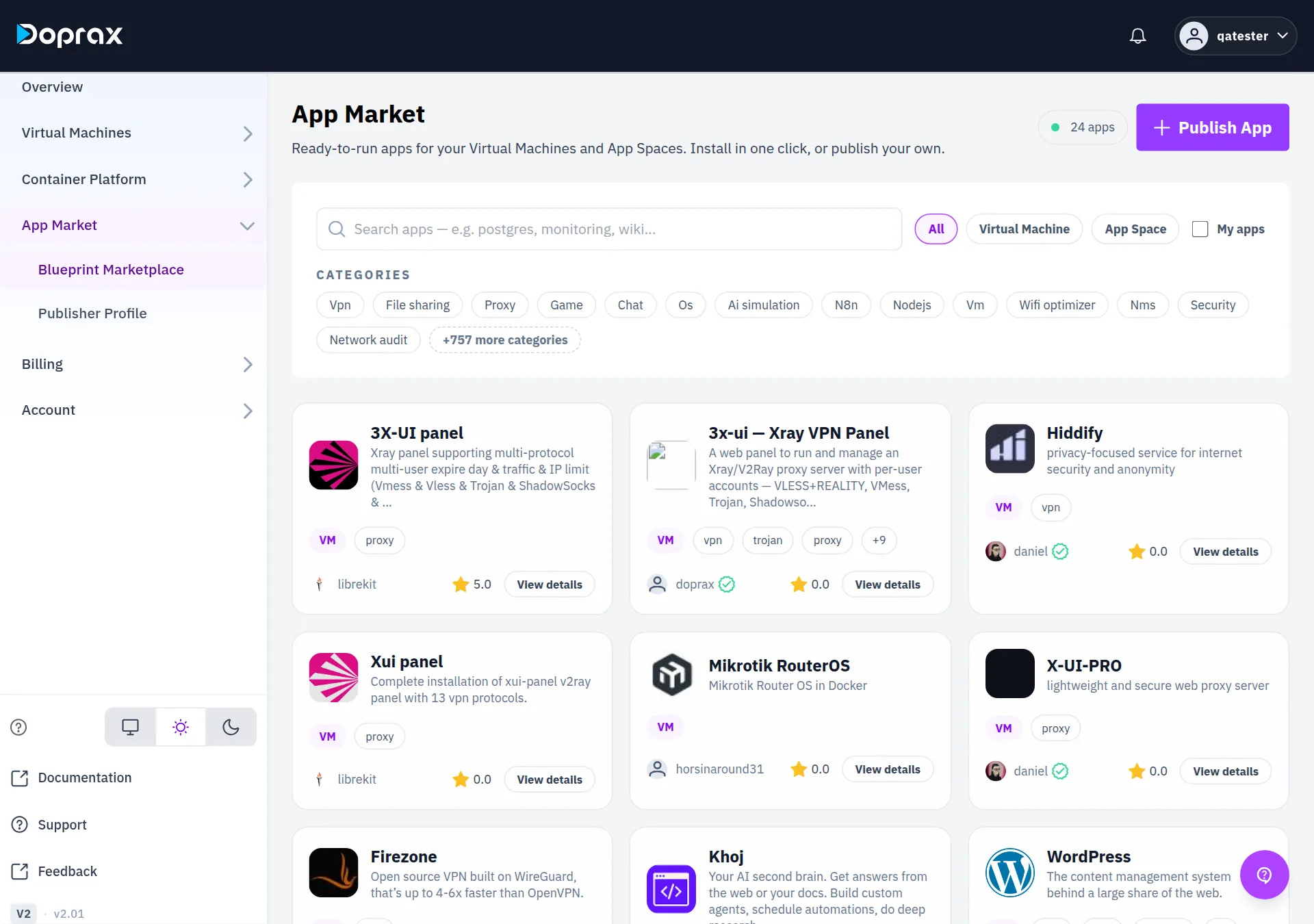
In the dashboard menu, select **App Market**, then **Blueprint Marketplace**:
The dashboard calls an app in the market a “blueprint”. The menu has two items under **App Market**:
| Menu item | What it is for |
| ------------------------- | ------------------------------------------------------------ |
| **Blueprint Marketplace** | The list of apps. You install, review and add apps from here |
| **Publisher Profile** | The public page about you as a publisher of apps |
## What a card shows
[Section titled “What a card shows”](#what-a-card-shows)
| On the card | What it means |
| ----------------------------- | -------------------------------------------------------------------------------------------------------------- |
| Name and a short description | The publisher’s own text |
| **VM** or **App Space** | Where the app is meant to be installed |
| Up to three tags, then **+N** | The app’s categories. **+N** counts the tags that are not shown |
| A user name | The publisher. Select it to open their [publisher profile](/docs/app-market/public-profile-doprax-app-market/) |
| A star and a number | The average of all reviews, from 0.0 to 5.0. An app without reviews shows 0.0 |
| **View details** | Opens the app’s page |
Apps with reviews come first, the best rated at the top. Apps without reviews follow, the most installed first.
## What an app’s page shows
[Section titled “What an app’s page shows”](#what-an-apps-page-shows)
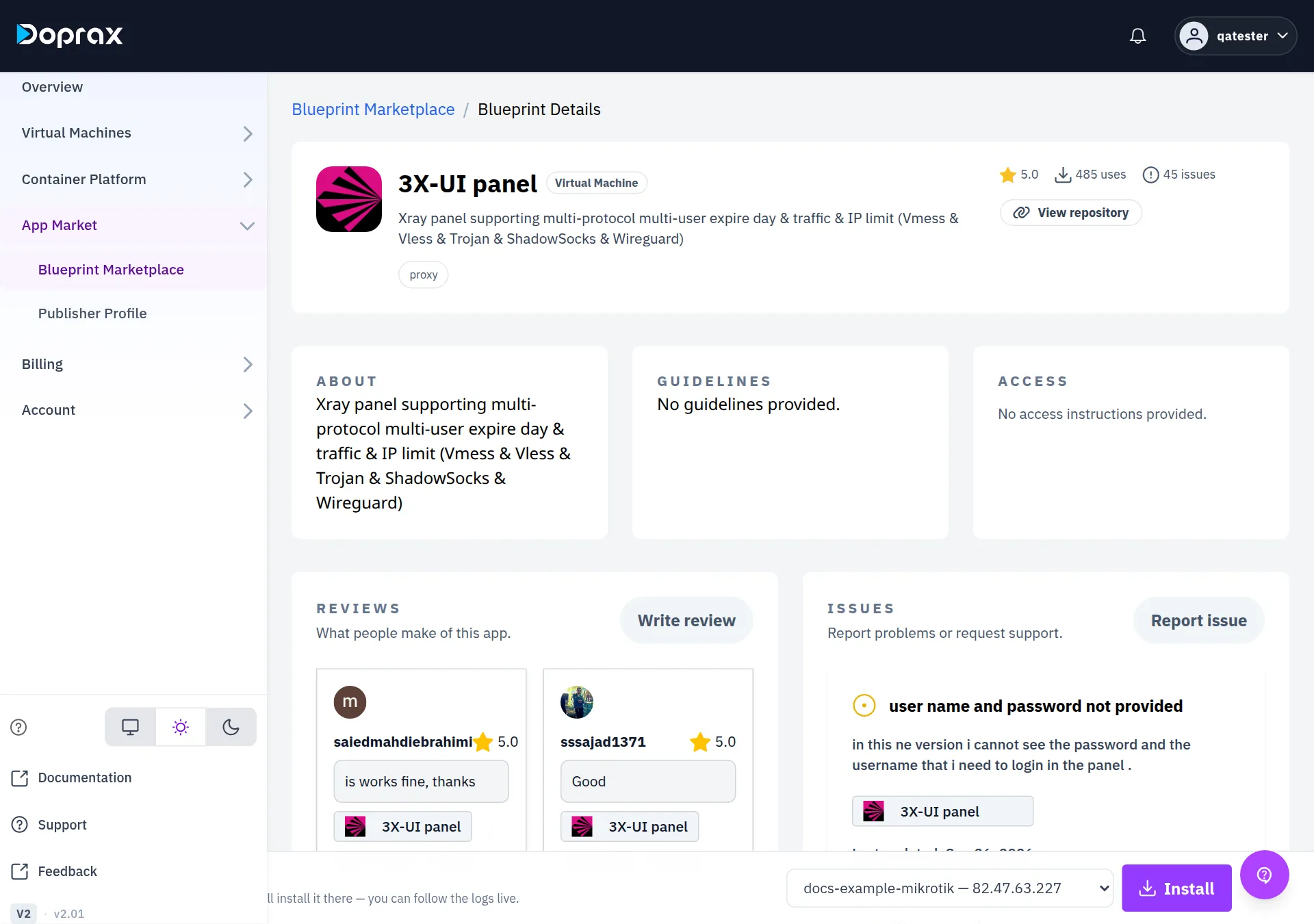
| Part | What it shows |
| --------------------- | -------------------------------------------------------------------------------------- |
| Top of the page | Name, **Virtual Machine** or **App Space**, description, tags |
| The star | The average rating |
| **N uses** | How many times the app was installed with success |
| **N issues** | How many issues were reported on the app, open or not |
| **View repository** | A link to the app’s source repository, when it has one |
| **ABOUT** | The publisher’s description of the app |
| **GUIDELINES** | The publisher’s notes on installing and using it. “No guidelines provided.” when empty |
| **ACCESS** | How you reach the app after the install. “No access instructions provided.” when empty |
| **REVIEWS** | The three newest reviews, and **Write review** |
| **ISSUES** | The six newest issues, and **Report issue** |
| The bar at the bottom | **Install**, with a list of your VMs |
When you have installed the app, the page also shows **YOUR INSTALLATIONS**: the VMs you installed it on, with the address and passwords of each install.
* To install an app: [Install an app on a VM](/docs/app-market/explore-page-doprax-app-market/).
* To rate an app or report a problem: [Reviews and issues](/docs/app-market/raising-issues-in-published-apps/).
## Who publishes the apps
[Section titled “Who publishes the apps”](#who-publishes-the-apps)
The name on a card tells you who published the app. There are two kinds.
**Apps published by `doprax`.** Doprax maintains these itself. The card shows the name `doprax` with a green tick. This publisher has no profile page.
**Apps published by other customers.** The card shows the customer’s user name. Doprax installs such an app by running the Ansible playbook from the publisher’s GitHub repository on your VM, as the `root` user. The playbook is written by the publisher, not by Doprax. Before you install, open **View repository** and read what it does, and read the app’s **ISSUES**.
## What it costs
[Section titled “What it costs”](#what-it-costs)
Installing an app is not charged. An app has no price, and an install takes nothing from your credit.
You pay for the VM the app runs on, by the hour, as for any VM. See [What a virtual machine costs](/docs/virtual-machines/what-a-virtual-machine-costs/).
## Limits
[Section titled “Limits”](#limits)
* **Apps for App Spaces cannot be installed today.** The **App Space** filter exists, but it shows no app on production. The install bar only installs on virtual machines: for an App Space app it shows “This app targets App Spaces” and no **Install** button.
* **The dashboard asks for nothing but the VM.** There are no fields for settings such as a domain or a port. Values an app needs are taken from its defaults, and its passwords are generated.
* **There is no uninstall.** The dashboard cannot remove an app from a VM. See [Remove an app](/docs/app-market/explore-page-doprax-app-market/#remove-an-app).
* **Nothing checks that the app fits your VM.** The operating system and the size of the VM are not checked before an install starts.
* **Adding your own app does not list it for other customers.** See [Publish an app](/docs/app-market/my-apps-doprax-app-market/).
# Install an app from the App Market on a virtual machine
> How to find an app, install it on one of your VMs, follow the install, find its address and passwords, and what to do when the install fails.
You choose an app and one of your virtual machines. Doprax connects to the VM over SSH, installs the app, and shows you the log while it runs. At the end the dashboard shows the app’s address and passwords, when the app declares them.
## Before you start
[Section titled “Before you start”](#before-you-start)
* **You need a running VM.** If you have none, the install bar shows “You have no active VMs yet” and a **Create a VM** button. See [Create your first VM](/docs/get-started/first-vm/).
* **Doprax must be able to log in to the VM.** It connects as `root`, to the VM’s public IPv4 address, on port 22, with a key that Doprax put on the VM when the VM was created. If you removed that key, turned off `root` login, or moved SSH to another port, the install fails.
* **Installing costs nothing.** You pay for the VM only.
* **An install changes the VM and the dashboard cannot undo it.** If the VM holds something you need, [take a snapshot](/docs/virtual-machines/snapshots-in-virtual-machines/) first.
Hetzner VMs
On a Hetzner VM only TCP ports 80, 443 and 19000 to 19100 can be reached from the internet. An app that listens on another port installs, but you cannot open it. ProVM and OVH VMs have all ports open. See [Providers](/docs/virtual-machines/virtual-machine-providers/).
## Find an app
[Section titled “Find an app”](#find-an-app)
1. In the dashboard menu, select **App Market**, then **Blueprint Marketplace**.
2. Select **Virtual Machine** to see only the apps that install on a VM.
3. Type a name in the search box. The list changes when you stop typing. The search looks at the name and the description of each app.
4. Or select one or more tags under **CATEGORIES**. You get the apps that have at least one of the tags you selected. **+N more categories** shows all tags.
5. **Clear filters** brings the full list back. If nothing matches, the page says “No apps found”.
## Read the app’s page
[Section titled “Read the app’s page”](#read-the-apps-page)
Select the card, or **View details**. Before you install, look at:
* **ABOUT** and **GUIDELINES**: what the app is and what the publisher says about using it.
* **ACCESS**: how you will reach the app after the install.
* **ISSUES**: what other customers reported.
* The publisher’s name on the card, and **View repository**. An app from another customer is installed by a playbook that the publisher wrote, and it runs as `root` on your VM.
## Install
[Section titled “Install”](#install)
1. Go to the bar at the bottom of the app’s page. It says “Choose a Virtual Machine and we’ll install it there — you can follow the logs live.”
2. Choose the VM in the list. Each VM is shown with its name and IPv4 address.
3. Select **Install**. There is no confirmation: the install starts at once.
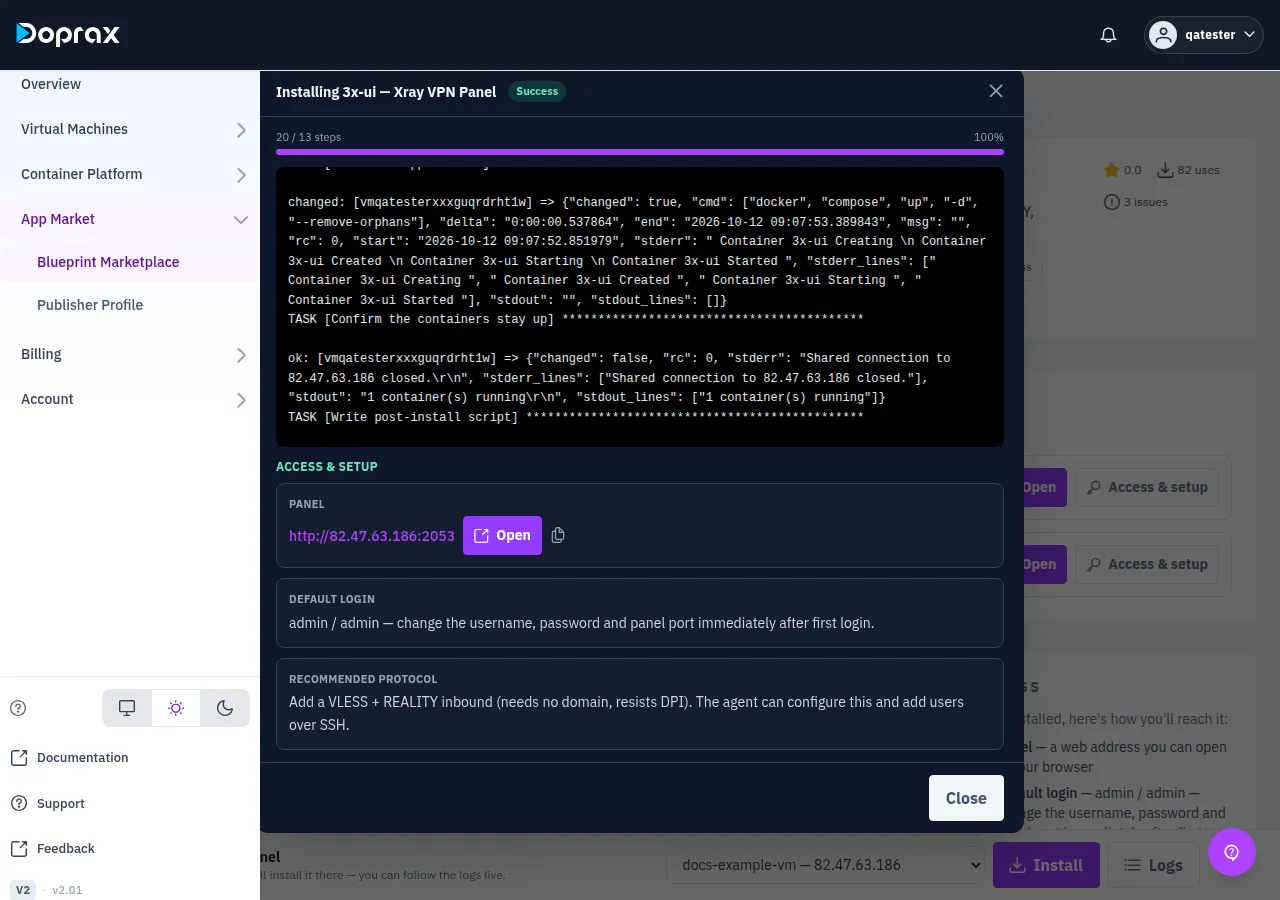
4. A window named “Installing”, with the app’s name, opens. It shows the status **Running**, a count of steps such as “3 / 14 steps”, and the log as it is written.
5. Wait until the status is **Success**.
While the install runs:
* **Close** hides the window. The install goes on. **Logs** in the install bar opens the window again, as long as you stay on the page.
* **Cancel install** stops the install. Steps that already ran on the VM are not undone.
* An install that is still running after one hour is stopped by the platform.
## Find the address and the passwords
[Section titled “Find the address and the passwords”](#find-the-address-and-the-passwords)
When the status is **Success**, the window shows **ACCESS & SETUP**. It can take a few seconds to appear (“Fetching access details…”). It lists what the app’s publisher declared:
| Item | How it is shown |
| ----------------- | ------------------------------------------------------------------ |
| A web address | A link, an **Open** button and a copy button |
| A password or key | Hidden behind dots. The eye shows it, the copy button copies it |
| A note | Plain text, for example the default login or the first thing to do |
You can read the same details later. Open the app’s page again: **YOUR INSTALLATIONS** lists each VM you installed the app on, with the status of the install. **Open** goes to the app’s web address. **Access & setup** shows the list above.
Apps that show no access details
An app that another customer published from a repository declares no access details. For such an app the **ACCESS & SETUP** panel stays on “Fetching access details…”, and **YOUR INSTALLATIONS** says “No access details were recorded for this install.” Look in the log for an address or a password that the playbook printed, and read the app’s **GUIDELINES**, **ACCESS** and repository.
## Where your installed apps are listed
[Section titled “Where your installed apps are listed”](#where-your-installed-apps-are-listed)
**On the app’s page**, under **YOUR INSTALLATIONS**, as described above.
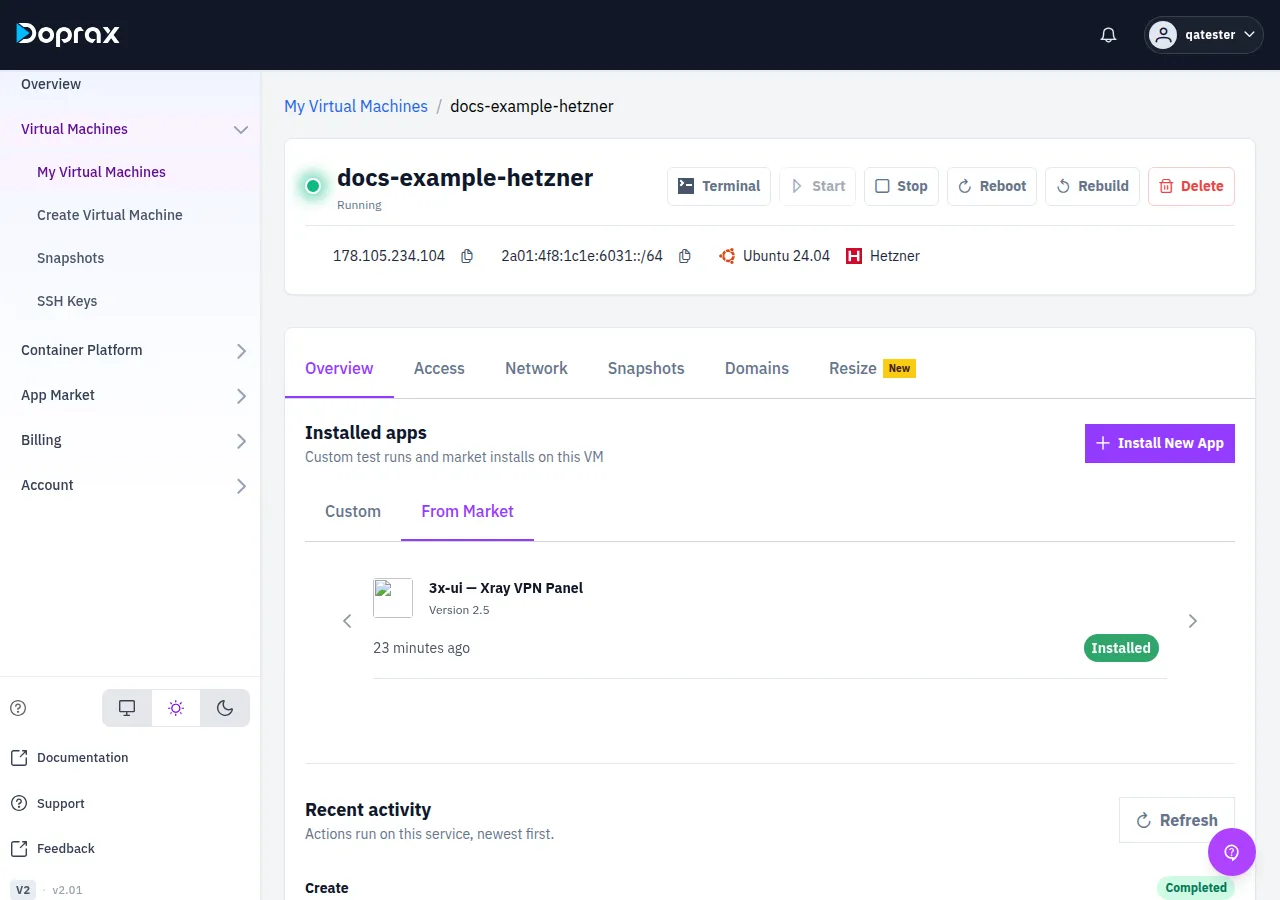
**On the VM’s page**, on the **Overview** tab, under **Installed apps**. It has two tabs and opens on **Custom**:
| Tab | What it lists |
| --------------- | --------------------------------------------------------------------------------------------------------------- |
| **From Market** | The apps you installed on this VM from the App Market: name, version, when the last install ran, and its status |
| **Custom** | Test installs of apps that you are publishing yourself |
Selecting an app under **From Market** opens the screen of that install, with **Installation status** and **Installation Logs**.
The **Install New App** button there opens an older list of the same apps, not **Blueprint Marketplace**. To follow this page, use **App Market** > **Blueprint Marketplace** in the menu.
## What the install does on your VM
[Section titled “What the install does on your VM”](#what-the-install-does-on-your-vm)
Doprax logs in to the VM over SSH as `root` and runs an Ansible playbook. Which playbook depends on the app.
**An app that Doprax keeps as a Docker Compose definition** is installed by one playbook that Doprax maintains. It does this:
1. It installs Docker, if the `docker` command is missing. It uses Docker’s own install script from `get.docker.com`, after waiting for the VM’s first-boot setup and package updates to end.
2. It creates the directory `/opt/doprax/apps//` and writes two files into it: `docker-compose.yml` (the app) and `.env` (its settings, with the generated passwords).
3. It pulls the images and starts the app with `docker compose up -d`.
4. It watches the containers for about two minutes. If one stops or keeps restarting, the install fails and the log shows what that container printed.
5. It runs the app’s own post-install script, if the app has one.
**An app that another customer published from a repository** is installed by the playbook in that repository. Doprax downloads the repository at the commit that was recorded when the app version was created, and runs the playbook against your VM. What happens on the VM is decided by that playbook.
## What is checked before an install starts
[Section titled “What is checked before an install starts”](#what-is-checked-before-an-install-starts)
| Check | What you see if it is not met |
| ------------------------------------------------------------------------ | ------------------------------------------------------------------------------------ |
| The VM is yours, has finished being created, and is not deleted | The VM is not in the list, or “Target VM not found” |
| The app is for virtual machines and has a published version | “This app has no published version to install.” or “Market app version not found” |
| The app is not your own | “Market app version not found”. You cannot install your own app from the install bar |
| This version of the app is not already installed with success on this VM | “Market app already installed successfully on this VM” |
| The VM answers over SSH. Doprax tries 12 times, over a few minutes | “machine-unreachable: the machine never became usable over SSH” |
Two things are **not** checked: the operating system of the VM, and its memory and disk size. An app can start to install on a VM it cannot run on, and fail part of the way.
## If the install fails
[Section titled “If the install fails”](#if-the-install-fails)
The status turns to **Failed** and a red box shows the reason: the name of the step that failed and what it printed. The full log is above it.
| Reason | What to do |
| ---------------------------------------------- | -------------------------------------------------------------------------------------------------------------------------------------------------------- |
| “machine-unreachable: …” | The VM did not answer over SSH. Check that it is running and that `root` can log in on port 22 with the key Doprax placed. Then select **Install** again |
| “The application started but did not stay up:” | A container of the app stopped or kept restarting. The lines below the message are that container’s last output |
| “… is required” | The app needs a value that the dashboard has no field for. It cannot be installed from the dashboard. Report it as an issue on the app’s page |
| Another step failed | Read the log. If you can fix the cause on the VM, do so, then select **Install** again |
Good to know:
* **Install** after a failure runs the whole install again on the same VM.
* Nothing is rolled back. What the earlier steps put on the VM stays there.
* To start from a clean VM, [rebuild it](/docs/virtual-machines/rebuild/). A rebuild erases the VM’s disk.
* If the app itself is at fault, [report an issue](/docs/app-market/raising-issues-in-published-apps/) on its page, with the lines of the log that show the error.
## Remove an app
[Section titled “Remove an app”](#remove-an-app)
The dashboard has no uninstall. You remove an app on the VM yourself.
An app that was installed from a Docker Compose definition lives in `/opt/doprax/apps//`. Log in to the VM and look for it:
```bash
ls /opt/doprax/apps/
```
To stop the app and remove its containers, run this in the app’s directory:
```bash
cd /opt/doprax/apps/
docker compose down
```
For an app installed by a publisher’s playbook, Doprax keeps no record of what the playbook put on the VM. Read the repository to see what it installed.
Two things to know after you removed an app by hand:
* **The dashboard still lists it as installed.** The record of the install stays.
* **You cannot install the same version on that VM again.** The dashboard answers “Market app already installed successfully on this VM”.
A [rebuild](/docs/virtual-machines/rebuild/) of the VM removes the record on ProVM, Hetzner, OVH, Vultr, DigitalOcean and Google Cloud VMs. Then the app can be installed again. On a Gcore or Scaleway VM a rebuild does not remove the record.
# Publish your own app in the App Market
> What your repository must contain, how to add your app, what Draft, In Review and Published mean, and what editing an app changes.
You can add an app of your own to the App Market from a public GitHub repository. The app is saved under your account, and you can describe it and edit it.
Adding an app does not list it for other customers
The button is named **Publish Blueprint**, but it saves your app as **Draft** or **In Review**. Only you find an app with these statuses in the list of apps. Other customers find an app only when it is **Published**, and the screens in the menu have no button for that step. See [Draft, In Review and Published](#draft-in-review-and-published).
## What your repository must contain
[Section titled “What your repository must contain”](#what-your-repository-must-contain)
The repository must be **public** and on **GitHub**. Give its address in this form: `https://github.com//`. Doprax reads it without a login, so it cannot read a private repository. GitLab, Bitbucket and other hosts are not accepted.
What else it needs depends on the target platform you choose.
| Target platform | Required file | Where Doprax looks |
| ------------------- | ----------------------------------------------------------- | ----------------------------------------------------------------------------------------------------------------------------------------- |
| **Virtual Machine** | An Ansible playbook named `playbook.yml` or `playbook.yaml` | At the top of the repository first. If it is not there, the first file in any folder whose name ends in `playbook.yml` or `playbook.yaml` |
| **App Space** | A file named `doprax-compose.yml` or `doprax-compose.yaml` | At the top of the repository first, then in any folder |
A `README` at the top of the repository is optional. Doprax uses its text to suggest a description.
You do not write a manifest or any other Doprax file. Nothing else in the repository is checked.
Apps for App Spaces
You can save an app with the target **App Space**, but nothing installs it today. The install bar only installs on virtual machines.
### How your playbook is run
[Section titled “How your playbook is run”](#how-your-playbook-is-run)
When a customer installs your app, Doprax downloads your repository and runs the playbook with Ansible against the customer’s VM.
* The inventory holds one host, the customer’s VM. Write your plays for `hosts: all`.
* Ansible logs in as `root`.
* The log of the run is shown to the customer, line by line.
* The run counts as a success when Ansible ends without a failed task.
These variables are passed to the playbook:
| Variable | Value |
| --------------- | ---------------------------------------------------------------------------- |
| `SERVER_IP` | The public IPv4 address of the customer’s VM |
| `SERVER_DOMAIN` | A domain that was added to the VM in the dashboard. Empty when there is none |
| `INSTALL_ID` | A unique code of this install |
| `APP_SLUG` | `app` |
| `APP_DIR` | `/opt/doprax/apps/app` |
`APP_SLUG` and `APP_DIR` have the same value for every app that is added through these screens. Do not rely on them to keep your app apart from another one.
### Which commit is installed
[Section titled “Which commit is installed”](#which-commit-is-installed)
When you save the app, Doprax records the newest commit of the repository’s default branch. Installs use exactly that commit. A commit you push later does not change what customers install, and the screens in the menu have no way to add a new version.
## Add your app
[Section titled “Add your app”](#add-your-app)
1. In the dashboard menu, select **App Market**, then **Blueprint Marketplace**.
2. Select **Publish App**. The page **Publish App Blueprint** opens.
3. Under **TARGET PLATFORM**, select **Virtual Machine** or **App Space**.
4. Under **REPOSITORY**, paste the address of your repository and select **Verify**.
5. When the page says “Repository verified.”, fill in **APP BLUEPRINT DETAILS** (see the table below).
6. Select **Publish Blueprint**. The message “App blueprint saved” appears and you are back on the list of apps.
If **Verify** fails, the page shows why:
| Message | Cause |
| ----------------------------------------------- | --------------------------------------------------------------------------------------------------------------------------------------- |
| “Invalid GitHub repo link.” | The address is not of the form `https://github.com//` |
| “Repo does not have a playbook.yml file.” | No playbook was found. You get the same message when the repository is private or its name is misspelled, because Doprax cannot read it |
| “Repo does not have a doprax-compose.yml file.” | The same, for the target **App Space** |
| “This repository already exists.” | You already added an app from this repository. A repository can be added once per account |
If you change the target platform after a successful check, select **Verify** again.
### The details
[Section titled “The details”](#the-details)
| Field | What to enter |
| ----------------------- | ----------------------------------------------------------------------------------------------------------------------------------------------------------- |
| **App blueprint image** | Optional. A `.png`, `.jpg` or `.jpeg` file |
| **Status** | **Draft** or **In Review** |
| **Title** | Required. Filled in with the name of the repository |
| **Version tag** | A name for the version, for example `v1.0.0`. If you leave it empty it becomes `v1.0` |
| **Description** | Required. Filled in from your README, or from the repository’s description. Links are not allowed |
| **Tags** | At least one. Choose from the list, or select **Add New** to create a tag. Customers filter the list of apps by these tags |
| **Readme content** | Three texts: **About**, **Guidelines** and **Access**. They appear on your app’s page under **ABOUT**, **GUIDELINES** and **ACCESS**. Links are not allowed |
Use **Access** to tell customers how to reach the app after the install: the address, the port and where to find the login. The dashboard shows no address or password by itself for an app that is installed from a repository playbook.
## Draft, In Review and Published
[Section titled “Draft, In Review and Published”](#draft-in-review-and-published)
An app has one of these statuses. Your own apps show it as a label on the card.
| Status | Who finds the app in the list | How an app gets it |
| ------------- | ---------------------------------------- | ----------------------------------------- |
| **Draft** | Only you | You choose it in the form |
| **In Review** | Only you | You choose it in the form |
| **Published** | Every customer. The app can be installed | Not possible from the screens in the menu |
Choosing **In Review** starts nothing by itself. It is a label, like **Draft**.
The title of an app that is not published can still be seen in one place: your [publisher profile](/docs/app-market/public-profile-doprax-app-market/) lists your top apps by name, whatever their status.
An app is listed for everyone only when one of its versions is published. The platform publishes a version only after a test install of that version succeeded on one of your own VMs. Today:
* The screens in the menu have no button to run that test or to publish.
* Test runs of an app that is installed by a repository playbook are refused, unless our team has switched them on for your account. The platform’s message says: “Repository-playbook apps cannot be tested from this environment while installs are being moved onto the target machine. Apps already published keep working, compose apps are unaffected, and support can enable this for your account.”
To have your app listed, write to our team through [Support](https://www.doprax.com/v/support/) and name the app.
## Find your apps
[Section titled “Find your apps”](#find-your-apps)
On **Blueprint Marketplace**, tick **My apps**. The list then shows only your apps, in every status, each with its status label. Search, the platform filter and the categories work together with **My apps**.
Without the tick, your apps that are not listed for everyone appear at the top of the first page, for you only.
Other customers find your published apps on your [publisher profile](/docs/app-market/public-profile-doprax-app-market/), on the **Apps** tab.
## Edit an app
[Section titled “Edit an app”](#edit-an-app)
1. Open your app’s page and select **Edit**. Only you see this button.
2. Change what you need on the page **Edit Blueprint**.
3. Select **Save changes**.
You can change the image, the status, the title, the version tag, the description, the tags, and the texts **About**, **Guidelines** and **Access**.
You cannot change the repository (“Repository cannot be changed after blueprint creation.”) or the target platform.
Saving an edit takes a published app off the list
The **Status** field offers only **Draft** and **In Review**. For an app that is **Published**, the form opens with **Draft** selected, and **Save changes** stores the status that is selected. The app then leaves the list that other customers see, and the screens in the menu cannot publish it again. Do not save an edit of a published app unless you accept this. Ask our team first.
## What is not possible
[Section titled “What is not possible”](#what-is-not-possible)
* **Delete an app.** The screens in the menu have no delete button.
* **Add a new version.** See [Which commit is installed](#which-commit-is-installed).
* **Ask the customer for settings.** The install bar asks only for the VM. Your playbook gets the variables in the table above and nothing else.
* **Install your own app from the install bar.** The platform answers “Market app version not found”.
* **Review your own app.** The **Write review** button is not shown to the publisher.
# Your publisher profile in the App Market
> What the Publisher Profile page shows to other customers, what its numbers mean, and where you edit your name, bio, skills and links.
Every account has a publisher profile. It is the page other customers open when they select your name on one of your apps. It shows who you are and how your apps are doing.
## Open your profile
[Section titled “Open your profile”](#open-your-profile)
In the dashboard menu, select **App Market**, then **Publisher Profile**:
The page is named **Blueprint Publisher Profile**. You do not have to publish an app first: the profile exists as soon as you open it.
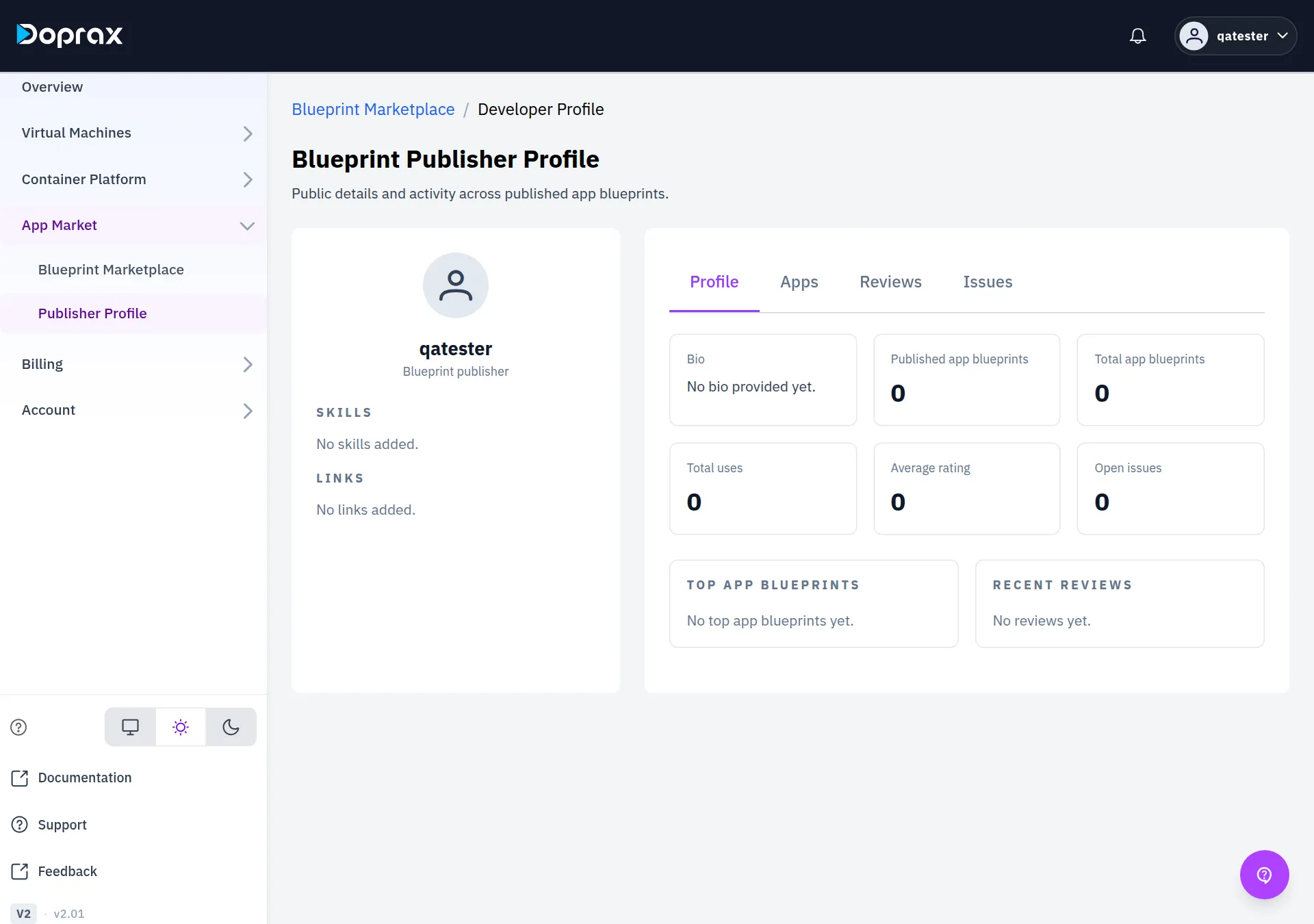
## Who can see it
[Section titled “Who can see it”](#who-can-see-it)
A signed-in customer opens your profile by selecting your user name on the card of one of your apps. Other customers see cards of your apps only when the apps are published, so in practice your profile is found once you have a published app.
Apps published by `doprax` have no publisher profile.
## What the page shows
[Section titled “What the page shows”](#what-the-page-shows)
On the left:
| Part | Where it comes from |
| ---------- | --------------------------------------------------------------------------------------------- |
| Picture | Your account picture |
| Name | Your **Full Name**. If it is empty, your user name |
| **SKILLS** | The skills you added. “No skills added.” when empty |
| **LINKS** | Your GitHub, LinkedIn, X and Website links, each with **Visit**. “No links added.” when empty |
On the right are four tabs.
### Profile
[Section titled “Profile”](#profile)
| Box | What it shows |
| ---------------------------- | ---------------------------------------------------------------------------------------------------------- |
| **Bio** | The **About** text of your account. “No bio provided yet.” when empty |
| **Published app blueprints** | How many of your apps have the status Published |
| **Total app blueprints** | How many apps you added in total. Drafts are counted too |
| **Total uses** | Successful installs of your apps. A customer who installed the same app more than once counts once |
| **Average rating** | The average of all reviews of all your apps |
| **Open issues** | The number of issues reported on your apps. Closed and resolved issues are counted too |
| **TOP APP BLUEPRINTS** | Up to five of your apps with their number of uses. Apps with reviews come first, the best rated at the top |
| **RECENT REVIEWS** | The five newest reviews of your apps |
**TOP APP BLUEPRINTS** is taken from all your apps, not only the published ones. The title of an app that is still a draft can appear there.
### Apps
[Section titled “Apps”](#apps)
The publisher’s published apps, each with its description.
### Reviews
[Section titled “Reviews”](#reviews)
All reviews of the publisher’s apps, with the user name of the reviewer, the stars, the text, the app and the date.
### Issues
[Section titled “Issues”](#issues)
All issues reported on the publisher’s apps. Select an issue to open it and read or continue its conversation. As the publisher you change the status of an issue here. See [Reviews and issues](/docs/app-market/raising-issues-in-published-apps/).
## Edit your profile
[Section titled “Edit your profile”](#edit-your-profile)
The profile page itself has no edit buttons. You edit the fields in your account settings.
1. In the dashboard menu, select **Account**, then **Profile & Settings**:
2. Stay on the **Profile** tab.
3. Change the fields (see the table below).
4. Select **Save Changes** at the bottom. Skills and links that you added or removed are stored only when you select **Save Changes**.

| Field | Where | Notes |
| --------------------- | -------------------------------------------------------------------------- | ---------------------------------------------------------------------------------------------- |
| Picture | Select the round picture at the top, choose an image, then **Save** | |
| **Full Name** | **PUBLIC PROFILE** | Shown as your name on the profile |
| **About** | **PUBLIC PROFILE** | Up to 256 characters. Shown as **Bio** |
| **Location**, **URL** | **PUBLIC PROFILE** | Saved with your account. The Publisher Profile page does not show them |
| Skills | **SKILLS** > **Add** | Type one skill, for example “Docker”, and select **Save**. Remove a skill with the cross on it |
| Links | **LINKS** > **Add** next to **GitHub**, **LinkedIn**, **X** or **Website** | One link each. **Edit** changes it, the bin removes it |
A link must be an `https://` address. The GitHub link must be your page on `github.com`, the LinkedIn link your page on `linkedin.com`, and the X link your page on `x.com` or `twitter.com`. Otherwise the dashboard says “Invalid link”.
Your **Username** and **Email** are in the block **INTERNAL** on the same tab. They cannot be changed there.
## What you cannot change
[Section titled “What you cannot change”](#what-you-cannot-change)
* **The numbers.** They are counted from your apps, their installs, reviews and issues.
* **The list of apps.** It follows the status of your apps.
* **Reviews and issues.** You cannot remove a review or an issue from your profile.
# Review an app or report an issue with it
> How to rate an app, how to report a problem to its publisher, who can change the status of an issue, and where a publisher finds the issues on their apps.
Every app in the App Market has reviews and issues on its page. A review is your rating of the app. An issue is a problem you report to the app’s publisher. Both are public: anyone who opens the app’s page can read them, with your user name.
You must be signed in to write a review or report an issue. You do not have to have installed the app.
## Write a review
[Section titled “Write a review”](#write-a-review)
1. Open the app’s page from **App Market** > **Blueprint Marketplace**.
2. Under **REVIEWS**, select **Write review**.
3. In the window **Give Your Feedback**, select one to five stars.
4. Type your reasons, in up to 130 characters. The text is required.
5. Select **Submit rating**.
What to know:
* **You have one review per app.** If you send another one, it replaces your earlier review: the stars and the text.
* When your review is one of those shown on the page, the button is named **Edit review** and the window opens with your stars and text. Otherwise it is named **Write review** and opens empty. In both cases your earlier review is replaced.
* **You cannot delete a review.** You can only replace it.
* **You cannot review your own app.** The publisher of an app does not get the button.
* The app’s page shows the three newest reviews. The star on the app’s card is the average of all its reviews.
* All reviews of a publisher’s apps are on the publisher’s [profile](/docs/app-market/public-profile-doprax-app-market/), on the **Reviews** tab.
## Report an issue
[Section titled “Report an issue”](#report-an-issue)
1. Open the app’s page.
2. Under **ISSUES**, select **Report issue**.
3. In the window **Raise an issue**, fill in **Issue subject** and **Description**. The description holds up to 150 characters.
4. Select **Raise issue**.
The issue appears under **ISSUES** with the status **Pending**.
The description is short. Say what failed in it, then open the issue and add the details as a message: what you did, the VM’s operating system, and the lines of the install log that show the error.
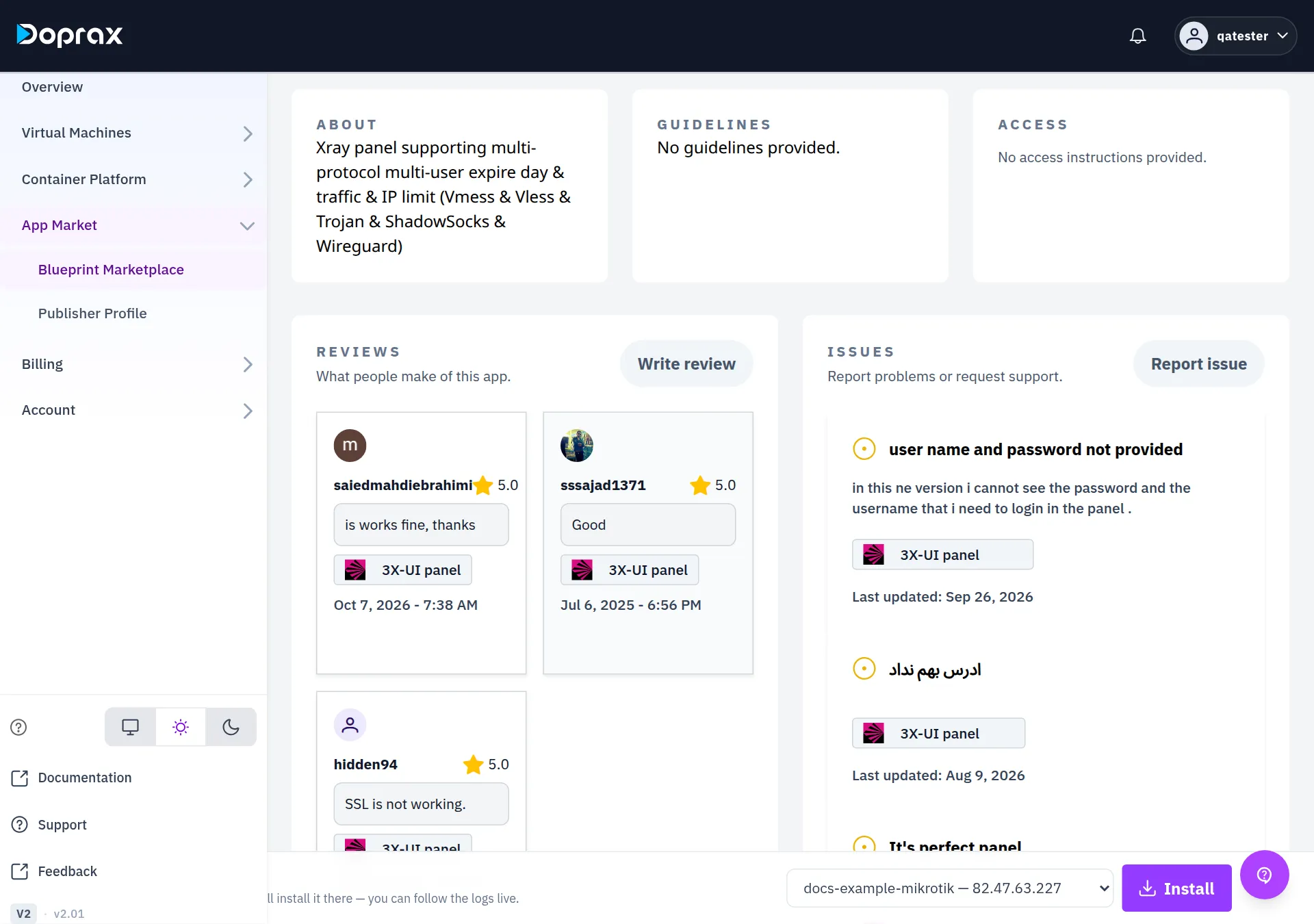
## Follow an issue
[Section titled “Follow an issue”](#follow-an-issue)
Select the issue in the list. A panel opens on the right with the status, the subject, the description and the conversation.
* To write, type in **Type a message** and select **Send**.
* To answer one message, select **Reply this comment** under it.
* Every signed-in customer can write in an issue, not only the reporter and the publisher.
* A closed issue has no message box.
**Doprax sends no email and no notification about issues.** Nobody is told when an issue is opened, answered or changed. Come back to the app’s page to look.
The app’s page shows the six newest issues. Older issues of an app from another customer are on that publisher’s profile, on the **Issues** tab. For an app published by `doprax` there is no profile, so issues older than the six newest cannot be opened in the dashboard.
## Who can change the status of an issue
[Section titled “Who can change the status of an issue”](#who-can-change-the-status-of-an-issue)
| Status | Who can set it |
| ------------ | ------------------------------------------------- |
| **Pending** | The publisher of the app. A new issue starts here |
| **Ongoing** | The publisher of the app |
| **Resolved** | The publisher of the app |
| **Closed** | Only the customer who reported the issue |
* **If you reported the issue**, you see **Close issue** at the bottom of the panel. Use it when the problem is solved for you. You cannot set the other statuses.
* **If you published the app**, you see a list with the status at the top of the panel. Choose **Pending**, **Ongoing** or **Resolved**. You cannot close an issue that someone else reported.
* **Everyone else** sees the status and cannot change it.
Closing does not lock the status. The publisher can still set a closed issue to **Pending**, **Ongoing** or **Resolved**.
For an app published by `doprax`, no customer account is the publisher. The status of its issues stays **Pending** in the dashboard until the reporter closes the issue.
## If you publish apps: find the issues on your apps
[Section titled “If you publish apps: find the issues on your apps”](#if-you-publish-apps-find-the-issues-on-your-apps)
1. In the dashboard menu, select **App Market**, then **Publisher Profile**.
2. Select the **Issues** tab. It lists the issues that customers reported on all your apps.
3. Select an issue to read it, answer it and set its status.
The number **Open issues** on the **Profile** tab counts all issues on your apps, the closed and resolved ones too.
There is no list of the issues that you reported yourself on other publishers’ apps. Find them on the page of the app.
# What App Space is
> Run containers on Doprax: what an App Space is, what you can run in one, what it costs, and what is not available yet.
App Space runs your containers without you looking after a server. You give it a Docker image or a GitHub repository, it runs it, and it gives the container a public address with HTTPS.
In the dashboard it is under **Container Platform**.
## How it is put together
[Section titled “How it is put together”](#how-it-is-put-together)
* **An App Space** is one plan (CPU, memory and disk), one private network and the containers you put in it. You pay for the App Space, not for each container.
* **A container** is one running program: your app, a database, a cache. All containers in an App Space share its plan. You can give one container a limit of its own.
* **The private network** connects the containers of one App Space to each other by name. Other App Spaces cannot reach them.
* **A public address** is something you switch on per container, by exposing the port it listens on. Nothing is reachable from the internet until you do.
* **A volume** is disk space that keeps its data when a container is restarted or replaced.
## What you can run
[Section titled “What you can run”](#what-you-can-run)
| Source | What you need |
| ------------------- | -------------------------------------------------------------------------------- |
| A Docker image | Its name, for example `nginx:latest` or `redis:7-alpine`. It must be public |
| A GitHub repository | A public repository with a `Dockerfile` at its root |
| A Compose file | A `compose.yml`, on the **Compose** tab. It replaces everything in the App Space |
## Plans
[Section titled “Plans”](#plans)
| Plan | CPU | Memory | Disk | Per month | Per hour |
| ---------- | --- | ------ | ------ | --------- | -------- |
| Standard 1 | 1 | 1 GB | 20 GB | $5.95 | $0.0083 |
| Standard 2 | 1 | 2 GB | 40 GB | $11.95 | $0.0166 |
| Standard 3 | 2 | 4 GB | 60 GB | $17.95 | $0.0249 |
| Standard 4 | 4 | 8 GB | 100 GB | $26.95 | $0.0374 |
| Standard 5 | 6 | 12 GB | 150 GB | $35.95 | $0.0499 |
| Standard 6 | 8 | 16 GB | 200 GB | $44.95 | $0.0624 |
Available in: Canada, France, Germany, Poland, UK.
Traffic is included. The charge is by the hour for as long as the App Space exists, taken from your credit.
A stopped App Space still costs money
Stopping keeps the App Space, its volumes and its addresses reserved for you, so it is charged at the same price as a running one. To stop paying, delete it.
If your credit reaches zero, the App Space is frozen and starts again by itself after you add credit. See [When your credit runs low](/docs/billing/when-credit-runs-low/).
## Not available yet
[Section titled “Not available yet”](#not-available-yet)
* **Changing the plan** of an App Space that exists. If you need more room, contact support.
* **Private GitHub repositories** and **private image registries.**
* **Your own domain name** for an App Space. Containers get an address under a Doprax domain.
## Start here
[Section titled “Start here”](#start-here)
[Deploy your first app](/docs/app-space/first-app/)From an empty App Space to a public address with HTTPS.
[Deploy from a GitHub repository](/docs/app-space/deploy-from-github/)Build and run your own code from a Dockerfile.
[Configure a container](/docs/app-space/configure/)Environment variables, volumes, limits, and connecting containers to each other.
# Configure a container
> Environment variables, volumes, limits, and how the containers of one App Space reach each other.
Select a container in your App Space to open its settings: **Overview**, **Resources**, **Env Vars**, **Volumes**, **Networks**, **Ports** and **Status**.
## Changes need a stop and a start
[Section titled “Changes need a stop and a start”](#changes-need-a-stop-and-a-start)
A setting you save is stored at once, but the running container keeps its old values until it is stopped and started again. This is true for environment variables, volumes and limits.
* Right after you save, an **Apply changes** button appears on the container. It does the stop and the start for you.
* If you have left the page since, select **Stop** and then **Start** on the container.
* **Restart is not enough.** A restart keeps the old values.
Caution
Starting one container starts the App Space again as a whole: the other containers are down for about half a minute too. Save all your changes first, then apply once.
## Environment variables
[Section titled “Environment variables”](#environment-variables)
On **Env Vars**, select **Add variable** and fill in **Key** and **Value**.
* **Sensitive** hides the value in the dashboard. Use it for passwords and keys.
* **Description** is a note for yourself. It is not passed to the container.
Then apply the change as described above. To check, open **Terminal** and print the variable:
```bash
echo "$DATABASE_URL"
```
## Connect containers to each other
[Section titled “Connect containers to each other”](#connect-containers-to-each-other)
Containers in the same App Space reach each other by container name. An app that needs the database in the container named `db` connects to the host `db`:
```plaintext
postgres://app:password@db:5432/app
```
Other App Spaces cannot reach your containers, and a database needs no public address to be used by your app. Do not expose its port.
After adding a container, stop and start the App Space once
A container you add to an App Space that is already running cannot be found by name by the others yet. Select **Stop** and then **Start** on the App Space, and the name works.
## Volumes
[Section titled “Volumes”](#volumes)
Without a volume, everything a container writes is lost when it is replaced. A database, or an app that stores uploads, needs one.
1. On the **Containers** tab, select **Add volume**.
2. Type a **Name** and a **Size** in whole GB. The dialog shows how much of the App Space’s disk is still free; all volumes together must fit in the plan’s disk.
3. Choose the container to attach it to, or attach it later from the container’s **Volumes** tab. The volume appears inside the container at the path you give, for example `/var/lib/postgresql/data`.
4. Apply the change.
* A volume keeps its data through stop, start, restart and a new build.
* A volume can be attached to more than one container.
* **A volume cannot be made larger or deleted on its own yet.** Choose its size with room to grow.
* **Deleting the App Space deletes its volumes and their data.**
## CPU and memory limits
[Section titled “CPU and memory limits”](#cpu-and-memory-limits)
By default every container shares what the App Space’s plan has. On **Resources** you can give one container its own limit, so that a busy container cannot take everything.
* **A limit** is the most the container may use.
* **A reservation** is what it is guaranteed.
* The limits of all containers together cannot be more than the plan.
A container that uses more memory than it may is killed by the system. If that keeps happening, the App Space shows that the container keeps crashing: give it a higher limit, or use a larger plan.
## See how much it uses
[Section titled “See how much it uses”](#see-how-much-it-uses)
**Status** shows the container’s CPU, memory, traffic and disk use at this moment.
# Deploy from a GitHub repository
> Build a container from your own code: what the repository needs, how to add it, and what happens to the rest of the App Space.
App Space can build a container from a repository on GitHub. It reads the `Dockerfile` in the repository, builds the image, and runs it.
## What the repository needs
[Section titled “What the repository needs”](#what-the-repository-needs)
* **It is on GitHub and public.** Private repositories are not supported yet.
* **It has a `Dockerfile` at its root.** App Space does not guess how to build your code: the `Dockerfile` says it.
* **The program listens on a port**, and you know which one. You need it to publish the container.
No repository at hand? Fork the [Node.js sample](https://github.com/bostjanb/doprax-container-sample-nodejs). It listens on port `3000`.
## Add it
[Section titled “Add it”](#add-it)
1. Open your App Space and select **Add container**.
2. Select **Git Repository**.
3. Paste the repository address, followed by `#` and the branch or tag to build:
```plaintext
https://github.com/your-name/your-repo.git#main
```
The dialog checks four things and shows each result: the address format, the branch or tag, that the repository is public, and that it has a `Dockerfile` at its root.
4. Keep the suggested **Container Name** or type your own, then select **Add Container**.
The other containers restart
To build the new container, App Space stops and starts the whole App Space. Containers that were running are down while the new one is built and started: about half a minute with the small sample, longer for a bigger build. Add a repository container at a moment when that is acceptable.
When the App Space shows all its containers running again, your code is built and running. With the sample repository that took under a minute.
## Publish it
[Section titled “Publish it”](#publish-it)
The container is not public until you expose its port. Select it, open **Ports**, select **Expose port**, and type the port your program listens on (`3000` for the sample). See [Deploy your first app](/docs/app-space/first-app/#3-give-it-a-public-address).
## If the container does not stay up
[Section titled “If the container does not stay up”](#if-the-container-does-not-stay-up)
A program that exits right after it starts is shown as a container that keeps crashing. Select the container and open **Logs**: what the program printed before it stopped is there.
# Deploy your first app
> Create an App Space, run a container in it and open it on a public address with HTTPS.
This page takes you from nothing to a web server answering on a public address. It uses the ready-made `nginx` image so there is nothing to build. It takes about three minutes.
You need a Doprax account with some credit.
## 1. Create an App Space
[Section titled “1. Create an App Space”](#1-create-an-app-space)
1. In the dashboard, open **Container Platform**, then **Create App Space**.
2. Choose a **Location** and a **Size**. The smallest size, Standard 1, is enough for this page.
3. Type a **Name**, or keep the suggested one. Do this last: choosing a location fills in a suggested name again.
4. Select **Create App Space**.
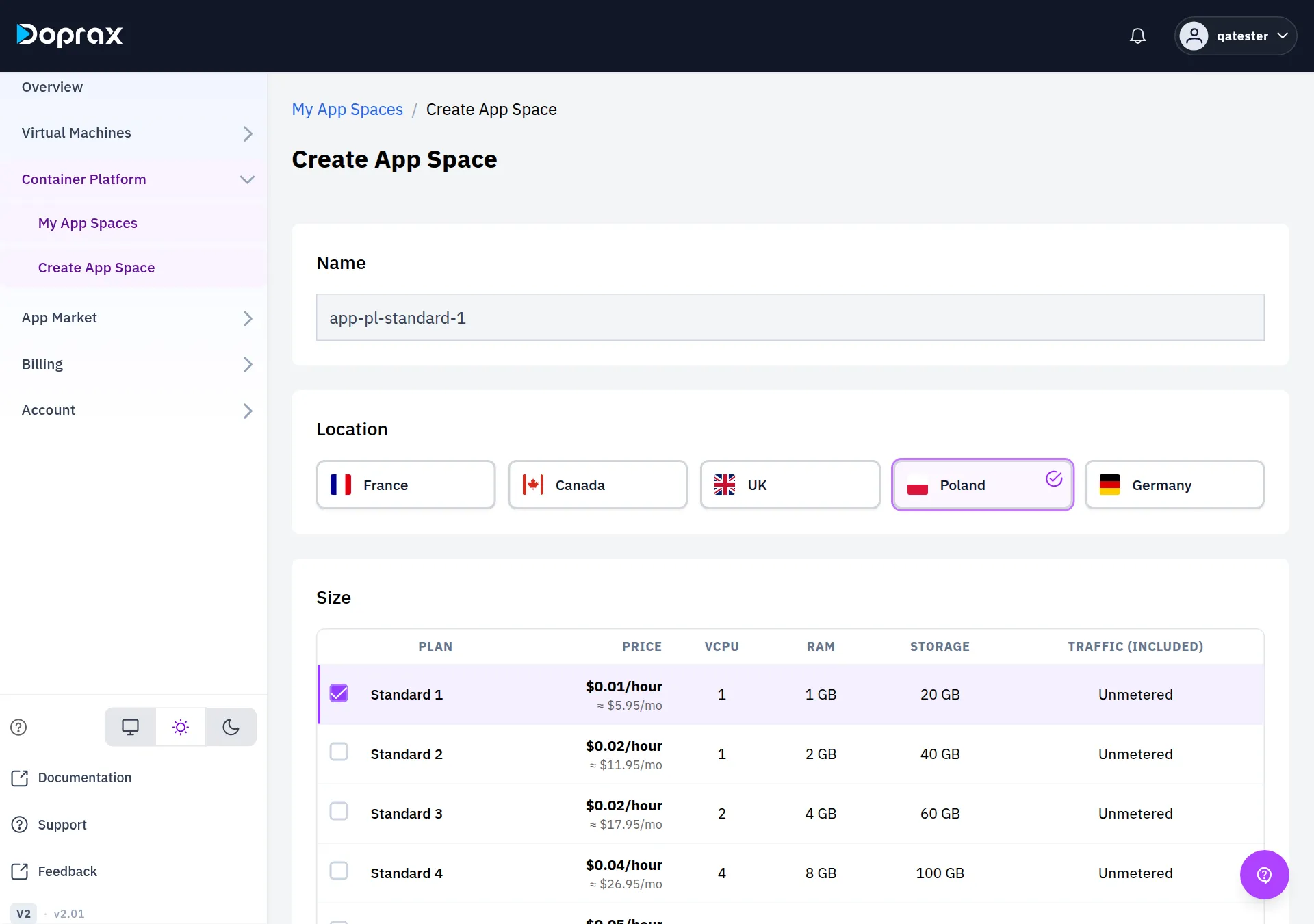
The App Space opens with the status **Stopped**. That is expected: there is nothing in it yet.
## 2. Add a container
[Section titled “2. Add a container”](#2-add-a-container)
1. Select **Add container**.
2. Keep **Docker Image** selected and pick **Nginx** from the popular images. The image name is filled in as `nginx:latest`. For any other image, type its name.
3. Keep the suggested **Container Name** or type your own, then select **Add Container**.
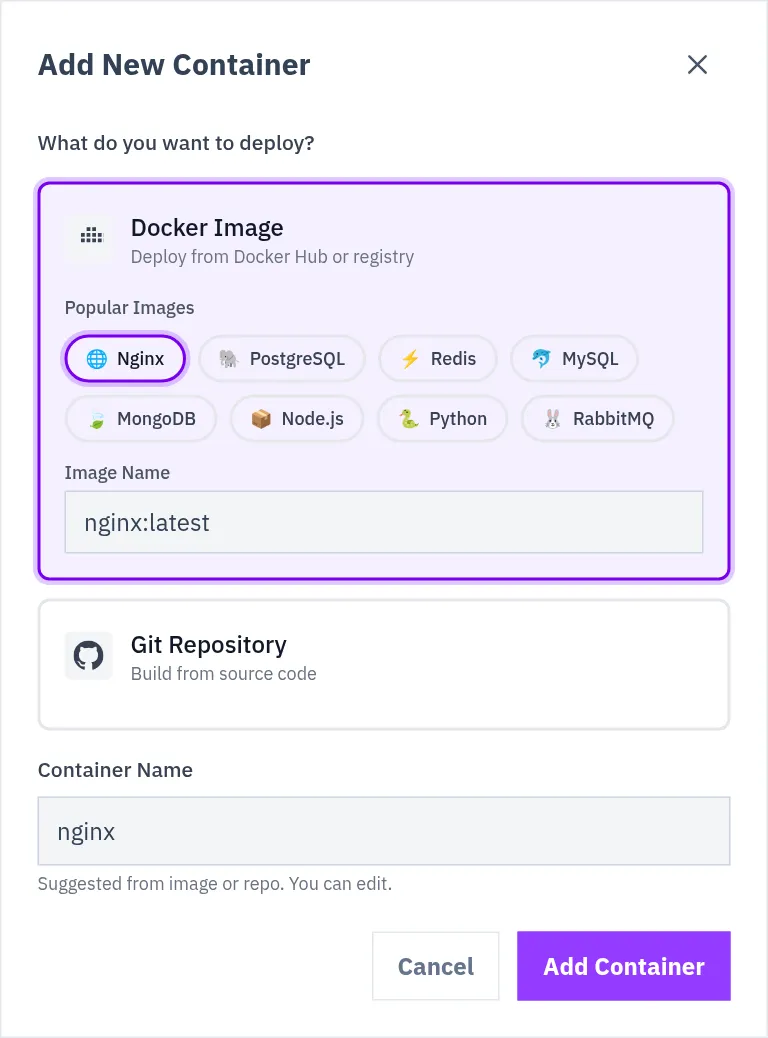
The container starts by itself. In under a minute the App Space shows **Running · 1 of 1 container running**.
## 3. Give it a public address
[Section titled “3. Give it a public address”](#3-give-it-a-public-address)
A new container is not reachable from the internet. To publish it:
1. Switch the container view to **List** and select the container.
2. Open its **Ports** tab and select **Expose port**.
3. In **Container port**, type the port the program inside listens on. For nginx that is `80`.
4. Leave **Exposure mode** on **HTTP / HTTPS**, which is already selected. The **Expose** button becomes active once you leave the port field.
5. Optional: type a **Subdomain** to choose the first part of the address. Leave it empty for a generated one.
6. Select **Expose**.
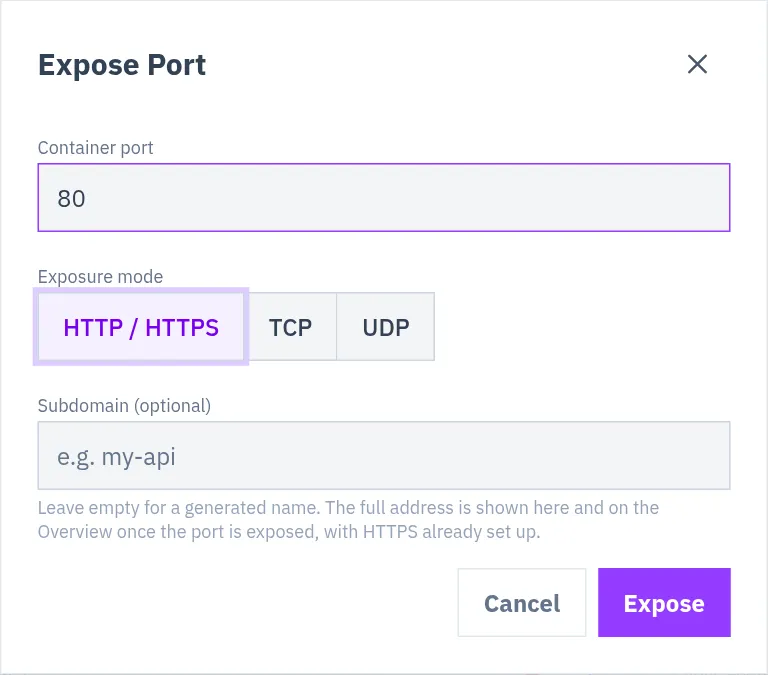
The address appears on the **Ports** tab and at the top of the App Space within a few seconds. It looks like `https://nginx-51f399f2.plypcu.dop4.com`: the container’s name, a few random characters, and a Doprax domain. Open it: you see the nginx welcome page.
* The address uses HTTPS with a certificate that is already set up. You do nothing for it.
* A visitor who types `http://` is sent to `https://`.
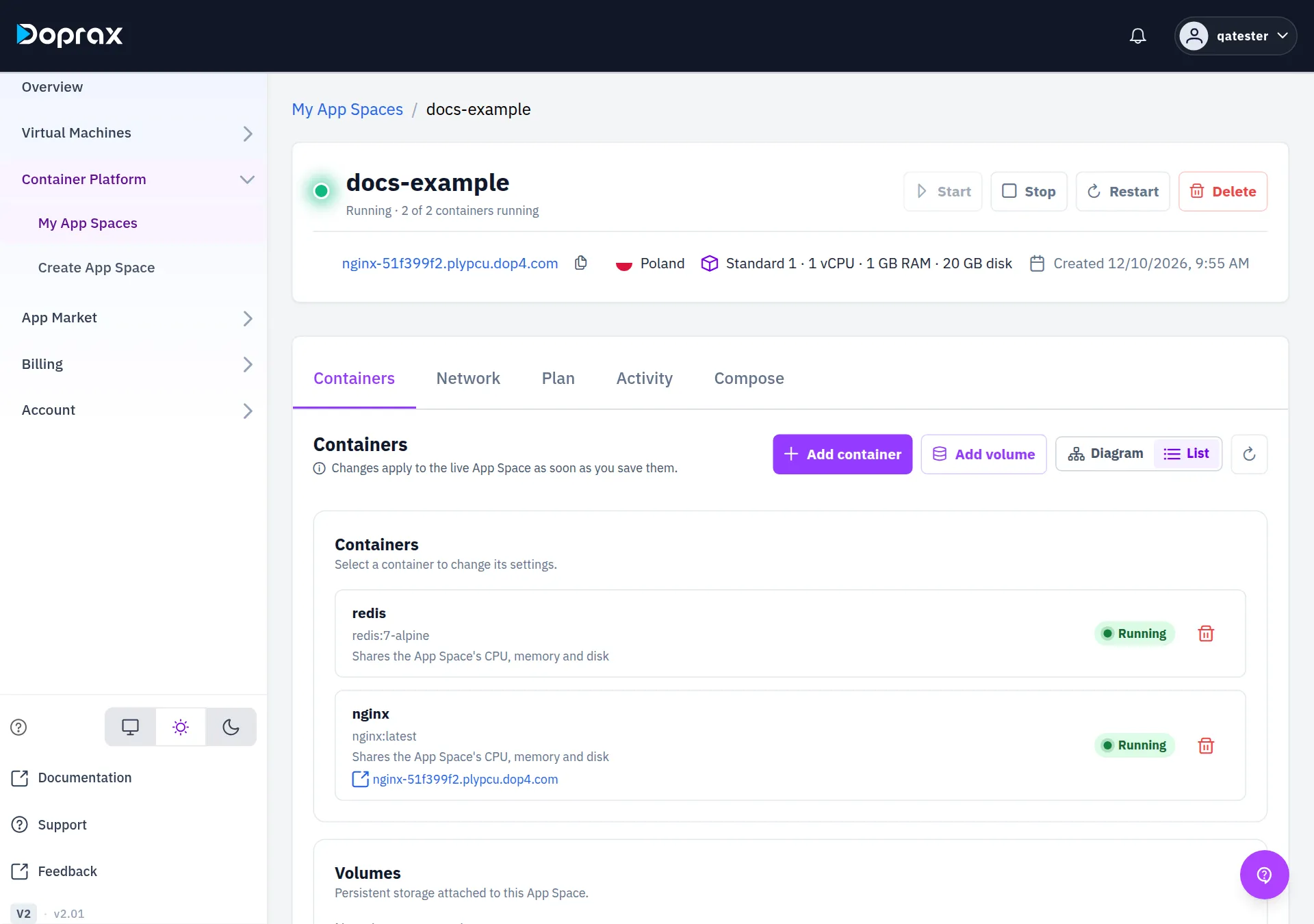
## 4. Look inside
[Section titled “4. Look inside”](#4-look-inside)
Select the container, then:
* **Logs** shows what the program prints, live. Requests to your address appear here as nginx logs them.
* **Terminal** opens a shell inside the container.
Both open in a panel at the bottom of the window.
## 5. Stop or delete
[Section titled “5. Stop or delete”](#5-stop-or-delete)
* **Stop** stops every container but keeps the App Space, and it is still charged.
* **Delete** removes the App Space with all its containers, its volumes and their data. This cannot be undone, and it ends the charge.
## Next
[Section titled “Next”](#next)
* [Deploy from a GitHub repository](/docs/app-space/deploy-from-github/): run your own code.
* [Configure a container](/docs/app-space/configure/): environment variables, volumes, a database next to your app.
# Add credit to your account
> How to add credit by card or cryptocurrency, the minimum amounts and the card fee, when the credit arrives, and the other ways credit can reach your account.
Doprax is prepaid: you need credit before you can create a service. This page shows how to add it.
## Add credit
[Section titled “Add credit”](#add-credit)
1. In the dashboard, open **Billing > [Add credit](https://www.doprax.com/v/billing-new/top-up/)**.
2. Under **Payment options**, choose a method and select **Continue**.
3. Under **Enter amount**, type the credit you want in US dollars.
4. Select **Continue to checkout**. You pay on the payment company’s own page.
5. After paying you come back to the dashboard. It checks the payment and takes you to **Billing overview**, where the payment is in **Payment history**.
## Payment methods
[Section titled “Payment methods”](#payment-methods)
| Method on the screen | You pay with | Smallest amount | Fee |
| --------------------------------- | --------------------------------------------------------- | -------------------- | ------------------------------ |
| **Card, Apple Pay or Google Pay** | Visa, Mastercard, American Express, Apple Pay, Google Pay | $10 | 4.30% + $0.30. No fee from $50 |
| **Crypto (NOWPayments)** | More than 300 cryptocurrencies | Lower than for cards | No card fee |
The screen lists only the methods your account can use. If it says “No payment methods available”, contact support.
There is a smallest amount for every top-up. If you type less, the dashboard does not start the payment and tells you the minimum.
## Paying by card
[Section titled “Paying by card”](#paying-by-card)
Cards are processed by Airwallex. You type your card details on Airwallex’s page, not on Doprax. Apple Pay and Google Pay appear there on devices that support them.
**The fee is added on top.** You get the credit you typed. Your card is charged that amount plus the card processing fee, and the screen shows both before you continue:
| You type | Card processing fee | Charged to your card |
| ----------- | ------------------- | -------------------- |
| $10 | $0.77 | $10.77 |
| $20 | $1.22 | $21.22 |
| $50 or more | Waived | The amount you typed |
The fee is what the card network and the payment processor charge. Doprax keeps none of it.
**A card top-up below $10 is refused.** The screen says “Card payments start at $10.00”. Use cryptocurrency for a smaller amount.
**The credit is added within seconds** of the payment going through.
If the dashboard says the payment was not verified with 3-D Secure
That payment was not added to your balance. If your card was charged, our team refunds it. Use a card that supports 3-D Secure, or pay another way.
## Paying with cryptocurrency
[Section titled “Paying with cryptocurrency”](#paying-with-cryptocurrency)
Crypto payments go through NOWPayments. The credit is added when NOWPayments confirms that your payment arrived, not at the moment you send it. The steps, and what happens when less arrives than you asked for, are on [Pay with crypto](/docs/billing/how-to-pay-in-doprax-with-cryptocurrency-with-minimum-transactional-fee/).
## Extra credit from an offer
[Section titled “Extra credit from an offer”](#extra-credit-from-an-offer)
If your account holds an offer, a green box at the top of the **Add credit** screen says so, for example “Add credit within 2 days and we add 15% on top”. You do not enter anything. The extra credit is added when your payment arrives.
* An offer adds a percentage of the top-up, never more than 20%.
* It can have a smallest top-up and a largest extra amount. The box states both.
* It has an end time. After that it is gone.
* One offer is used per payment. Offers do not add up.
* It applies to card, crypto and Rial payments, not to credit codes.
Some offers start from a code. You enter the code on [Redeem Promo](/docs/billing/promo-codes/).
## Paying in Rial
[Section titled “Paying in Rial”](#paying-in-rial)
Rial payments are not offered to new accounts. If your account has paid in Rial within the last year, the **Add credit** screen still shows **Rial payment**. Other accounts do not see it.
## Credit codes from a partner
[Section titled “Credit codes from a partner”](#credit-codes-from-a-partner)
A credit code is prepaid Doprax credit that you buy from a partner shop in your local currency. A $10 code adds $10 to your balance.
1. Open **Billing > Add credit** and select **Local currency (credit code)**. Only some accounts are shown this option. If you hold a code and do not see it, open [the credit code page](https://www.doprax.com/v/billing-new/top-up/credit-code/) directly.
2. Under **Enter your code**, type the code and select **Add credit**.
The credit is added at once.
* A code is 8 to 24 letters and numbers. Dashes, spaces and capital letters do not matter.
* A code works once.
* After 10 wrong codes you must wait an hour before trying again.
* If a code you paid for does not work, contact support with the code and your order number from the shop.
## After the credit arrives
[Section titled “After the credit arrives”](#after-the-credit-arrives)
* **Anything your account still owes is taken from the new credit first.**
* **Services that were frozen for lack of credit start again by themselves.** See [When your credit runs low](/docs/billing/when-credit-runs-low/).
## When you cannot add credit
[Section titled “When you cannot add credit”](#when-you-cannot-add-credit)
While your account has an open refund request, adding credit and creating services are switched off until the refund has been handled.
# How billing works
> How Doprax takes the price of your services from prepaid credit, what the numbers on the Billing overview screen mean, and which charges exist.
Doprax is prepaid. You add credit, and each service you have takes its price from that credit, hour by hour. There is no bill at the end of the month and no overdraft.
## What you are charged for
[Section titled “What you are charged for”](#what-you-are-charged-for)
* **A plan has a monthly price and is charged by the hour.** One hour costs the monthly price divided by 720.
* **A service is charged for as long as it exists**, from the moment you create it until you delete it.
* **A stopped service costs the same as a running one.** Its disk and its address stay reserved for you. To stop paying, delete the service.
* **A frozen service is not charged.** Services are frozen when your credit runs out. See [When your credit runs low](/docs/billing/when-credit-runs-low/).
Prices are on the create pages of the dashboard and in the docs: [virtual machine plans](/docs/virtual-machines/plans/), [what a virtual machine costs](/docs/virtual-machines/what-a-virtual-machine-costs/) and [App Space](/docs/app-space/).
## Credit you need to create a service
[Section titled “Credit you need to create a service”](#credit-you-need-to-create-a-service)
* You need some available balance before you can create a service. If you have too little, the dashboard tells you the amount you need.
* For a plan that costs $30 a month or more, you need at least 10% of its monthly price in available balance.
## The kinds of charges
[Section titled “The kinds of charges”](#the-kinds-of-charges)
Every charge in your ledger carries a charge code. These are the codes that have a price today.
| Charge code | Name in the dashboard | What it is | Has a price on |
| ------------------ | ------------------------------- | --------------------------------------------------------------------------- | ------------------------------------------ |
| `base_plan` | Base plan | The plan of a VM or an App Space, by the hour | Every service |
| `snapshot_create` | Snapshot creation | Charged once, after a snapshot has been created | ProVM |
| `snapshot_storage` | Snapshot storage | Per GB stored, by the hour, until you delete the snapshot | ProVM |
| `extra_ip_setup` | none, the ledger shows the code | Charged once for each additional IPv4 address you add | ProVM |
| `extra_ip` | none, the ledger shows the code | Each additional IPv4 address, by the hour, while it is attached | ProVM |
| `ip_change` | IP change | Charged once each time you change a VM’s public IP address | Hetzner only |
| `egress_overage` | Traffic overage | Outbound traffic beyond the plan’s monthly allowance, worked out once a day | DigitalOcean, Google Cloud, Hetzner, Vultr |
The dashboard shows the price of an extra before you confirm it:
* The **Create snapshot** dialog shows $0.20 for creating a snapshot and $0.20 per GB per month for storing it. See [Snapshots](/docs/virtual-machines/snapshots-in-virtual-machines/).
* The **Add an additional IP** dialog shows $1 one-time setup and $1 per month, billed hourly. See [Additional IPs](/docs/virtual-machines/additional-ips/).
* For the IP change fee, see [Change the IP of a VM](/docs/virtual-machines/change-ip-of-virtual-machines/).
* For traffic allowances, see [Traffic usage](/docs/virtual-machines/virtual-machine-traffic-usage/).
## Your balance
[Section titled “Your balance”](#your-balance)
Open **Billing > Billing overview**. The **Balance** section shows two numbers.
| Number | What it means |
| ---------------------------- | ----------------------------------------------------------------------------------------------------------------------------------------------- |
| **Available balance** | Your credit, minus what your services have used since they were last charged. This is the number that decides the warnings and the stop at zero |
| **Recurring charges (est.)** | The plan and snapshot storage cost your services have built up since they were last charged. It is already taken off the available balance |
The first page of the dashboard, **Overview**, shows the same **Available balance** with three estimates: **Estimated daily spending**, **Days of credit left** and **Open alerts**. The estimates come from your active services and your recent charges. You are not charged by an estimate.
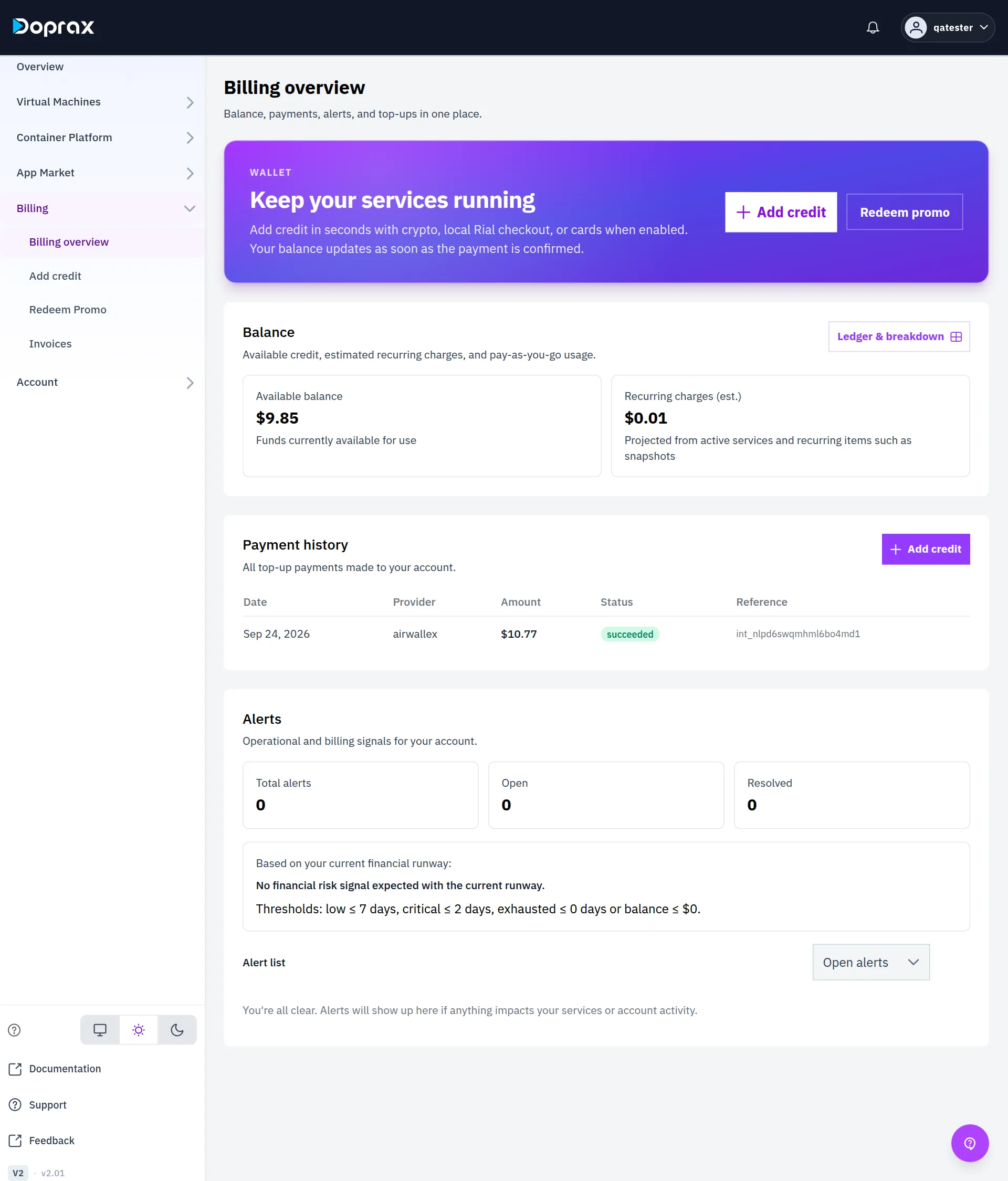
### The ledger
[Section titled “The ledger”](#the-ledger)
**Ledger & breakdown** opens the **Balance & ledger** screen. It lists every credit and every charge on your account.
* The formula at the top is **Balance − Pending charges = Available balance**. Pending charges are costs that have built up but are not in the ledger yet.
* Each charge row shows its **Charge code**. Top-ups and adjustments show no charge code.
* **Breakdown** on a row shows the quantity, the unit price and the period the charge covers.
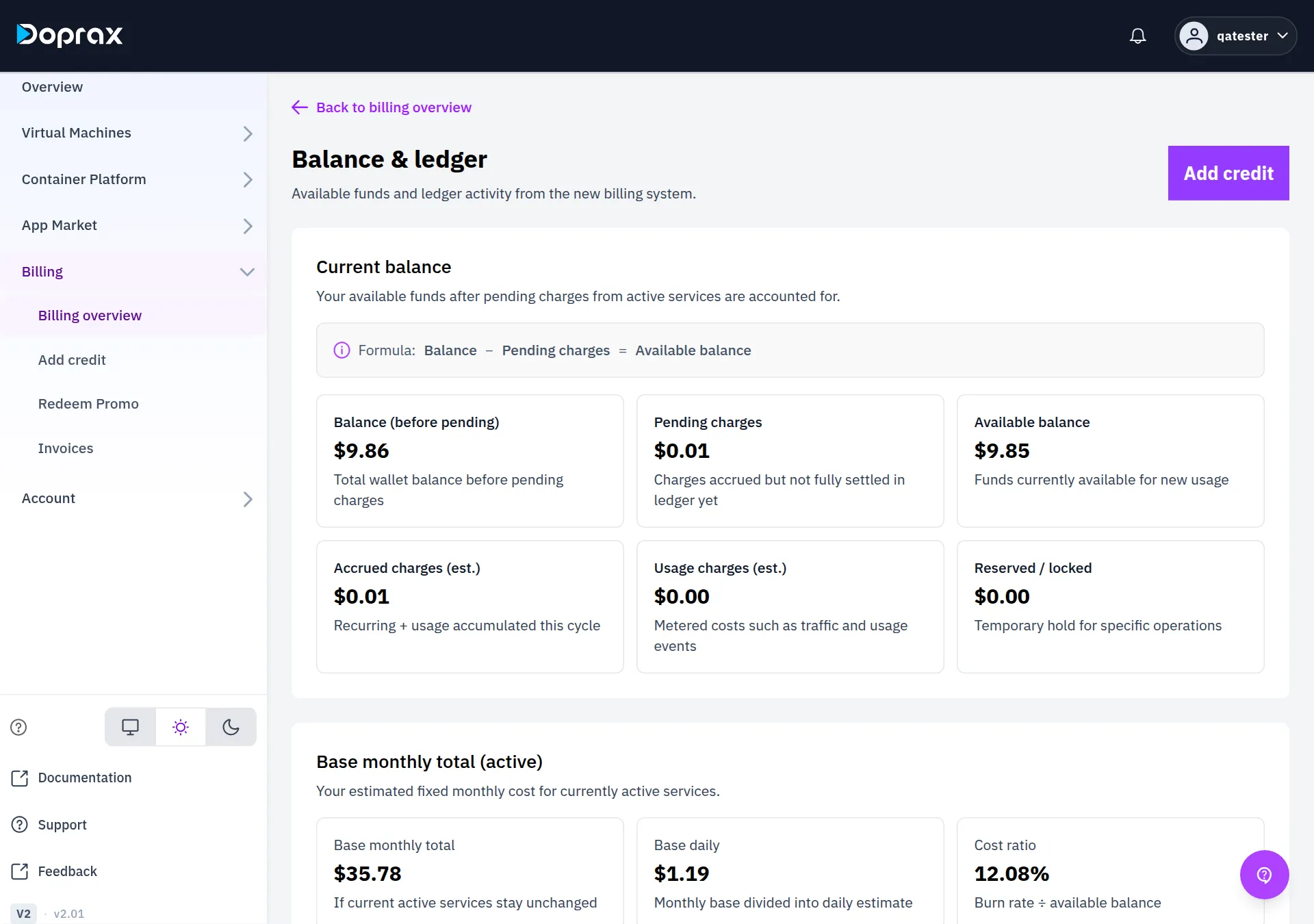
## Payment history
[Section titled “Payment history”](#payment-history)
**Payment history** on the Billing overview screen lists every top-up: **Date**, **Provider**, **Amount**, **Status** and **Reference**.
* A card payment is listed with the provider `airwallex`, the company that processes cards for Doprax.
* For a card payment, **Amount** is what your card was charged, with the card fee included. The credit you received is that amount minus the fee. See [Add credit](/docs/billing/add-credit/).
* **Status** is `succeeded`, `pending`, `failed` or `refunded`. Only a succeeded payment has added credit.
## Alerts
[Section titled “Alerts”](#alerts)
The **Alerts** section of the Billing overview screen counts your alerts (**Total alerts**, **Open**, **Resolved**) and lists them. Balance alerts depend on how many days your credit will last at the present rate:
| Level | When |
| --------- | ------------------------------------------------- |
| Low | Credit lasts 7 days or less |
| Critical | Credit lasts 2 days or less |
| Exhausted | Credit lasts 0 days, or the balance is $0 or less |
While there is no spending to measure, the screen says “Financial risk signals will appear once we have a reliable usage rate”.
You are also warned by email. What happens at each level, and at zero, is on [When your credit runs low](/docs/billing/when-credit-runs-low/).
## Invoices
[Section titled “Invoices”](#invoices)
**Billing > Invoices** is marked **Preview mode**. The screen says: “This is an early rollout. Legacy billing remains the source of truth during the transition.”
It lists the invoices the new billing system has produced, with filters for invoice number, status and date. The list can be empty. The screen then says: “No invoices yet. Invoices will appear here once billing activity begins.”
For a record of what you paid, use **Payment history**. For a record of what you were charged, use the ledger.
# Pay with cryptocurrency
> How to add credit with cryptocurrency through NOWPayments, when the credit arrives, and what happens when the amount that arrives is not the amount you asked for.
You can add credit to your Doprax account with cryptocurrency. The payment goes through NOWPayments, which accepts more than 300 coins. Your credit is always counted in US dollars.
## Add credit with crypto
[Section titled “Add credit with crypto”](#add-credit-with-crypto)
1. In the dashboard, open **Billing > [Add credit](https://www.doprax.com/v/billing-new/top-up/)**.
2. On **Crypto (NOWPayments)**, select **Continue**.
3. Under **Enter amount**, type the credit you want in US dollars.
4. Select **Continue to checkout**. You are sent to the NOWPayments page.
5. On the NOWPayments page, choose your coin and send the payment as that page tells you.
6. When NOWPayments sends you back, the dashboard says “Your transaction is being verified. It will show up in your balance after the verification is done successfully” and opens **Billing overview**.
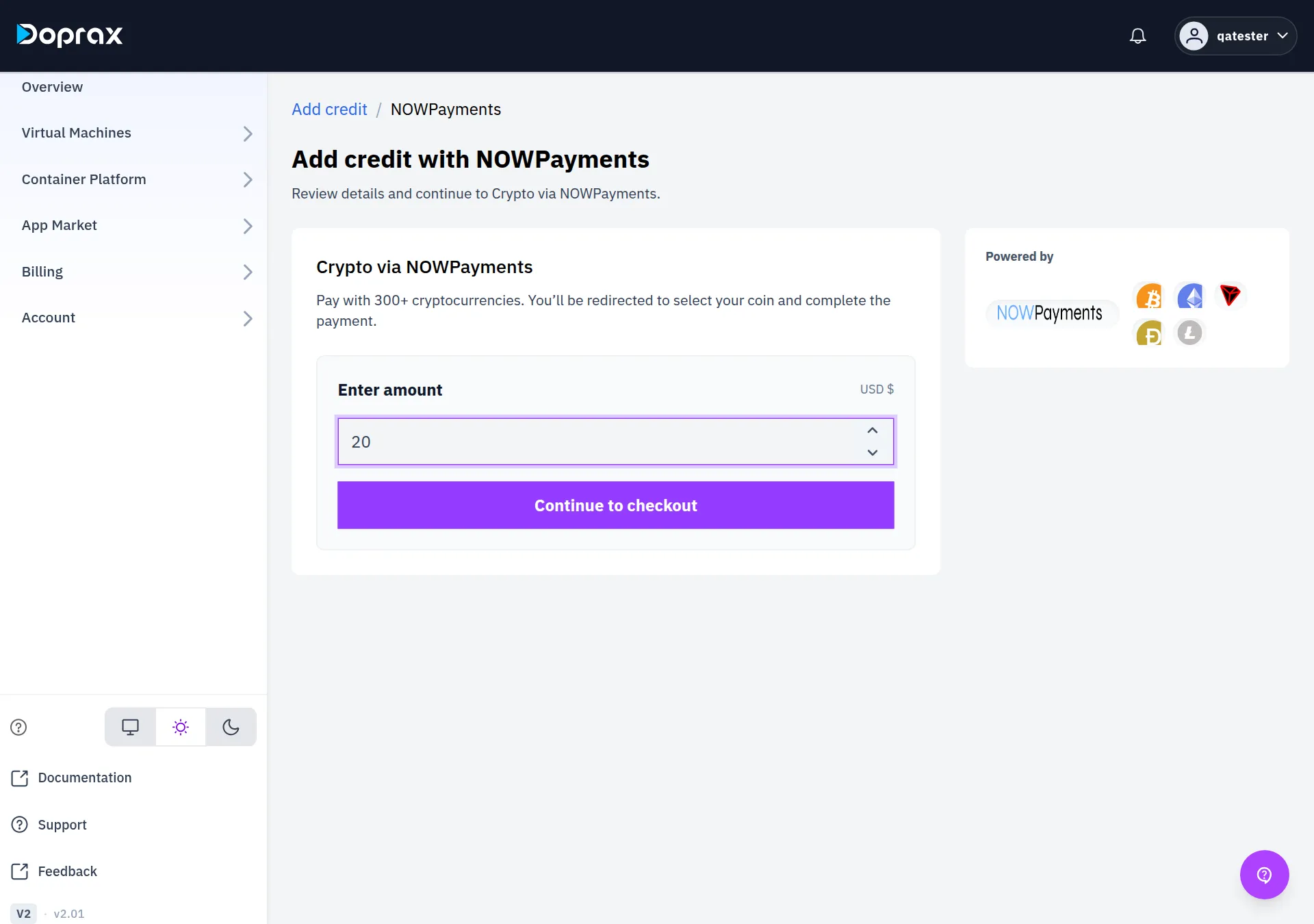
## The smallest amount
[Section titled “The smallest amount”](#the-smallest-amount)
There is a smallest amount for a top-up, and it is lower for crypto than for cards. If you type less, the dashboard does not start the payment and tells you the minimum.
## When the credit arrives
[Section titled “When the credit arrives”](#when-the-credit-arrives)
The credit is added when NOWPayments tells Doprax that your payment is finished. Doprax does not set this time, and the dashboard does not wait for it.
Until then the payment is in **Payment history** on the **Billing overview** screen with the status `pending`. When it is credited the status becomes `succeeded` and your **Available balance** goes up.
If NOWPayments reports the payment as failed, expired or refunded, the status becomes `failed` and no credit is added.
## If the amount that arrives is different
[Section titled “If the amount that arrives is different”](#if-the-amount-that-arrives-is-different)
Doprax credits the US dollar value that NOWPayments reports as received, not the amount you typed. Exchange fees and network fees taken on the way can make that value lower.
| What arrived | What you are credited |
| ------------------------------------------ | ------------------------------------------------------------------ |
| The amount you asked for | That amount |
| Less than you asked for, but $3.00 or more | What arrived. You asked for $20 and $18.50 arrived: you get $18.50 |
| Less than $3.00 | Nothing automatically. The payment stays `pending` |
| More than you asked for | Only the amount you asked for |
Send enough to cover the fees
Your wallet or exchange may take its fee out of the amount you send. Check that the amount leaving your wallet is the amount the NOWPayments page asks for. A payment worth less than $3.00 is not credited automatically, and anything above the amount you asked for is not credited either.
If a payment stays `pending` and you know the coins arrived, contact support with the **Reference** shown next to the payment in **Payment history**.
## Related
[Section titled “Related”](#related)
* [Add credit](/docs/billing/add-credit/): the other payment methods and the card fee.
* [When your credit runs low](/docs/billing/when-credit-runs-low/): what stops at zero and how it starts again.
# Redeem a promo code
> Where to enter a promo code, what the different kinds of code do, and what the states on the Redeem Promo screen mean.
A promo code gives you credit. Some codes add credit at once. Others add extra credit to your next top-up. You enter all of them in the same place.
## Enter a code
[Section titled “Enter a code”](#enter-a-code)
1. In the dashboard, open **Billing > [Redeem Promo](https://www.doprax.com/v/billing-new/redeem-promo/)**.
2. Under **Activate a promo code**, type the code. Capital letters do not matter.
3. Select **Activate**. A message under the field says what the code did, or why it was refused.
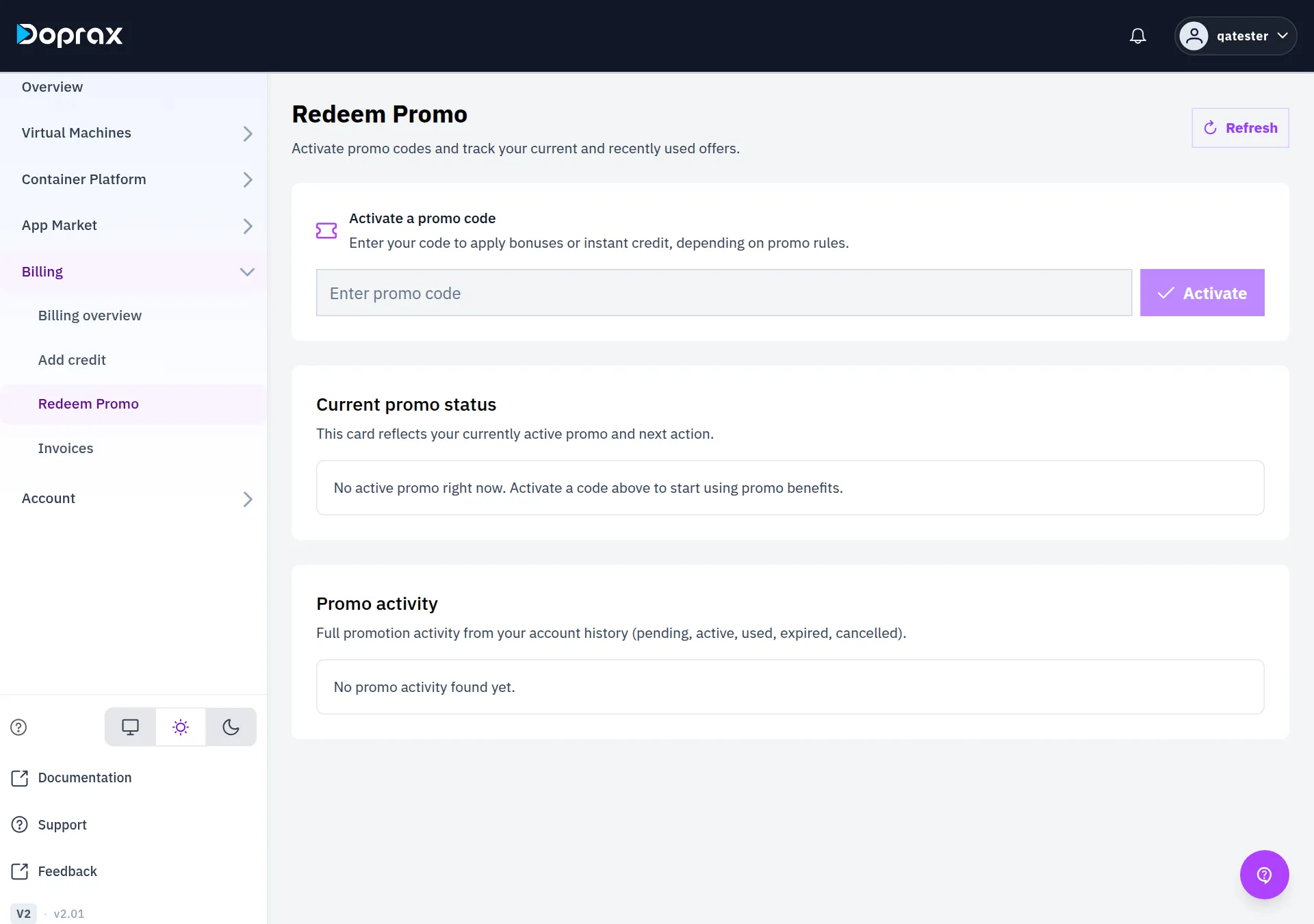
## What a code does
[Section titled “What a code does”](#what-a-code-does)
| Kind of code | What happens when you activate it |
| --------------------------------- | ----------------------------------------------------------------------------------------------------------------------- |
| Promo with **Instant credit** | Its amount is added to your balance at once |
| Promo with **Applied on payment** | The promo becomes **Active** and stays so until it has been applied to a payment |
| Offer code | A percentage of your next top-up is added as extra credit. The message gives the percentage and the time the offer ends |
| Credit code from a partner | The value of the code is added to your balance at once |
If a promo of the kind **Applied on payment** is still **Active** after a payment of yours has been credited, contact support.
## Rules for promos
[Section titled “Rules for promos”](#rules-for-promos)
* A promo can have a start date and an end date. Outside them the code is refused.
* A promo has a limit on how many times one account can use it, and can have a limit on its total number of uses. When a limit is reached the code is refused.
* Only one promo can be **Active** at a time. When you activate another code on this screen, the promo that was active goes back to **Pending**. You can activate it again later.
## Rules for offer codes
[Section titled “Rules for offer codes”](#rules-for-offer-codes)
An offer code gives you an offer: extra credit on your next top-up.
* The extra credit is a percentage of the top-up, never more than 20%.
* An offer can have a smallest top-up and a largest extra amount.
* The offer ends at the time given in the message. A top-up credited after that gets nothing.
* It counts for your next top-up. A payment credited before you entered the code gets nothing.
* An account can use the same offer code once.
* A code can have a limit on how many accounts may use it. After that it is refused with “This code is no longer available”.
* Some codes are for a first payment only. If you have paid before, such a code is refused.
* One offer is used per payment. If you hold two, the one that adds more is used.
* Offers apply to card, crypto and Rial payments, not to credit codes.
An offer does not appear under **Promo activity**. It appears as a green box at the top of the **Add credit** screen. You do not enter anything when you pay. See [Add credit](/docs/billing/add-credit/).
## Current promo status
[Section titled “Current promo status”](#current-promo-status)
This section shows the promo that is **Active** now, with its **Value**, its **Apply type** and **Valid until**. The button under it opens **Add credit**.
With no active promo it says “No active promo right now. Activate a code above to start using promo benefits.”
## Promo activity
[Section titled “Promo activity”](#promo-activity)
This section lists the promos of your account. Each has one of five states.
| State | Meaning |
| ------------- | -------------------------------------------------------------------------------------------- |
| **Pending** | The promo is on your account but not activated. Select **Activate this code** to activate it |
| **Active** | You activated it and it has not been used yet |
| **Used** | Its credit has been added to your balance |
| **Expired** | It ended before it was used |
| **Cancelled** | It was withdrawn, and adds no credit |
Each entry also shows the **Value**, the **Apply type**, the dates **Activated**, **Used** and **Assigned**, and the **Activation code**.
## Credit codes from a partner
[Section titled “Credit codes from a partner”](#credit-codes-from-a-partner)
A credit code that you bought from a partner shop can be entered on this screen too. It also has its own page, with the list of shops. See [Credit codes from a partner](/docs/billing/add-credit/#credit-codes-from-a-partner).
A credit code works once.
# When your credit runs low
> The warnings you get, what stops when credit reaches zero, and how to get your services back.
Doprax is prepaid. Your services use up credit hour by hour, and there is no overdraft: when the credit is gone, they stop. This page says exactly what happens and when.
## In short
[Section titled “In short”](#in-short)
| When | What happens |
| --------------------------- | ----------------------------------------------------------------- |
| Credit lasts 7 days or less | We warn you by email and in the dashboard |
| Credit lasts 2 days or less | We warn you again, marked urgent |
| Credit reaches zero | Your services are stopped within about 15 minutes, then frozen |
| You add credit | Frozen services start again by themselves within about 15 minutes |
| Credit stays at zero | Frozen services are deleted by our team after a short time |
## How long your credit lasts
[Section titled “How long your credit lasts”](#how-long-your-credit-lasts)
We work out how many days your credit will last from two numbers:
* **Your available balance**: your credit, minus what your services have used since the last charge.
* **What your services cost per day**: the monthly price of every VM and App Space you have, divided by 30, plus recent usage charges such as extra traffic.
A stopped VM counts at its full price, because it is charged at its full price: its disk and IP address stay reserved for you. Only deleting a service ends its cost.
## The warnings
[Section titled “The warnings”](#the-warnings)
You get an email and a notification in the dashboard when your credit will last 7 days or less, and again at 2 days or less. Both are repeated until you add credit or the balance reaches zero.
Tip
The warnings are based on what your services cost now. If you create a large VM, your credit can go from “weeks left” to “days left” at once, so check your balance after adding services.
## At zero
[Section titled “At zero”](#at-zero)
There is no grace period. When your available balance reaches zero:
1. **Within about 15 minutes, your services are stopped.**
2. **Within about an hour, they are frozen.** A frozen VM is shut down. A frozen service is no longer charged, so your balance does not go further below zero while you sort it out.
3. **You get an email** saying your account has no credit left.
While a service is frozen you can delete it, but you cannot use it. Its data is still there.
## Getting your services back
[Section titled “Getting your services back”](#getting-your-services-back)
Add credit. When your available balance is above $2, your frozen services are started again automatically, usually within 15 minutes. You do not have to start them yourself.
Two things to know:
* **Anything still owed is taken from the top-up first.** If charges could not be collected before the freeze, they come out of the new credit.
* **A top-up that leaves $2 or less does not restart anything.**
## If you do not add credit
[Section titled “If you do not add credit”](#if-you-do-not-add-credit)
A service that stays frozen is deleted by our team after a short time. We do not promise a fixed number of hours, so treat a frozen service as something you can lose.
* **Deleting cannot be undone.** The VM, its disk and its IP address are gone.
* **Snapshots are not deleted with the VM.** They stay on your account. Snapshots on an account that stays without credit can be removed by our team as well.
If something on a VM matters to you, do not let the balance reach zero: top up when the first warning arrives, or take a snapshot and copy your data somewhere else.
# Create your Doprax account
> How to sign up with an email address or with Google, how the emailed code works, and where things are in the dashboard once you are in.
You can sign up with an email address or with a Google account. With an email address you must enter a code that we email you before the account works. With Google the account works at once.
## Sign up with an email address
[Section titled “Sign up with an email address”](#sign-up-with-an-email-address)
1. Open [www.doprax.com/v/signup/](https://www.doprax.com/v/signup/).
2. Choose a username. It needs at least 4 characters, without special characters. It is stored in lower case, and you cannot change it later in the dashboard.
3. Type your email address. Addresses from disposable email services are refused.
4. Type a password twice. It needs at least 8 characters, with a letter and a number.
5. Tick the box to accept the privacy policy and the terms of use, and select **Sign up**.
6. The screen changes to **Verify your email**. Type the 5-digit code from the email we sent you and select **Verify OTP**.
You are now signed in.
Enter the code before you close the page
Until the code is entered, the account is not active and you cannot sign in. The sign-in page has no place to enter the code. If you closed the page too early, contact support at .
### If the code does not arrive
[Section titled “If the code does not arrive”](#if-the-code-does-not-arrive)
* **Resend** becomes available 2 minutes after the last email. A new code replaces the old one.
* A code has no time limit. It stays valid until you ask for a new one.
* You have 5 tries in total. A wrong code uses one, and so does a resend. After that the screen answers “Too many failed attempts”, also for the right code. Contact support.
* After 3 tries within one hour, a resend is refused until an hour has passed.
## Sign up with Google
[Section titled “Sign up with Google”](#sign-up-with-google)
1. Open [www.doprax.com/v/signup/](https://www.doprax.com/v/signup/).
2. Select the Google button at the top and choose your Google account.
There is no code to enter. Your username is made from the part of your email address before the `@`. You have no Doprax password yet. To set one, use **Forgot Password?** on the sign-in page.
## Find your way around
[Section titled “Find your way around”](#find-your-way-around)
The menu on the left of the dashboard has these items.
| Menu | What is there |
| -------------------------------------------- | ---------------------------------------------------------------------------------------------- |
| **Overview** | Your balance, your estimated spending and a count of your services |
| **Virtual Machines** | **My Virtual Machines**, **Create Virtual Machine**, **Snapshots**, **SSH Keys** |
| **Container Platform** | App Space: **My App Spaces**, **Create App Space** |
| **App Market** | **Blueprint Marketplace**: apps to install on a VM. **Publisher Profile**: your public profile |
| **Billing** | **Billing overview**, **Add credit**, **Redeem Promo**, **Invoices** |
| **Account** | **Profile & Settings**, **Security**, **API Keys**, **Features & Early Access** |
| **Documentation**, **Support**, **Feedback** | These docs, the ways to reach our team (live chat and email), and feedback |
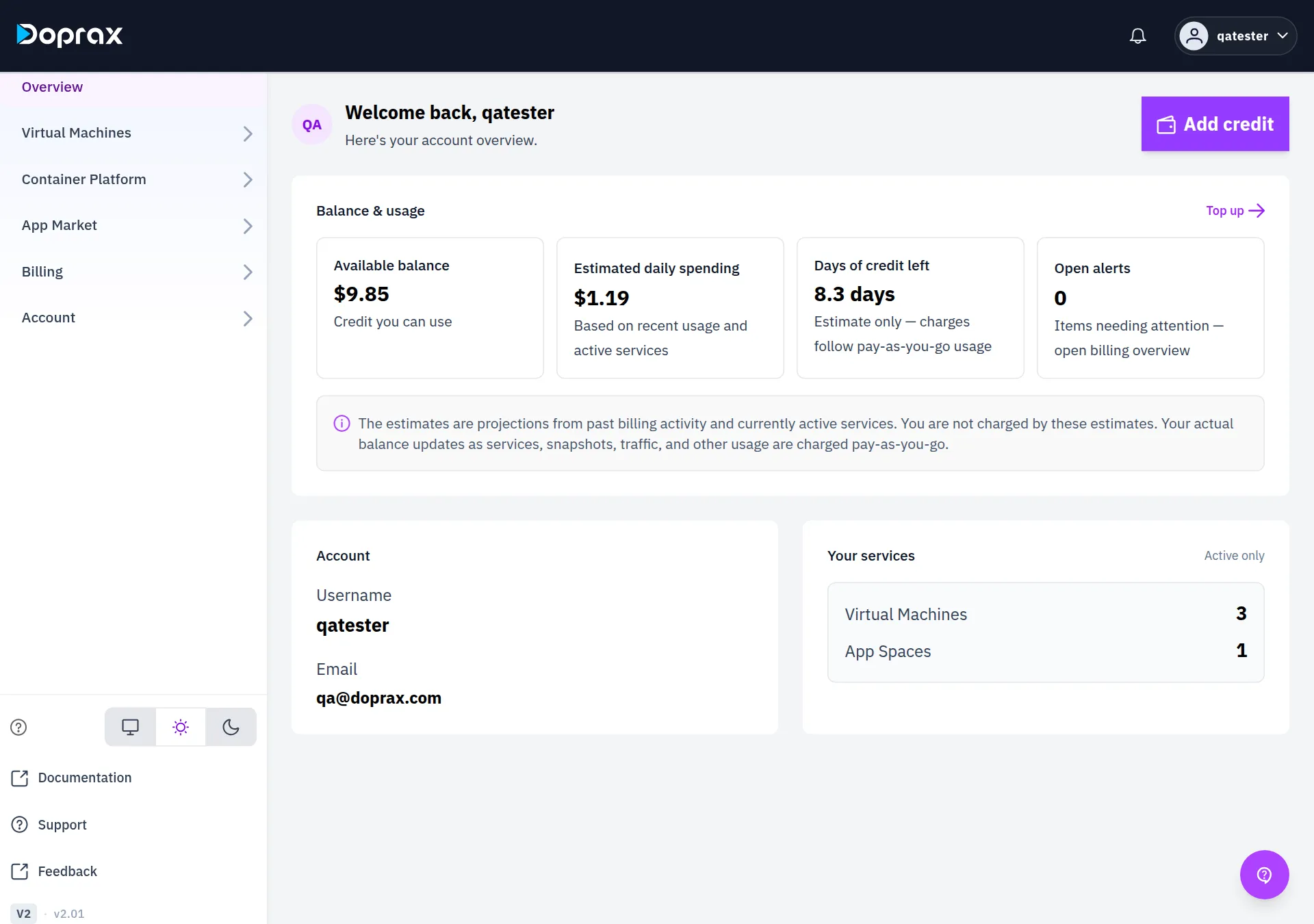
## Add credit
[Section titled “Add credit”](#add-credit)
Doprax is prepaid. You need credit on your account before you can create a virtual machine or an App Space.
Open **Billing > Add credit** and pay by card or with cryptocurrency. See [Add credit](/docs/billing/add-credit/) for the amounts and the card fee, and [How billing works](/docs/billing/billing-and-credits/) for what you are charged.
## Next
[Section titled “Next”](#next)
* Not sure what to create? Read [VM, App Space or App Market](/docs/get-started/understanding-doprax-services/).
* [Create your first virtual machine](/docs/get-started/first-vm/).
* [Deploy your first app on App Space](/docs/app-space/first-app/).
# Create your first virtual machine
> From the dashboard to a running server you can log in to.
A virtual machine (VM) is a server of your own: you get root access and an IP address, and you pay for it by the hour from your credit. A small one is running about a minute after you ask for it.
## Before you start
[Section titled “Before you start”](#before-you-start)
* A Doprax account. [Sign up](https://www.doprax.com/v/signup) if you do not have one.
* Credit on the account. Doprax is prepaid: add credit under **Billing** in the dashboard. A plan of $30 a month or more also needs 10% of its monthly price available before it can be created.
## Create the VM
[Section titled “Create the VM”](#create-the-vm)
1. In the dashboard, open **Virtual Machines**, then **Create Virtual Machine**.
2. **Choose a provider.** ProVM is Doprax’s own hardware and is selected for you. The other providers (Hetzner, OVH, DigitalOcean and more) are run through the same account and the same credit.
3. **Choose a location.** Pick the country closest to the people who will use the server.
4. **Choose a size.** Each plan shows its price per hour and the roughly equal price per month. The smallest ProVM plan, P1, is enough to try things out. See [Plans and prices](/docs/virtual-machines/plans/).
5. **Choose an image source.** Pick an operating system and its version, or start from one of your own snapshots.
6. **Choose an access method.**
* **Password**: a strong password is generated for you. You read it in the dashboard after the VM is created.
* **SSH key**: you log in with your own key and no password. This is the safer choice. Add your public key first under **Virtual Machines**, **SSH Keys**.
7. **Enter a name**, or keep the suggested one, and select **Create Virtual Machine**. The bar at the bottom shows the hourly price and a summary of your choices before you confirm.
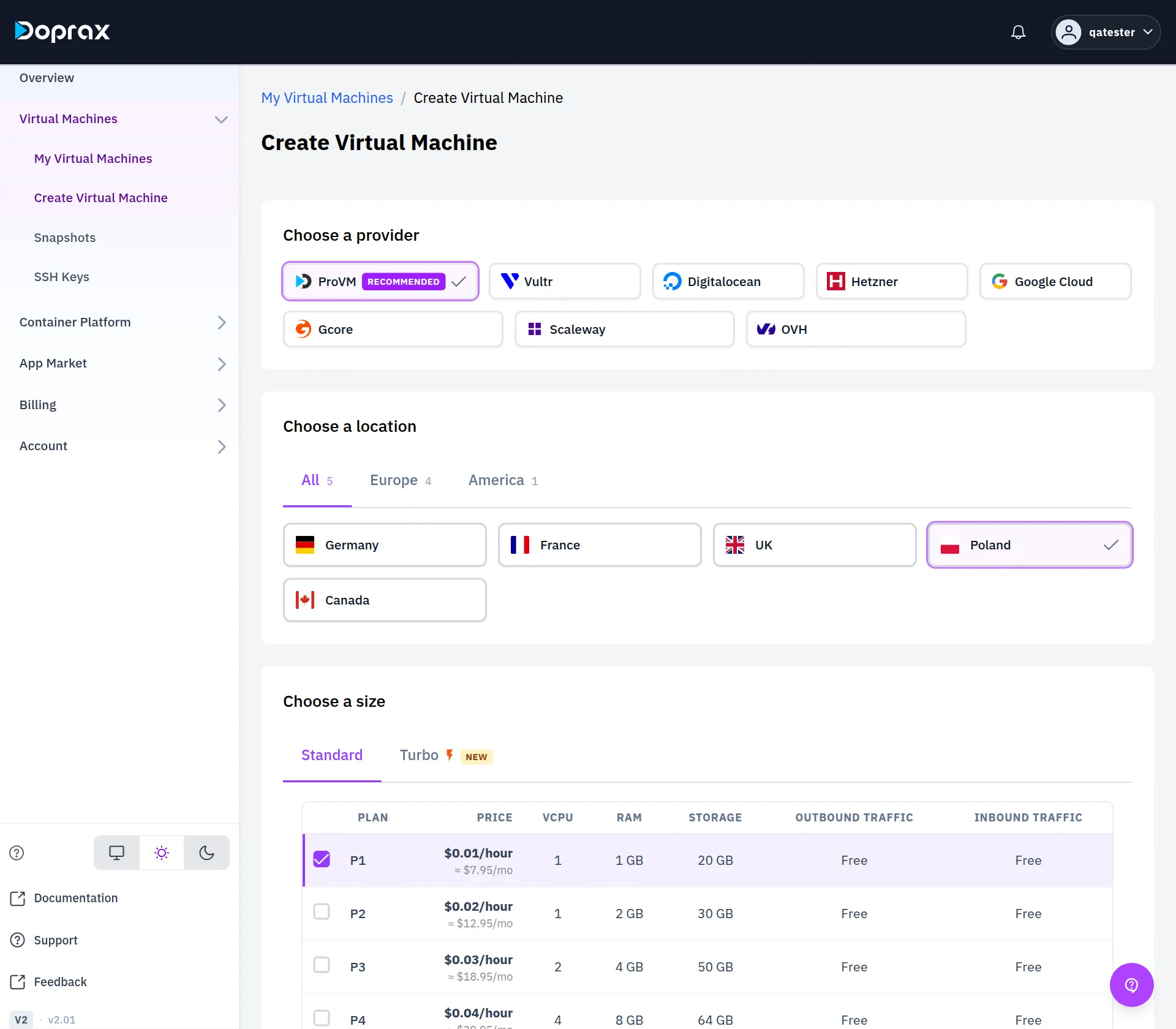
## Log in
[Section titled “Log in”](#log-in)
The new VM is listed under **My Virtual Machines**. When its status is **Running**, open it: the IP address is shown at the top of its page.
* With a password: open the **Access** tab to read the username and password, then connect:
```bash
ssh root@YOUR_VM_IP
```
* With an SSH key: the same command, and no password is asked.
* Without any SSH client: select **Terminal** on the VM’s page to open a terminal in the browser.
A stopped VM still costs money
Stopping a VM keeps its disk and its IP address reserved for you, so it is charged at the same price as a running one. To stop paying for a VM, delete it. Take a snapshot first if you want to keep what is on it.
## Next
[Section titled “Next”](#next)
* [When your credit runs low](/docs/billing/when-credit-runs-low/): the warnings you get and what happens at zero.
* [Create a VM with the API](/docs/api/first-vm/): the same thing from a script.
# Choose between a VM, App Space and the App Market
> What a virtual machine, an App Space and the App Market each give you, what each cannot do, and how to pick the one that fits what you want to run.
Doprax gives you three ways to run something. All three are paid from the same credit, by the hour.
* **A virtual machine (VM)** is a Linux server that you manage yourself.
* **An App Space** runs your containers, and you do not manage a server.
* **The App Market** installs a ready-made app onto a VM you already have.
## Side by side
[Section titled “Side by side”](#side-by-side)
| | Virtual machine | App Space | App Market |
| ------------------- | ---------------------------------------------------------------------------- | ---------------------------------------------------------------------------------------------------- | ------------------------------------------------------------ |
| What you get | A server with root access and its own public IP address | Containers on a private network, with a public HTTPS address for each port you expose | An app installed for you on your VM |
| What you bring | Nothing. You install what you need | A public Docker image, a public GitHub repository with a `Dockerfile` at its root, or a Compose file | A VM to install it on |
| What you look after | The operating system and everything on it | Your containers | The VM, and the app once it is installed |
| Where it runs | On ProVM, which is Doprax’s own hardware, or on one of seven other providers | In the App Space location you choose | On the VM you choose |
| What you pay | The VM’s plan | The App Space’s plan, whatever the number of containers | The plan of the VM. The App Market shows no price for an app |
| In the dashboard | **Virtual Machines** | **Container Platform** | **App Market** |
Plans, prices and locations are on [Virtual machine plans](/docs/virtual-machines/plans/), [Providers](/docs/virtual-machines/virtual-machine-providers/) and [What App Space is](/docs/app-space/).
## Choose a virtual machine when
[Section titled “Choose a virtual machine when”](#choose-a-virtual-machine-when)
* You want full control: your own operating system, root access and any software you like.
* What you run is not a container, for example a VPN, a game server or a router image.
* You need something App Space does not have, such as your own domain name or code from a private repository.
You can create a VM on eight providers from the same account: ProVM, Vultr, DigitalOcean, Hetzner, Google Cloud, Gcore, Scaleway and OVH. ProVM is the one the dashboard recommends.
Start with [Create your first virtual machine](/docs/get-started/first-vm/).
## Choose App Space when
[Section titled “Choose App Space when”](#choose-app-space-when)
* Your app already is a container: a public Docker image, or a public GitHub repository with a `Dockerfile` at its root.
* You want an HTTPS address without setting up a web server and certificates yourself.
* You want several containers that reach each other by name, such as an app and its database.
What App Space does not have today:
* No private GitHub repositories and no private image registries.
* No domain name of your own. A container gets an address under a Doprax domain.
* No change of plan for an App Space that exists.
* No snapshots.
Start with [What App Space is](/docs/app-space/) and [Deploy your first app](/docs/app-space/first-app/).
## Choose the App Market when
[Section titled “Choose the App Market when”](#choose-the-app-market-when)
* The app you want is in the list, and you would rather not install it by hand.
You choose an app, choose one of your VMs and select **Install**. You can follow the installation in the live logs. After that the app is software on your VM like any other: you look after it.
Every app in the App Market today installs onto a VM. None installs onto an App Space.
Start with [The App Market](/docs/app-market/app-market/).
## Still not sure
[Section titled “Still not sure”](#still-not-sure)
* **A VM is the safe choice.** Anything that runs on Linux runs on a VM, containers included.
* **A stopped service costs the same as a running one**, on a VM and on App Space. Delete what you do not use. See [How billing works](/docs/billing/billing-and-credits/).
# Copy your files off a VM that does not boot
> How to get your data off a virtual machine you can no longer start or log in to: through rescue mode on Hetzner and OVH, and what is possible on the other providers.
A virtual machine that no longer boots, or that you cannot log in to, usually still has your files on its disk. This guide shows how to copy them to a safe place. What you can do depends on the provider of the VM.
| Provider | What you can do |
| --------------------------------------------------------- | ----------------------------------------------------------------------------------------------------------------- |
| Hetzner, OVH | Start the VM in **rescue mode**, open its disk and copy the files |
| ProVM, Vultr, DigitalOcean, Google Cloud, Gcore, Scaleway | There is no rescue mode. Use the **Terminal** if only your login is broken, or a snapshot from before the problem |
Do not rebuild or delete the VM yet
**Rebuild** replaces the disk, and **Delete** removes it. After either one, the files are gone.
If you have not done so yet, go through [My VM is unreachable](/docs/guides/diagnosing-server-problems/) first. A VM that is **Stopped** or **Frozen** is not broken.
## Hetzner and OVH: copy the files through rescue mode
[Section titled “Hetzner and OVH: copy the files through rescue mode”](#hetzner-and-ovh-copy-the-files-through-rescue-mode)
Rescue mode starts the VM from a small recovery system. Your own disk is not started and is not changed. You log in to the recovery system, open your disk as a folder, and copy what you need.
Decide first where the files should go: your own computer, or another server.
### 1. Start rescue mode
[Section titled “1. Start rescue mode”](#1-start-rescue-mode)
1. In the dashboard, open the VM and select the **Access** tab.
2. At the bottom of the tab, under **Rescue mode**, select **Enable rescue mode**.
3. Wait. The VM reboots into the recovery system by itself; you do not have to reboot it. The status under the VM’s name changes to **Rescue mode**, and the page shows the notice “Server is in rescue mode”.
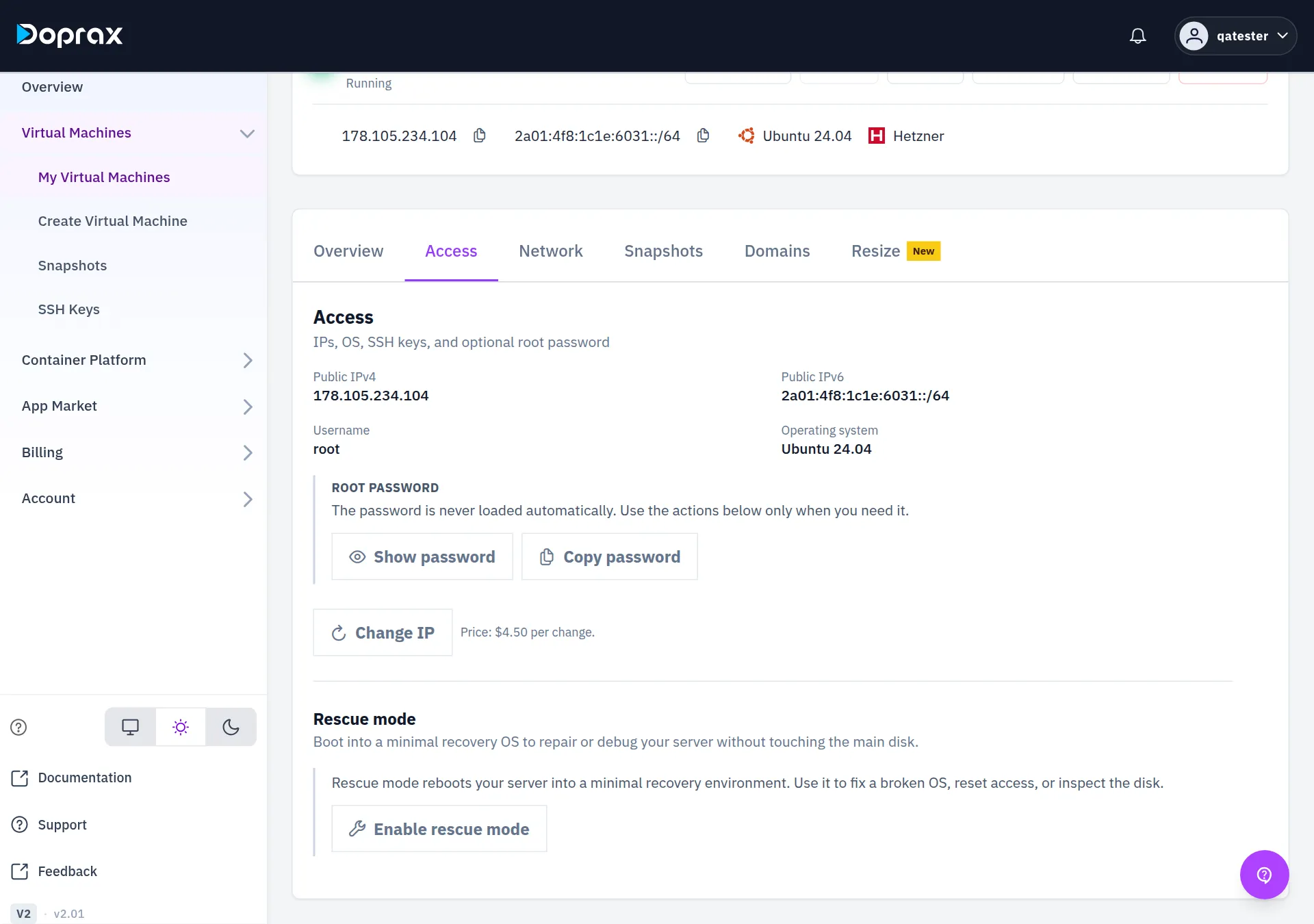
While the VM is in rescue mode, **Terminal** and the other buttons are switched off. The only action is **Exit rescue mode**.
### 2. Log in to the recovery system
[Section titled “2. Log in to the recovery system”](#2-log-in-to-the-recovery-system)
The **Access** tab now shows a **Rescue mode** box at the top, with **How to connect**.
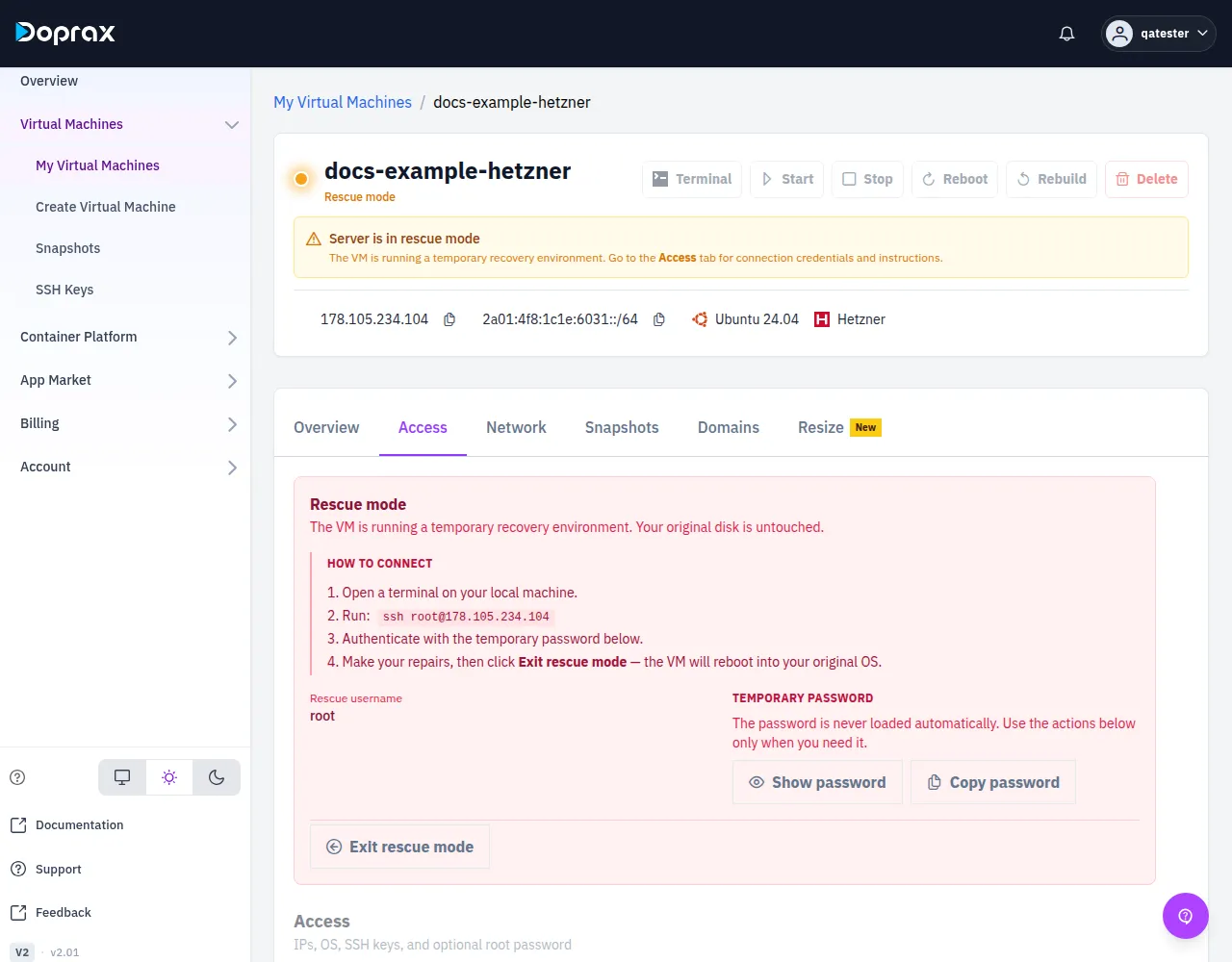
1. Read the command under **How to connect**. It has the form `ssh root@` followed by the VM’s IP address. The user is the one shown as **Rescue username**.
2. Look at how to log in. The box shows one of two things:
* **Temporary password**: select **Show password** or **Copy password**.
* “Authenticate with your SSH key”, with the fingerprint of the key: use the SSH key the VM was created with.
3. Open a terminal on your own computer and run the command. Replace the address with yours.
```bash
ssh root@203.0.113.10
```
If your SSH client refuses to connect with a warning that the host key has changed, that is expected: the recovery system is not your own system, so it identifies itself with another key. Remove the old entry and connect again:
```bash
ssh-keygen -R 203.0.113.10
```
### 3. Open your disk
[Section titled “3. Open your disk”](#3-open-your-disk)
In the recovery system, your own disk is not opened automatically.
1. List the disks and their partitions:
```bash
lsblk
```
Find the partition of your own system. It is normally the largest partition, and no mount point is shown next to it. Its name looks like `sda1`, `sdb1` or `vda1`.
2. Open it as the folder `/mnt/system`. Replace `sda1` with the name you found. The option `ro` opens the disk read-only, so nothing on it can be changed by mistake.
```bash
mkdir -p /mnt/system
mount -o ro /dev/sda1 /mnt/system
```
3. Check that your files are there:
```bash
ls /mnt/system
```
Your files are now under `/mnt/system`. Common places:
| What | Where |
| --------------------- | ----------------------------------------- |
| Home folders of users | `/mnt/system/home` and `/mnt/system/root` |
| Websites | `/mnt/system/var/www` |
| Configuration | `/mnt/system/etc` |
| Docker volumes | `/mnt/system/var/lib/docker/volumes` |
| MySQL or MariaDB data | `/mnt/system/var/lib/mysql` |
| PostgreSQL data | `/mnt/system/var/lib/postgresql` |
The data folder of a database is only usable with the same version of that database. Copy the whole folder, not single files in it.
### 4. Copy the files
[Section titled “4. Copy the files”](#4-copy-the-files)
**To your own computer.** Run this on your computer, in a second terminal, not in the recovery system. It asks for the same password or uses the same key as before.
```bash
scp -r root@203.0.113.10:/mnt/system/var/www ./backup-www
```
With `rsync` a copy that was interrupted can be continued by running the same command again:
```bash
rsync -av root@203.0.113.10:/mnt/system/home/ ./backup-home/
```
**To another server.** Run this in the recovery system:
```bash
scp -r /mnt/system/var/www user@198.51.100.20:/backup/www
```
### 5. Check the copy before you leave
[Section titled “5. Check the copy before you leave”](#5-check-the-copy-before-you-leave)
Compare the size of a folder on both sides, and open a few of the copied files.
```bash
du -sh /mnt/system/var/www # in the recovery system
du -sh ./backup-www # on your computer
```
### 6. Leave rescue mode
[Section titled “6. Leave rescue mode”](#6-leave-rescue-mode)
1. In the recovery system, close the disk and log out:
```bash
umount /mnt/system
exit
```
2. On the **Access** tab, select **Exit rescue mode**. The VM reboots into its own system. You do not have to reboot it yourself.
Leaving rescue mode does not repair anything: if the system did not boot before, it will not boot now. With your files safe, you can **Rebuild** the VM or delete it and create a new one.
You can enter rescue mode again whenever you need it.
## ProVM and the other providers
[Section titled “ProVM and the other providers”](#provm-and-the-other-providers)
On ProVM, Vultr, DigitalOcean, Google Cloud, Gcore and Scaleway there is no rescue mode. The dashboard also has no way to attach the disk of one VM to another VM, or to download a disk. That leaves two ways.
### The VM runs, but you cannot log in: use the Terminal
[Section titled “The VM runs, but you cannot log in: use the Terminal”](#the-vm-runs-but-you-cannot-log-in-use-the-terminal)
Select **Terminal** at the top of the VM’s page. It opens a shell on the VM in your browser, and it logs in with a key that Doprax keeps for the VM, not with your key or password. So it can work when your own login does not.
From that shell you can copy your files to another server:
```bash
scp -r /var/www user@198.51.100.20:/backup/www
```
Or you can repair your login: add your public key to `~/.ssh/authorized_keys`, then connect from your computer as usual.
What the Terminal needs in order to connect is listed in [My VM is unreachable](/docs/guides/diagnosing-server-problems/). It cannot help when the VM does not boot.
### The VM does not boot: use a snapshot from before the problem
[Section titled “The VM does not boot: use a snapshot from before the problem”](#the-vm-does-not-boot-use-a-snapshot-from-before-the-problem)
If you took a snapshot while the VM still worked, make a new VM from it.
1. Open the VM and select the **Snapshots** tab. All your snapshots are also under **Virtual Machines**, **Snapshots** in the menu.
2. On the snapshot, select **Restore (new VM)**, then **Continue**. The create page opens with the snapshot selected.
3. Choose a plan and create the VM. It is created at the same provider as the snapshot, with a new IP address, and it is charged like any other VM.
4. Log in to the new VM and copy your files.
A snapshot only helps if it was taken before the problem. A snapshot of a VM that does not boot contains the same broken system, and a VM made from it does not boot either.
### If you have neither
[Section titled “If you have neither”](#if-you-have-neither)
Do not rebuild or delete the VM. Contact us: open **Support** in the dashboard menu and select **Start live chat**, or write to . Say which VM it is and which files you need.
## So that you do not need this guide again
[Section titled “So that you do not need this guide again”](#so-that-you-do-not-need-this-guide-again)
* Take a [snapshot](/docs/virtual-machines/snapshots-in-virtual-machines/) before a risky change, such as a system upgrade or a change to the firewall or to SSH. A snapshot costs $0.20 when it is created and $0.20 per GB per month while you keep it.
* Keep a copy of data that matters outside the VM.
# My VM is unreachable: what to check
> A short order of checks for a virtual machine you cannot reach: its status, the Terminal button, a reboot, credit, the provider's port rules and rescue mode.
Your virtual machine does not answer: SSH fails, the website on it is down, or nothing loads. Go through these checks in order. Most cases end at the first or second one.
## 1. Look at the status on the VM’s page
[Section titled “1. Look at the status on the VM’s page”](#1-look-at-the-status-on-the-vms-page)
In the dashboard, open **Virtual Machines**, then **My Virtual Machines**, and select the VM. The status is the word under the VM’s name.
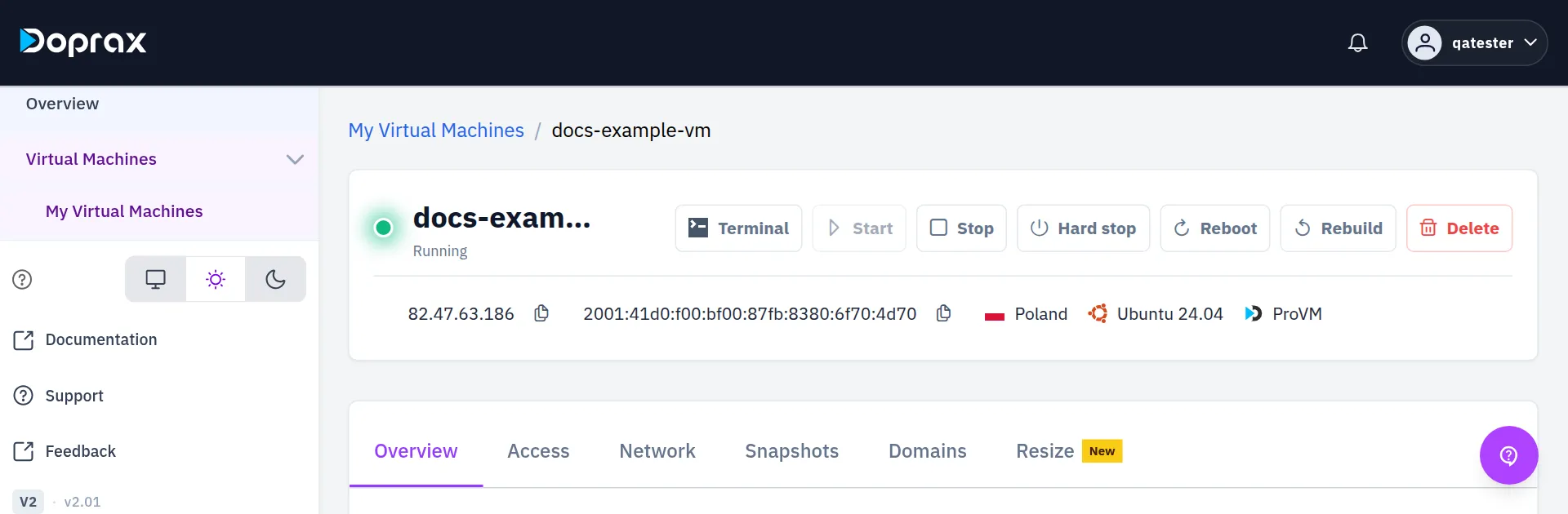
| Status | What it means | What to do |
| ----------------------------------------------------------- | --------------------------------------------------------------------------------------------------------- | ---------------------------------------------------------------------- |
| **Running** | The VM is switched on | The problem is inside the VM or on the network. Continue with check 2 |
| **Stopped** | The VM is switched off | Select **Start** |
| **Starting**, **Stopping**, **Rebooting**, **Provisioning** | An action is in progress. Most buttons are switched off until it ends | Wait. The **Overview** tab lists the actions under **Recent activity** |
| **Frozen** | Your credit reached zero and the VM was shut down | Add credit. See check 4 |
| **Rescue mode** | The VM runs a recovery system, not your own system | Open the **Access** tab and select **Exit rescue mode** |
| **Error** or **Failed** | Something went wrong at the provider. The page shows a red notice, “Provisioning failed”, with the reason | Try **Reboot**. If the VM never worked, delete it and create it again |
**Running** says that the VM is switched on. It does not say that the operating system inside it works.
If **Start** is switched off on a stopped VM, hold the pointer over it. “Account balance is too low to start this VM.” means you have to add credit first.
Note
The dashboard does not show the CPU, memory or disk use of a VM. To see them, log in and run `top`, `free -m` and `df -h`.
## 2. Try the Terminal button
[Section titled “2. Try the Terminal button”](#2-try-the-terminal-button)
Select **Terminal** at the top of the VM’s page. A shell on the VM opens in a new browser tab.
**Terminal** is an SSH session from Doprax to your VM, shown in the browser. It is not a screen of the machine: it does not show boot messages, and it cannot work when the SSH server in the VM is not running. For it to connect, all of this must be true:
* The VM is **Running** and is not in rescue mode.
* The SSH server in the VM listens on port 22, on the VM’s public IPv4 address.
* The VM’s own firewall lets connections to port 22 in.
* The user shown on the **Access** tab, normally `root`, can log in with an SSH key, and the key that Doprax put on the VM when it was created is still in that user’s `authorized_keys` file.
**If Terminal opens**, the VM is alive and its SSH server works. Then the problem is between your computer and the VM, or in your own login:
* Your SSH key is not on the VM, or you use the wrong password. The **Access** tab shows the username, the SSH key in use, and for a VM created with a password the **Show password** button. You can add your public key to `~/.ssh/authorized_keys` from the Terminal.
* Your own network blocks the connection. Try from another network.
* Only one service is down, not the VM. In the Terminal, see whether it listens:
```bash
sudo ss -tlnp
```
How to read the answer is on [Ports and protocols](/docs/virtual-machines/which-ports-protocols-survive-bad-network/).
**If Terminal shows “Could not establish terminal session”**, the SSH server in the VM did not answer or refused the key. Continue with check 3.
To see where your own SSH connection stops, run it with `-v` from your computer:
```bash
ssh -v root@203.0.113.10
```
| Last message | What it means |
| ---------------------- | ------------------------------------------------------------------------------------------------------------------------------- |
| `Connection timed out` | Nothing answers on port 22: the VM is hanging, a firewall drops the connection, or the provider’s port rule blocks it (check 5) |
| `Connection refused` | The VM answers, but no SSH server listens on port 22 |
| `Permission denied` | The VM and its SSH server work. Your key or password is not accepted |
## 3. Reboot the VM
[Section titled “3. Reboot the VM”](#3-reboot-the-vm)
Select **Reboot** and wait until the status is **Running** again. Then try the Terminal and your own connection once more.
If the VM does not react to **Reboot** or **Stop**:
* **On ProVM**, select **Hard stop**. This is a forced power-off, like pulling the plug: what was only in memory is lost. Tick the box to confirm, wait for **Stopped**, then select **Start**.
* **On the other providers** there is no Hard stop. Contact us (see the end of this page).
## 4. Check your credit
[Section titled “4. Check your credit”](#4-check-your-credit)
A VM with the status **Frozen** was shut down because the credit of your account reached zero. It is not broken, and its data is still there.
1. Open **Billing**, then **Billing overview**, and look at **Available balance**.
2. Add credit. When your available balance is above $2, the frozen VMs are started again automatically, usually within 15 minutes.
A frozen VM that stays without credit is deleted by our team after a short time. See [When your credit runs low](/docs/billing/when-credit-runs-low/).
## 5. Check the port rules of the provider
[Section titled “5. Check the port rules of the provider”](#5-check-the-port-rules-of-the-provider)
The provider is shown at the top of the VM’s page, next to the operating system.
* **Hetzner**: only TCP ports 80, 443 and 19000 to 19100 are reachable from the internet. A service on another port, or one that uses UDP, cannot be reached, whatever you set inside the VM. Move the service to one of these ports.
* **ProVM and OVH**: all ports are open. If a port does not answer, look at the firewall inside the VM.
The steps to test one port are on [Ports and protocols](/docs/virtual-machines/which-ports-protocols-survive-bad-network/).
## 6. Use rescue mode, where there is one
[Section titled “6. Use rescue mode, where there is one”](#6-use-rescue-mode-where-there-is-one)
Rescue mode starts the VM from a small recovery system, so that you can log in and repair your own system or copy your files, even when it does not boot.
* **Hetzner and OVH**: open the **Access** tab and select **Enable rescue mode**. See [Rescue mode](/docs/virtual-machines/using-rescue-mode-for-your-vm/).
* **All other providers, ProVM included**: there is no rescue mode. A request for it is refused with “Rescue mode is not supported for this provider.”
To get your files off a VM that does not boot, follow [Copy your files off a VM that does not boot](/docs/guides/data-recovery-save-your-files-from-a-broken-vm/).
## If nothing helped
[Section titled “If nothing helped”](#if-nothing-helped)
* **You have a snapshot from before the problem**: create a new VM from it. On the **Snapshots** tab, select **Restore (new VM)** on the snapshot. The new VM is at the same provider and gets its own IP address. See [Snapshots](/docs/virtual-machines/snapshots-in-virtual-machines/).
* **You do not need the data on the VM**: select **Rebuild**. It puts a fresh operating system on the same VM and destroys what is on the disk. Rebuild does not exist on Gcore and Scaleway. See [Rebuild](/docs/virtual-machines/rebuild/).
* **Ask us.** Open **Support** in the dashboard menu and select **Start live chat**, or write to . Say which VM it is and what you have already checked.
# Deploy a MikroTik Cloud Hosted Router (CHR) on a ProVM
> Create a ProVM with the MikroTik image, sign in to RouterOS with WebFig or WinBox, and activate a licence.
MikroTik’s Cloud Hosted Router (CHR) is RouterOS made for virtual machines. It has the full RouterOS feature set: firewall, VPN server, bandwidth control, proxy and routing. On Doprax, **MikroTik** is one of the operating systems you can choose when you create a ProVM.
Doprax keeps the virtual machine (VM) running. What you configure inside RouterOS is yours to manage.
## Before you start
[Section titled “Before you start”](#before-you-start)
* A Doprax account with credit.
* A [mikrotik.com](https://mikrotik.com) account. You need it for the licence.
* A browser, for WebFig. Or WinBox, MikroTik’s own management app.
## 1. Create the VM
[Section titled “1. Create the VM”](#1-create-the-vm)
1. In the dashboard, open **Virtual Machines**, then **Create Virtual Machine**.
2. **Choose a provider**: ProVM. The MikroTik image is offered on ProVM only.
3. **Choose a location** and **Choose a size**. Every ProVM plan can run the image. See [Plans and prices](/docs/virtual-machines/plans/).
4. Under **Choose an image source**, on the **Operating System** tab, select **MikroTik**. Then pick the version under **Version**. The list of operating systems depends on the provider, location and size, so choose those first.
5. **Choose an access method**: **Password (auto-generated)**. WebFig and WinBox sign in with a password, and for a VM created with an SSH key the dashboard has no password to show.
6. Enter a name and select **Create Virtual Machine**.
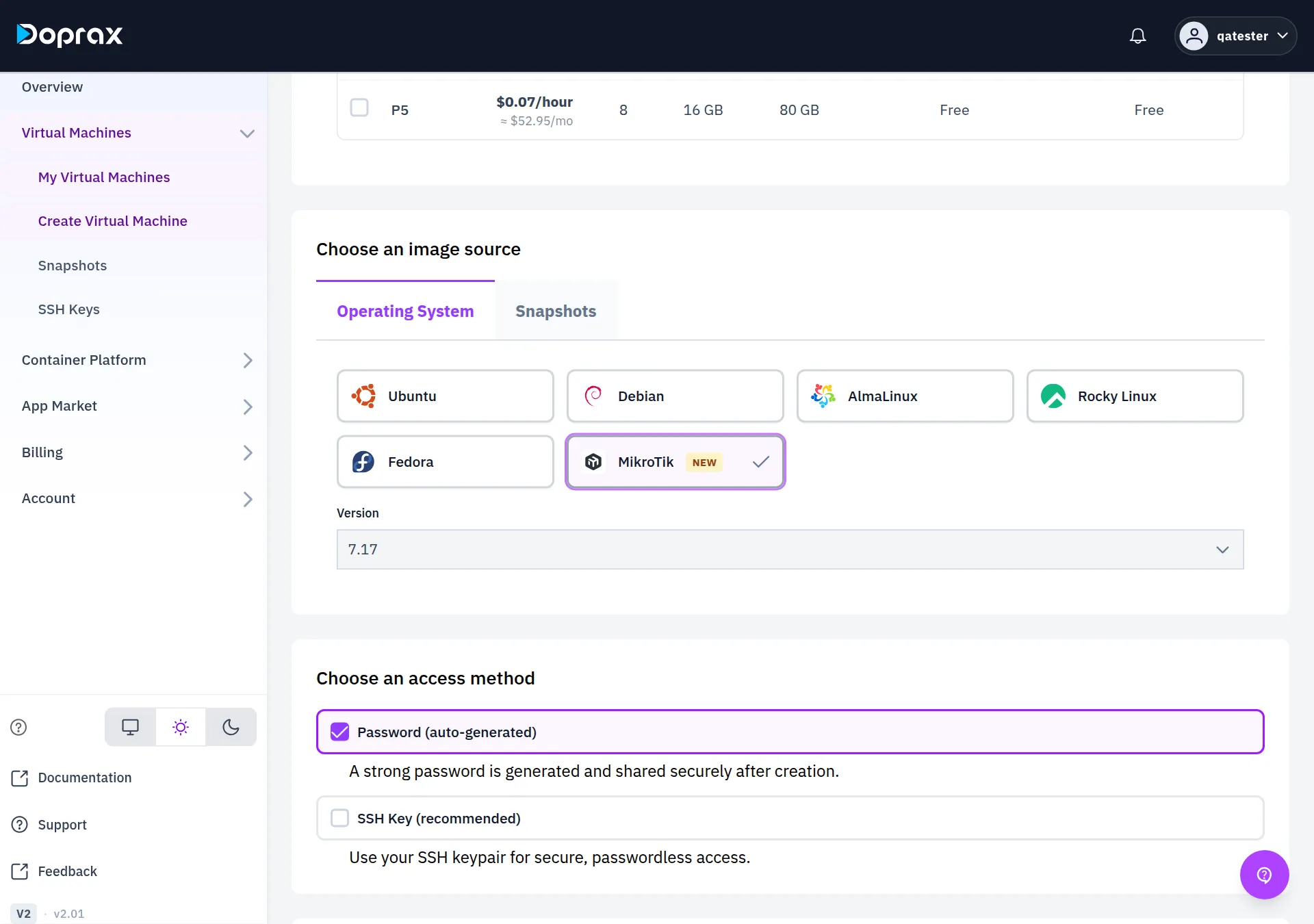
## 2. Sign in to RouterOS
[Section titled “2. Sign in to RouterOS”](#2-sign-in-to-routeros)
When the VM’s status is **Running**, open it and select the **Access** tab. It shows:
* **Username**: `admin`.
* **Web UI**: the address of WebFig, `http://YOUR_VM_IP`.
* **Show password** and **Copy password**: the generated password. The section is titled **ROOT PASSWORD**; on a MikroTik VM it is the password of `admin`.
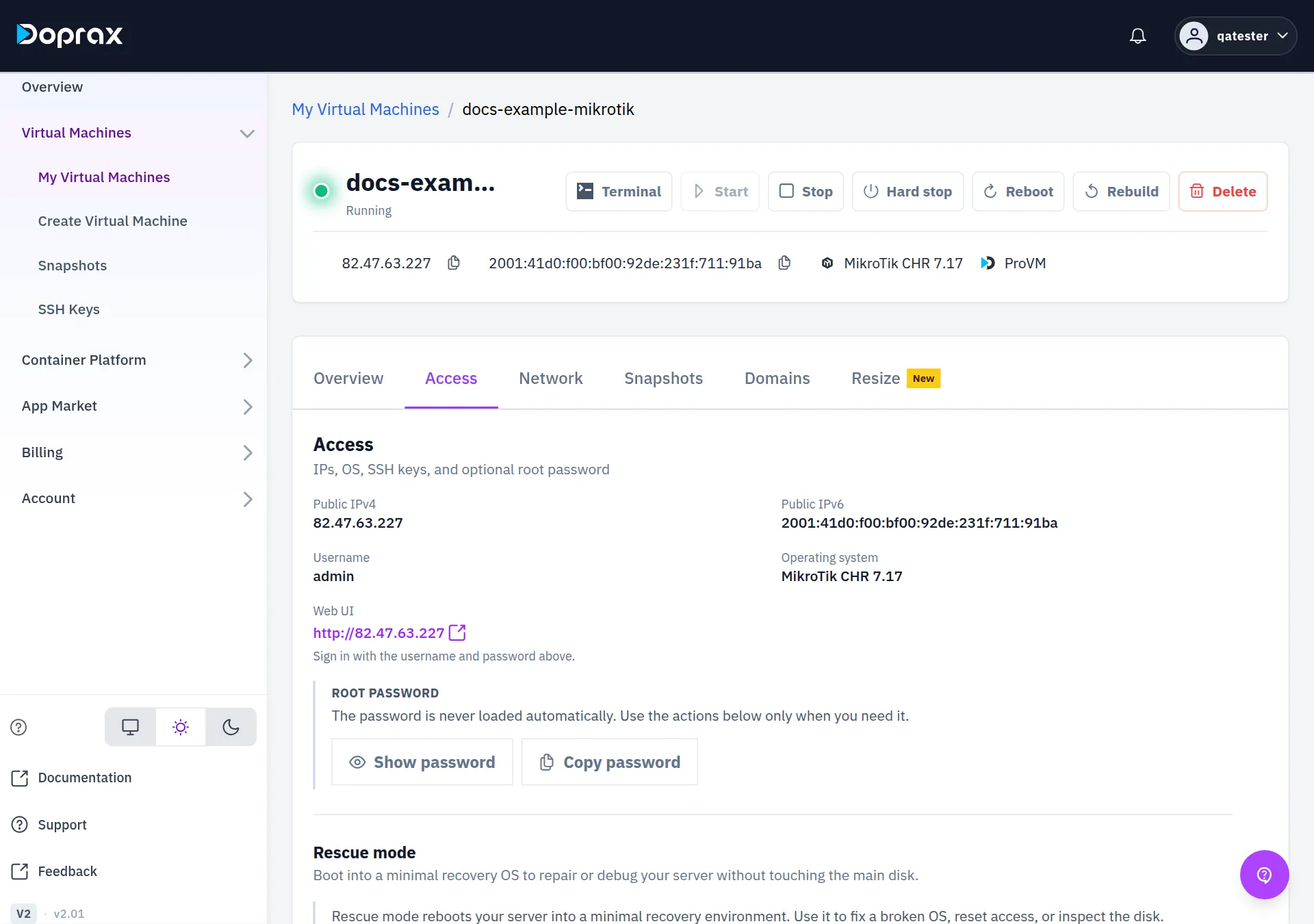
**With WebFig (browser):** select the **Web UI** link and sign in with the username and the password.
**With WinBox:** enter the VM’s IP address, the username `admin` and the password, then connect.
WebFig at an `http://` address is not encrypted. For regular work, use WinBox.
## 3. Activate a licence
[Section titled “3. Activate a licence”](#3-activate-a-licence)
A new CHR runs on MikroTik’s free licence, which limits the upload speed of each interface to 1 Mbit per second. That is enough to set the router up, not to use it.
1. In WinBox or WebFig, open **System**, then **License**.
2. Select **Renew License**.
3. Enter the email address and password of your mikrotik.com account.
4. Choose a level. The router gets a 60-day trial of that level. To keep the level after the trial, pay for it in your mikrotik.com account.
MikroTik’s licence levels are named P1, P10 and P-unlimited. They have nothing to do with the Doprax plans P1 to P5.
## 4. Secure the router
[Section titled “4. Secure the router”](#4-secure-the-router)
**Change the password of `admin`.** Open the RouterOS terminal (**Terminal** in WebFig, **New Terminal** in WinBox) and run:
```plaintext
/user set admin password="A-LONG-NEW-PASSWORD"
```
Doprax does not learn the new password: the **Access** tab keeps showing the generated one. Keep the new password yourself.
**Add firewall rules.** On a ProVM every port can be reached from the internet, and the Doprax dashboard has no firewall setting. Until you add rules to RouterOS’s own firewall, anyone can reach the router’s login pages. MikroTik’s guide to securing a router and its WireGuard guide are in the [RouterOS documentation](https://help.mikrotik.com/docs/).
## Good to know
[Section titled “Good to know”](#good-to-know)
* **Rebuild replaces the disk.** A rebuild of the VM removes the RouterOS configuration. See [Rebuild a VM](/docs/virtual-machines/rebuild/).
* **A stopped VM is charged at its full price.** To stop paying, delete the VM.
# Run Hermes Agent on a virtual machine
> Create a ProVM, install Hermes Agent with its installer, connect it to a model provider, and keep its messaging gateway running.
[Hermes Agent](https://github.com/NousResearch/hermes-agent) is an open-source AI agent made by Nous Research. It runs as a long-lived process on a server, and you talk to it from a terminal or from a messaging app such as Telegram or Discord. This guide puts it on a ProVM.
Hermes Agent is third-party software. Doprax provides the virtual machine (VM); the commands below are from Hermes’s own documentation.
## Before you start
[Section titled “Before you start”](#before-you-start)
* A Doprax account with credit.
* An account with a model provider that Hermes supports, for example an OpenRouter API key. Hermes does not contain a language model: it sends requests to the provider you choose. ProVM plans have no GPU, so plan for a hosted model.
* Optional: a Telegram bot token, if you want to message the agent from your phone. You get one from `@BotFather` in Telegram.
## 1. Create the VM
[Section titled “1. Create the VM”](#1-create-the-vm)
1. In the dashboard, open **Virtual Machines**, then **Create Virtual Machine**.
2. **Choose a provider**: ProVM.
3. **Choose a location**: the one closest to you.
4. **Choose a size**: a plan with at least 2 vCPU and 4 GB of memory. See [Plans and prices](/docs/virtual-machines/plans/).
5. **Choose an image source**: Ubuntu.
6. **Choose an access method**: **SSH Key (recommended)**, or **Password (auto-generated)**. See [SSH keys](/docs/virtual-machines/ssh-keys/).
7. Enter a name and select **Create Virtual Machine**.
[Create your first virtual machine](/docs/get-started/first-vm/) describes each step.
## 2. Connect to the VM
[Section titled “2. Connect to the VM”](#2-connect-to-the-vm)
```bash
ssh root@YOUR_VM_IP
```
## 3. Install Hermes
[Section titled “3. Install Hermes”](#3-install-hermes)
The installer needs `git` and `curl`. Install them, then run the installer:
```bash
apt update && apt install -y git curl
curl -fsSL https://hermes-agent.nousresearch.com/install.sh | bash
```
The installer downloads Hermes and everything it needs into `~/.hermes/`, and puts the `hermes` command in `~/.local/bin/`. When it has finished, reload your shell so that the command is found:
```bash
source ~/.bashrc
```
## 4. Choose a model provider
[Section titled “4. Choose a model provider”](#4-choose-a-model-provider)
```bash
hermes setup
```
The wizard asks which model provider to use and for its credentials. For OpenRouter you paste an API key.
To change the model later without running the whole wizard again:
```bash
hermes model
```
## 5. Have a first conversation
[Section titled “5. Have a first conversation”](#5-have-a-first-conversation)
```bash
hermes
```
This opens the interactive chat in your terminal. Send a short message first to confirm that the model answers. Then ask for something that needs a tool, for example “run uptime and tell me the result”, to confirm that the agent can run commands on the VM.
## 6. Connect a messaging app (optional)
[Section titled “6. Connect a messaging app (optional)”](#6-connect-a-messaging-app-optional)
1. Set up the platform:
```bash
hermes gateway setup
```
The wizard asks which platform to add and for its credentials, such as the Telegram bot token.
2. Run the gateway once in the foreground and send your bot a message:
```bash
hermes gateway
```
Stop it with `Ctrl+C` when you have seen it answer.
3. Install the gateway as a system service, so that it runs after you log out and starts again when the VM reboots:
```bash
hermes gateway install --system
hermes gateway start --system
```
Hermes’s documentation writes these two commands with `sudo`. You are logged in as `root`, so it is not needed.
4. Check it:
```bash
hermes gateway status --system
journalctl -u hermes-gateway -f
```
## Ports
[Section titled “Ports”](#ports)
For Telegram and Discord, the gateway connects out to the service. It does not need any port opened towards your VM.
The Doprax dashboard has no firewall setting. On a ProVM every port can be reached from the internet, so any program on the VM that listens on a port is public. If you add something with a web interface later, protect it with a password, or limit who can reach it with a firewall inside the VM, such as `ufw`.
## Check and update
[Section titled “Check and update”](#check-and-update)
To check the installation, the configuration, the provider and the tools:
```bash
hermes doctor
```
To update Hermes to the latest version:
```bash
hermes update
```
## Good to know
[Section titled “Good to know”](#good-to-know)
* Everything Hermes remembers, including its configuration and the skills it writes, is in `~/.hermes/` on the VM. Deleting or rebuilding the VM removes it. Take a [snapshot](/docs/virtual-machines/snapshots-in-virtual-machines/) first if you want to keep it.
* The model provider charges you for the requests the agent makes. That cost is separate from the VM’s price.
# Set up an Outline VPN server on a virtual machine
> Create a virtual machine, run Outline's installer over SSH, connect Outline Manager to it, and give each user an access key.
Outline is a VPN you host yourself. It has three parts:
* **The Outline server** runs on your virtual machine (VM).
* **Outline Manager** is a desktop app. You use it to manage the server and to create access keys.
* **Outline Client** is the app each user connects with, using an access key you give them.
Outline is not in the App Market today, so you install the server yourself. It is one command. The other two parts are apps you download from [getoutline.org](https://getoutline.org).
## Before you start
[Section titled “Before you start”](#before-you-start)
* A Doprax account with credit.
* Outline Manager installed on your own computer.
* A VM on a provider where all ports are open: **ProVM** or **OVH**.
Do not use a Hetzner VM for Outline
Outline picks two random high ports: a management port (TCP) and a port for access keys (TCP and UDP). On a Hetzner VM only TCP ports 80, 443 and 19000 to 19100 can be reached from the internet, so Outline Manager and your users could not reach the server.
## 1. Create the VM
[Section titled “1. Create the VM”](#1-create-the-vm)
Create a VM as described in [Create your first virtual machine](/docs/get-started/first-vm/), with these choices:
* **Choose a provider**: ProVM (or OVH).
* **Choose an image source**: Ubuntu.
* **Choose a size**: the smallest plan is a reasonable start. You can move to a larger plan later on the VM’s **Resize** tab.
## 2. Run the installer
[Section titled “2. Run the installer”](#2-run-the-installer)
1. Connect to the VM over SSH. The IP address is at the top of the VM’s page.
```bash
ssh root@YOUR_VM_IP
```
2. Run Outline’s installer:
```bash
sudo bash -c "$(wget -qO- https://raw.githubusercontent.com/OutlineFoundation/outline-apps/master/server_manager/install_scripts/install_server.sh)"
```
This is the command from the [Outline server README](https://github.com/OutlineFoundation/outline-server/blob/master/src/shadowbox/README.md) (section “Self-Hosted Installation”). The project moved from the `Jigsaw-Code` organisation on GitHub to `OutlineFoundation`; old `Jigsaw-Code` addresses lead to the same files.
3. If Docker is not installed, the installer asks `Would you like to install Docker?`. Answer `Y`.
4. Wait for the line `CONGRATULATIONS! Your Outline server is up and running.` Under it, the installer prints one line in green that looks like this:
```plaintext
{"apiUrl":"https://YOUR_VM_IP:PORT/SECRET","certSha256":"..."}
```
Copy the whole line, with the curly brackets. Treat it like a password: whoever has it can manage your server.
The installer also names the two ports it chose: `Management port ..., for TCP` and `Access key port ..., for TCP and UDP`. On ProVM and OVH there is nothing to open on the Doprax side. If you turned on a firewall inside the VM, such as `ufw`, allow these two ports there.
If you lose the line, both values are kept on the VM:
```bash
cat /opt/outline/access.txt
```
## 3. Connect Outline Manager
[Section titled “3. Connect Outline Manager”](#3-connect-outline-manager)
1. Open Outline Manager on your computer and add a server.
2. Choose **Set up Outline anywhere**.
3. Paste the line you copied into step 2 of that screen and confirm.
Outline Manager now shows your server.
## 4. Create access keys
[Section titled “4. Create access keys”](#4-create-access-keys)
1. In Outline Manager, open your server and add a new access key. Create one key per person, and name it, so that you can remove one person later without affecting the others.
2. Share the key with that person. It is a link that starts with `ss://`.
3. The person installs Outline Client, adds the key, and connects.
## Good to know
[Section titled “Good to know”](#good-to-know)
* **The access keys contain the VM’s IP address.** If you [change the VM’s IP address](/docs/virtual-machines/change-ip-of-virtual-machines/), the keys you handed out stop working.
* **Updates are automatic.** The installer also starts a second container, Watchtower, that fetches new versions of the Outline server.
* **A stopped VM is charged at its full price.** To stop paying, delete the VM. See [Start, stop and delete](/docs/virtual-machines/start-stop-delete/).
# Install Rocket.Chat on a virtual machine from the App Market
> Install the Rocket Chat app from the App Market onto one of your virtual machines, then finish Rocket.Chat's own setup wizard.
[Rocket.Chat](https://www.rocket.chat/) is a team chat server you host yourself. The App Market has it as **Rocket Chat**, and installs it onto one of your virtual machines (VMs). After the install you finish Rocket.Chat’s own setup wizard in your browser.
## Before you start
[Section titled “Before you start”](#before-you-start)
* A Doprax account with credit.
* A running VM. The App Market installs onto a VM you already have: it does not create one. See [Create your first virtual machine](/docs/get-started/first-vm/).
* Choose the VM’s size from the system requirements in the [Rocket.Chat documentation](https://docs.rocket.chat/). Rocket.Chat runs together with a MongoDB database, so it needs more memory than a small website.
* Prefer a **ProVM** or **OVH** VM, where all ports are open. On a Hetzner VM only TCP ports 80, 443 and 19000 to 19100 can be reached from the internet, so an app that listens on another port cannot be opened in a browser.
## Install the app
[Section titled “Install the app”](#install-the-app)
1. In the dashboard, open **App Market**.
2. Search for `rocket` and select **View details** on **Rocket Chat**.
3. Read the app’s page before you install. **ABOUT**, **GUIDELINES** and **ACCESS** are the publisher’s notes on what the app needs and how to reach it. **REVIEWS** and **ISSUES** show what other customers ran into.
4. In the bar at the bottom of the page, **Install Rocket Chat**, choose the VM and select **Install**.
5. A window opens with the steps and the log of the installation as it runs. **Cancel install** stops it. At the end the status is **Success** or **Failed**; a failed install shows the reason.
The general procedure, for any app, is on [Explore apps in the App Market](/docs/app-market/explore-page-doprax-app-market/).
## Open Rocket.Chat
[Section titled “Open Rocket.Chat”](#open-rocketchat)
When the status is **Success**, the window shows **Access & setup**: the address to open and any login details the app recorded. Select **Open**, or copy the address into your browser.
To see these details again later, open the app’s page in the App Market. Under **Your installations**, select **Access & setup** next to the VM.
If no address is listed, look in the app’s **ACCESS** section and in the install log. Rocket.Chat itself listens on port 3000 unless the app sets another one, which gives `http://YOUR_VM_IP:3000`.
## Finish Rocket.Chat’s setup wizard
[Section titled “Finish Rocket.Chat’s setup wizard”](#finish-rocketchats-setup-wizard)
The first time you open Rocket.Chat, it asks you to set up the workspace. The steps are Rocket.Chat’s, and can differ between versions:
1. **Administrator account**: your name, a username, your email address and a password. This account manages the workspace, so use a strong password.
2. **Organisation**: its name, industry, size and country.
3. **Register the workspace**: an email address. Rocket.Chat sends a confirmation link to it.
After that the workspace opens. Invite people and create channels from Rocket.Chat’s administration pages. See the [Rocket.Chat documentation](https://docs.rocket.chat/).
## Use your own domain
[Section titled “Use your own domain”](#use-your-own-domain)
To reach Rocket.Chat under your own name, point the domain at the VM and add it on the VM’s **Domains** tab. See [Add a domain to a VM](/docs/virtual-machines/add-domains-to-your-virtual-machines/).
Caution
An address that starts with `http://` is not encrypted: passwords and messages can be read on the way. Before your team uses the workspace, serve it over HTTPS. Rocket.Chat’s documentation describes how.
## If something does not work
[Section titled “If something does not work”](#if-something-does-not-work)
* Select **Report issue** on the app’s page to tell the publisher. See [Raise an issue on an app](/docs/app-market/raising-issues-in-published-apps/).
* The app runs on your VM, so you can look at it yourself over SSH or with **Terminal** on the VM’s page.
# Run a V2Ray (Xray) server with the 3x-ui panel
> Install the 3x-ui panel from the App Market onto a virtual machine, sign in, secure it, and create users.
3x-ui is a web panel for an Xray (V2Ray) proxy server. You add the protocols you want (VLESS, VMess, Trojan, Shadowsocks), create an account for each user, and give each user a link or QR code. The App Market installs it onto one of your virtual machines (VMs).
## Before you start
[Section titled “Before you start”](#before-you-start)
* A Doprax account with credit.
* A running VM with at least 512 MB of memory and 5 GB of disk. See [Create your first virtual machine](/docs/get-started/first-vm/).
* Prefer a **ProVM** or **OVH** VM, where all ports are open. For a Hetzner VM, read [On a Hetzner VM](#on-a-hetzner-vm) first.
## Install the panel
[Section titled “Install the panel”](#install-the-panel)
1. In the dashboard, open **App Market**.
2. Search for `3x-ui` and select **View details** on **3x-ui — Xray VPN Panel**, published by **doprax**.
3. In the bar at the bottom of the page, choose the VM and select **Install**.
4. A window shows the steps and the log of the installation as it runs. Wait for the status **Success**.
Choose the right app
The App Market has other apps with similar names, such as **3X-UI panel**, **Xui panel** and **X-UI-PRO**. They come from other publishers and are set up differently. This page describes only **3x-ui — Xray VPN Panel** by **doprax**.
The general procedure, for any app, is on [Explore apps in the App Market](/docs/app-market/explore-page-doprax-app-market/).
## Sign in
[Section titled “Sign in”](#sign-in)
After a successful install, the window shows **Access & setup** with these details:
| Label | Value |
| ------------------------ | ------------------------------------------------ |
| **Panel** | `http://YOUR_VM_IP:2053` |
| **Default login** | `admin` / `admin` |
| **Recommended protocol** | A VLESS + REALITY inbound, which needs no domain |
To see them again later, open the app’s page in the App Market. Under **Your installations**, select **Access & setup** next to the VM.
1. Open the **Panel** address in your browser.
2. Sign in with the username `admin` and the password `admin`.
3. **Change the username, the password and the panel port at once**, in the panel’s settings.
Danger
Until you change them, anyone who finds the panel’s address can sign in with `admin` / `admin` and control your server. Do step 3 before anything else.
## Add a protocol and users
[Section titled “Add a protocol and users”](#add-a-protocol-and-users)
In 3x-ui, a protocol that listens on a port is called an inbound, and each user is a client of an inbound.
1. In the panel, add an inbound. Choose its protocol and its port. VLESS with REALITY is the strongest default and needs no domain name. VMess, Trojan and Shadowsocks are also available.
2. Add one client to the inbound for each person. You can give a client a traffic limit and an expiry date.
3. Give each person their client’s link or QR code. They open it in an app that supports the protocol, for example v2rayNG, Nekoray, Hiddify or Streisand.
The panel uses the VM’s network directly, so an inbound can listen on any TCP or UDP port of the VM.
## On a Hetzner VM
[Section titled “On a Hetzner VM”](#on-a-hetzner-vm)
On a Hetzner VM only TCP ports 80, 443 and 19000 to 19100 can be reached from the internet. This changes three things:
* **The panel’s first address does not open**, because port 2053 is outside the range. Reach it through SSH the first time. Run this on your own computer and leave it running:
```bash
ssh -L 2053:localhost:2053 root@YOUR_VM_IP
```
Then open `http://localhost:2053` in your browser.
* **Set the panel port** to a port between 19000 and 19100. After that the panel opens at `http://YOUR_VM_IP:THAT_PORT` without SSH.
* **Give every inbound** port 443 or a port between 19000 and 19100, and choose a protocol that works over TCP. UDP does not reach a Hetzner VM.
## Good to know
[Section titled “Good to know”](#good-to-know)
* **No host can promise that an address stays reachable from every network.** If your users can no longer reach the VM’s IP address, you can [change the IP address](/docs/virtual-machines/change-ip-of-virtual-machines/). The links you handed out contain the old address and must be given out again.
* **The panel runs in a Docker container named `3x-ui`.** Over SSH, `docker ps` shows whether it is running, and `docker logs 3x-ui` shows its log.
* **Keep one account per person**, so that you can remove one person without affecting the others.
# Run a Psiphon Conduit node on a ProVM
> Create a ProVM, install Docker, and start a Psiphon Conduit node that relays traffic for Psiphon users on restricted networks.
A Psiphon Conduit node relays encrypted traffic between Psiphon users on restricted networks and the Psiphon network. This guide runs one in Docker on a ProVM.
Conduit is a bridge, not an exit: the websites a user visits do not see your VM’s IP address as the source of the traffic.
Psiphon’s broker knows each node by a key that the node creates on its first start. A node that stays online builds a reputation and is sent more users, so a new node can stay quiet for hours or days. Keep the key: the commands below store it in a Docker volume.
## Before you start
[Section titled “Before you start”](#before-you-start)
* A Doprax account with credit.
* A ProVM with Ubuntu. The smallest plan, P1, is enough to start. See [Plans and prices](/docs/virtual-machines/plans/). The standard ProVM plans list inbound and outbound traffic as **Free** on the **Create Virtual Machine** page.
## 1. Create the VM and connect
[Section titled “1. Create the VM and connect”](#1-create-the-vm-and-connect)
Create the VM as described in [Create your first virtual machine](/docs/get-started/first-vm/), with ProVM as the provider and Ubuntu as the operating system. Then connect:
```bash
ssh root@YOUR_VM_IP
```
## 2. Install Docker
[Section titled “2. Install Docker”](#2-install-docker)
```bash
curl -fsSL https://get.docker.com -o get-docker.sh
sh get-docker.sh
docker --version
```
## 3. Start the Conduit node
[Section titled “3. Start the Conduit node”](#3-start-the-conduit-node)
```bash
docker run -d \
--name conduit \
--restart unless-stopped \
-v conduit-data:/home/conduit/data \
-p 127.0.0.1:9090:9090 \
ghcr.io/psiphon-inc/conduit/cli:latest \
start \
--max-common-clients 50 \
--bandwidth 50 \
--data-dir /home/conduit/data \
--metrics-addr 0.0.0.0:9090
```
What the options do:
| Option | Meaning |
| ------------------------------------ | ------------------------------------------------------------------------------ |
| `--restart unless-stopped` | Docker starts the node again after a crash or a reboot of the VM |
| `-v conduit-data:/home/conduit/data` | Keeps the node’s key in a Docker volume named `conduit-data` |
| `-p 127.0.0.1:9090:9090` | Makes the node’s statistics readable from the VM itself, not from the internet |
| `--max-common-clients 50` | At most 50 users at the same time |
| `--bandwidth 50` | At most 50 Mbit per second in total. `-1` means no limit |
The image and the values are the ones in Psiphon’s own [Compose file](https://github.com/Psiphon-Inc/conduit/blob/main/cli/docker-compose.yml).
Caution
Do not leave out the `-v` line. Without the volume, the key is lost when the container is removed, and the node starts again with no reputation.
## 4. Confirm that it is running
[Section titled “4. Confirm that it is running”](#4-confirm-that-it-is-running)
```bash
docker logs -f conduit
```
The node prints a line marked `[STATS]` at intervals, with the number of users that are connecting and connected, the traffic up and down, and the uptime. Leave the log with `Ctrl+C`; the node keeps running.
## 5. Change the limits
[Section titled “5. Change the limits”](#5-change-the-limits)
To change the limits, remove the container and start it again with other numbers. The volume keeps the key, so the node keeps its reputation.
```bash
docker rm -f conduit
docker run -d \
--name conduit \
--restart unless-stopped \
-v conduit-data:/home/conduit/data \
-p 127.0.0.1:9090:9090 \
ghcr.io/psiphon-inc/conduit/cli:latest \
start \
--max-common-clients 100 \
--bandwidth 5 \
--data-dir /home/conduit/data \
--metrics-addr 0.0.0.0:9090
```
Psiphon’s [deployment guide](https://github.com/Psiphon-Inc/conduit/blob/main/cli/GUIDE.md) says to lower `--max-common-clients` when the machine runs short of processor or memory.
## 6. Read the node’s statistics
[Section titled “6. Read the node’s statistics”](#6-read-the-nodes-statistics)
The node publishes its numbers in the Prometheus format. Read them on the VM:
```bash
curl -s http://127.0.0.1:9090/metrics | grep conduit_
```
`conduit_connected_clients` is the number of users connected now. `conduit_bytes_uploaded` and `conduit_bytes_downloaded` are the traffic relayed.
## Good to know
[Section titled “Good to know”](#good-to-know)
* **Use ProVM.** On a ProVM all ports are open. On a Hetzner VM only TCP ports 80, 443 and 19000 to 19100 can be reached from the internet.
* **To update the node**, fetch the new image with `docker pull ghcr.io/psiphon-inc/conduit/cli:latest`, then repeat step 5 with your numbers.
* **A stopped VM is charged at its full price.** To stop paying, delete the VM.
# Run a Tor Snowflake proxy on a ProVM
> Create a ProVM, install Docker, and start a Snowflake proxy that relays Tor connections for users on restricted networks.
A Snowflake proxy relays connections from Tor users on restricted networks to the Tor network. This guide runs one in Docker on a ProVM, with the Tor Project’s own Compose file.
Snowflake is not a classic Tor bridge with one fixed address for censors to block. Users reach volunteer proxies such as yours through short WebRTC connections, the technology that video calls in a browser use.
## Before you start
[Section titled “Before you start”](#before-you-start)
* A Doprax account with credit.
* A ProVM with Ubuntu. The smallest plan, P1, is enough. See [Plans and prices](/docs/virtual-machines/plans/).
Use ProVM, not Hetzner
The proxy receives UDP on a wide range of ports. On a ProVM all ports are open. On a Hetzner VM only TCP ports 80, 443 and 19000 to 19100 can be reached from the internet.
## 1. Create the VM and connect
[Section titled “1. Create the VM and connect”](#1-create-the-vm-and-connect)
Create the VM as described in [Create your first virtual machine](/docs/get-started/first-vm/), with ProVM as the provider and Ubuntu as the operating system. Then connect:
```bash
ssh root@YOUR_VM_IP
```
## 2. Install Docker
[Section titled “2. Install Docker”](#2-install-docker)
```bash
curl -fsSL https://get.docker.com -o get-docker.sh
sh get-docker.sh
docker --version
```
## 3. Start the Snowflake proxy
[Section titled “3. Start the Snowflake proxy”](#3-start-the-snowflake-proxy)
Download the Tor Project’s Compose file and start it:
```bash
mkdir snowflake && cd snowflake
curl -fsSL -o docker-compose.yml "https://gitlab.torproject.org/tpo/anti-censorship/pluggable-transports/snowflake/-/raw/main/docker-compose.yml?ref_type=heads"
docker compose up -d
```
This starts two containers:
* `snowflake-proxy`, the proxy itself.
* `watchtower`, which checks for a new version of the proxy and installs it.
The commands are from the Tor Project’s [Docker setup guide for a standalone Snowflake proxy](https://community.torproject.org/relay/setup/snowflake/standalone/docker/).
## 4. Confirm that it is running
[Section titled “4. Confirm that it is running”](#4-confirm-that-it-is-running)
```bash
docker ps
docker logs -f snowflake-proxy
```
`docker ps` must list `snowflake-proxy` with the status `Up`. The log shows the proxy starting. After that it writes a summary at intervals: how many connections it relayed and how much traffic passed through. Leave the log with `Ctrl+C`; the proxy keeps running.
A new proxy can wait some time for its first users.
## 5. Check the UDP ports
[Section titled “5. Check the UDP ports”](#5-check-the-udp-ports)
The Compose file gives the proxy the VM’s network directly. The proxy receives UDP on the range of ports that this command prints:
```bash
cat /proc/sys/net/ipv4/ip_local_port_range
```
The usual answer is `32768 60999`.
* **On the Doprax side there is nothing to open.** On a ProVM every port can be reached from the internet, and the dashboard has no firewall setting.
* **Inside the VM**, check whether a firewall is on:
```bash
ufw status
```
If it says `Status: inactive`, nothing is blocked. If it is active, allow the range that the first command printed:
```bash
ufw allow 32768:60999/udp
```
## 6. Keep it running after a reboot
[Section titled “6. Keep it running after a reboot”](#6-keep-it-running-after-a-reboot)
There is nothing to add. The Compose file sets `restart: unless-stopped` for the proxy, so Docker starts it again when the VM boots. You can check that the line is there:
```bash
grep restart docker-compose.yml
```
After a reboot of the VM, `docker ps` should list `snowflake-proxy` again.
## Good to know
[Section titled “Good to know”](#good-to-know)
* **To stop the proxy**, run `docker compose down` in the `snowflake` folder.
* **A stopped VM is charged at its full price.** To stop paying, delete the VM.
# How DNS works, and how to point a domain at your virtual machine
> What DNS records, TTL and propagation are, and which records you create to reach a Doprax virtual machine under your own domain.
DNS, the Domain Name System, turns a name such as `example.com` into the IP address of a server. This page explains the parts you meet when you put your own domain on a virtual machine (VM), and which records to create.
Doprax does not host DNS. You create the records where your domain’s DNS is managed: at the registrar you bought the domain from, or at a DNS provider such as Cloudflare.
## How a name is looked up
[Section titled “How a name is looked up”](#how-a-name-is-looked-up)
1. Your browser asks a **resolver**, usually one run by your internet provider or a public one such as `1.1.1.1` or `8.8.8.8`.
2. If the resolver does not know the answer, it asks its way down: a **root server** says who handles `.com`, the **`.com` servers** say which name servers handle `example.com`.
3. Those **authoritative name servers** hold your records and give the answer.
4. The resolver passes the answer on and remembers it for a while.
No single server knows every name. Each level only knows who is responsible for the next one. Your registrar tells the `.com` servers which name servers are responsible for your domain.
## The records you will use
[Section titled “The records you will use”](#the-records-you-will-use)
| Record | What it holds | Example |
| --------- | --------------------------------------------------------------------------------- | ---------------------------------- |
| **A** | The IPv4 address of a name | `example.com` → `203.0.113.10` |
| **AAAA** | The IPv6 address of a name | `example.com` → `2001:db8::10` |
| **CNAME** | Another name to look up instead | `www.example.com` → `example.com` |
| **MX** | The mail server of a domain | `example.com` → `mail.example.com` |
| **TXT** | Free text, used for email rules (SPF, DKIM) and for proving that you own a domain | `v=spf1 ...` |
| **NS** | The name servers responsible for a domain | Set at your registrar |
A CNAME cannot be used for the domain itself (`example.com`), only for names under it such as `www.example.com`. For the domain itself, use an A record.
## TTL and propagation
[Section titled “TTL and propagation”](#ttl-and-propagation)
Every record has a TTL, “time to live”: the number of seconds a resolver may remember the answer before it asks again. 300 is 5 minutes, 3600 is one hour.
This is why a change is not seen everywhere at once. Resolvers that asked before your change keep the old answer until its TTL runs out. This waiting is what people call propagation. A new name that nobody has looked up yet usually works within minutes.
Before you move a name to another server, lower its TTL to 300 a day ahead. Then the change is seen everywhere within about 5 minutes.
## Point your domain at a VM
[Section titled “Point your domain at a VM”](#point-your-domain-at-a-vm)
1. Open the VM in the dashboard and select the **Access** tab. Note the **Public IPv4** address, and the **Public IPv6** address if you want the name to work over IPv6 as well.
2. At your DNS provider, create the records:
| Type | Name | Value |
| ----- | --------------------------------- | --------------------------------------- |
| A | `example.com` (often written `@`) | The VM’s Public IPv4 address |
| AAAA | `example.com` | The VM’s Public IPv6 address (optional) |
| CNAME | `www` | `example.com` |
3. Check the answer from your computer:
```bash
nslookup example.com
```
On Linux and macOS, `dig +short A example.com` prints the address alone.
4. On the VM’s **Domains** tab, select **Add domain**, type the name in **Domain name** and select **Add domain**. The domain is listed as **Unverified**.
5. Select **Verify**. The check passes when the name’s A record gives the VM’s IPv4 address. If it fails right after you created the record, wait a few minutes and select **Verify** again.
The details of the Domains tab are on [Add a domain to a VM](/docs/virtual-machines/add-domains-to-your-virtual-machines/).
Things to know:
* **The record points at an IP address.** If you [change the VM’s IP address](/docs/virtual-machines/change-ip-of-virtual-machines/), update the A record, and the AAAA record if the IPv6 address changed.
* **DNS only finds the server.** A web server on the VM must answer for the name, and HTTPS needs a certificate for the name on the VM.
* **An App Space cannot have a custom domain today.** Custom domains are for VMs.
## When a name does not work
[Section titled “When a name does not work”](#when-a-name-does-not-work)
* **It gives the old address.** A resolver still remembers the old answer. Wait for the TTL, or ask another resolver: `nslookup example.com 1.1.1.1`.
* **It gives no address.** Check the record’s name for a typing mistake, and check at your registrar that the domain uses the name servers where you created the record.
* **The address is right but the site does not open.** DNS is working. Look at the VM: is the web server running, and does it listen on port 80 or 443?
# How to choose the location of a virtual machine
> Why the nearest location is not always the fastest, and how to measure latency and packet loss to a location before you decide.
When you create a virtual machine (VM), you choose where it runs. Most people pick the location closest to them. That is a good first guess, but the closest location on the map is not always the fastest. This page explains what decides the speed, and how to measure it yourself.
## Near on the map is not near on the network
[Section titled “Near on the map is not near on the network”](#near-on-the-map-is-not-near-on-the-network)
Your data does not travel in a straight line. It passes through a chain of networks owned by different companies, and the route is often not the direct one.
Two servers at the same distance from you can differ a lot: the route to one is direct, the route to the other goes through another city or country first. What counts is the quality of the path between you and the server, and you cannot see that on a map.
## The three things that decide speed
[Section titled “The three things that decide speed”](#the-three-things-that-decide-speed)
| | What it is | What you notice |
| --------------- | --------------------------------------------------- | --------------------------------------------------------------------------- |
| **Latency** | The delay before an answer arrives, in milliseconds | High latency makes everything feel slow to react, even on a fast connection |
| **Bandwidth** | How much data can move per second | Matters for large downloads and video, less for small requests |
| **Packet loss** | Data that goes missing on the way and is sent again | Even 1% or 2% makes a connection feel unreliable |
The route affects latency and packet loss the most.
## Your internet provider changes the answer
[Section titled “Your internet provider changes the answer”](#your-internet-provider-changes-the-answer)
The same location can be fast for one person and slow for another in the same city, because they use different internet providers. Each provider has its own routes and its own agreements with other networks.
So another person’s advice on the best location is of limited use. Measure from your own connection, and where you can, from a connection like the one your users have.
## Measure before you decide
[Section titled “Measure before you decide”](#measure-before-you-decide)
To measure a location you need the address of a machine there. The sure way is to create the smallest VM in each location you are considering, test its IP address, and delete the ones you do not keep. A VM is charged by the hour, not by the month. Delete the test VMs afterwards: a stopped VM is still charged.
### Latency and loss: ping
[Section titled “Latency and loss: ping”](#latency-and-loss-ping)
```bash
ping -c 10 YOUR_VM_IP
```
`-c 10` sends ten packets and stops. On Windows, the command is `ping -n 10 YOUR_VM_IP`.
Read the last two lines:
* **Packet loss** should be 0%.
* **The average time** (`avg`) is the latency. Lower is better, and it should not jump around.
### The route: mtr
[Section titled “The route: mtr”](#the-route-mtr)
`mtr` shows every step on the way to the server, and where delay or loss begins.
```bash
mtr -rwc 50 YOUR_VM_IP
```
`-r` prints a report and exits, `-w` shows full host names, and `-c 50` sends 50 rounds of packets.
If `mtr` is not installed: `apt install -y mtr-tiny` on Ubuntu and Debian, `dnf install -y mtr` on Fedora, AlmaLinux and Rocky Linux, `brew install mtr` on macOS (then run it with `sudo`). On Windows, `tracert YOUR_VM_IP` shows the route without the loss figures.
Each line of the report is one step. Loss at a single step in the middle that does not continue to the last line is harmless: that router answers test packets slowly. Loss or delay that begins at one step and stays until the last line is a real problem on the path.
## How to choose
[Section titled “How to choose”](#how-to-choose)
1. Start with the locations closest to the people who will use the VM.
2. Pick two or three.
3. Measure each with `ping` and `mtr`, more than once and at different times of day.
4. Choose the one that is best every time, not the one that is nearest.
If your users are spread over several regions, choose the location that works best for the largest group.
## Locations on Doprax
[Section titled “Locations on Doprax”](#locations-on-doprax)
The locations differ per provider. [Providers and locations](/docs/virtual-machines/virtual-machine-providers/) lists them all. On the **Create Virtual Machine** page you choose the provider first and then one of its locations.
# SSH keys explained, and how to stop using passwords
> What an SSH key pair is, how to create one, how to use it with a Doprax virtual machine, and how to turn password login off.
An SSH key lets you log in to a server without a password. It is safer than a password and, once set up, less work. This page explains what a key is, and shows how to create one and use it with a Doprax virtual machine (VM).
## Why not a password
[Section titled “Why not a password”](#why-not-a-password)
Every server on the internet is tried all day by programs that guess passwords, one after another. A short or common password falls quickly. A good one can still leak: typed into the wrong website, or reused on a service that is breached. Whoever learns the password is in.
## What an SSH key is
[Section titled “What an SSH key is”](#what-an-ssh-key-is)
An SSH key is a pair of files that belong together:
| File | Where it lives | Share it? |
| ------------------------------------ | ----------------------------- | ----------- |
| The **private key**, `id_ed25519` | On your own computer only | Never |
| The **public key**, `id_ed25519.pub` | On every server you log in to | Yes, freely |
When you connect, the server uses your public key to set a challenge that only the private key can answer. Your computer answers it. The private key never leaves your computer, so it cannot be stolen from the network or from the server.
A private key is also far too long to guess. The programs that guess passwords have nothing to try.
## Create a key
[Section titled “Create a key”](#create-a-key)
Do this on your own computer, not on the server. Open a terminal and run:
```bash
ssh-keygen -t ed25519 -C "you@example.com"
```
* `-t ed25519` chooses a modern, strong type of key.
* `-C` adds a note to the key, so that you can tell your keys apart. An email address is the usual choice.
* Press Enter to accept the suggested file.
* When it asks for a passphrase, type one. The passphrase protects the private key file: someone who copies the file cannot use it without the passphrase.
You now have two files in the `.ssh` folder of your home directory: `id_ed25519` and `id_ed25519.pub`. Show the public key, to copy it:
```bash
cat ~/.ssh/id_ed25519.pub
```
It is one line that starts with `ssh-ed25519`.
The same commands work in the terminal of Linux and macOS, and in PowerShell on Windows 10 and later.
## Use the key for a new Doprax VM
[Section titled “Use the key for a new Doprax VM”](#use-the-key-for-a-new-doprax-vm)
1. In the dashboard, open **Virtual Machines**, then **SSH Keys**.
2. Select **Add SSH key**.
3. Type a **Title**, for example the name of your computer, and paste the line into **Public key**. Then select **Add SSH key**.
4. Create the VM. Under **Choose an access method**, select **SSH Key (recommended)** and choose your key.
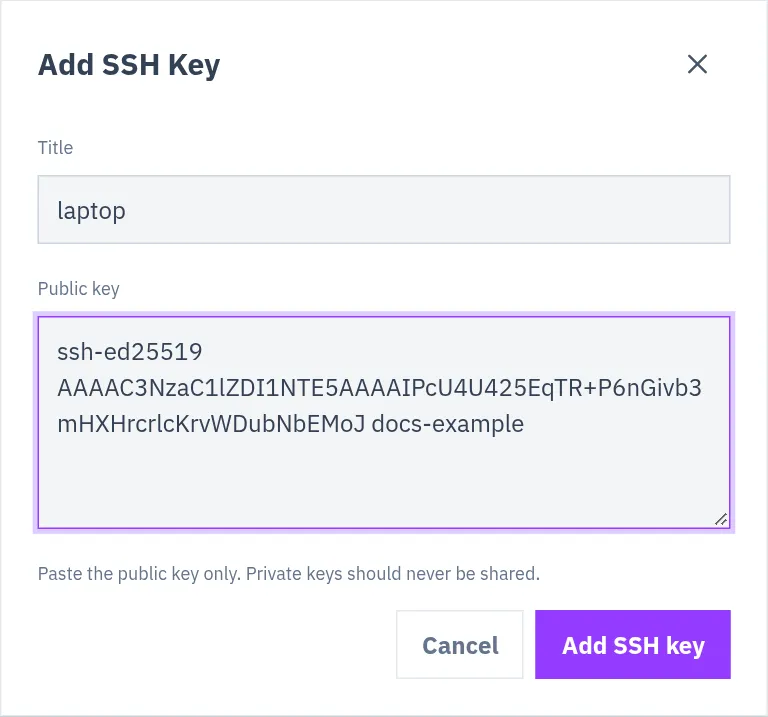
Then log in. No password is asked:
```bash
ssh root@YOUR_VM_IP
```
A VM created this way has no root password in the dashboard: its **Access** tab says that the VM was created with SSH key access.
More about the SSH Keys page: [SSH keys](/docs/virtual-machines/ssh-keys/).
## Put the key on a VM you already have
[Section titled “Put the key on a VM you already have”](#put-the-key-on-a-vm-you-already-have)
If you log in to the VM with a password today, copy your public key to it:
```bash
ssh-copy-id root@YOUR_VM_IP
```
It asks for the password one last time and installs the public key. After that, `ssh root@YOUR_VM_IP` logs you in with the key.
Windows has no `ssh-copy-id`. In PowerShell, this does the same:
```powershell
type $env:USERPROFILE\.ssh\id_ed25519.pub | ssh root@YOUR_VM_IP "mkdir -p ~/.ssh && cat >> ~/.ssh/authorized_keys"
```
## Turn password login off
[Section titled “Turn password login off”](#turn-password-login-off)
A key makes your own login safer. But as long as the server still accepts passwords, the guessing programs can keep trying. The last step is to make the key the only way in.
Caution
First check that you can log in with the key. Keep that session open while you make the change, and test from a second terminal before you close it. Keep a copy of your private key somewhere safe: with passwords off, a lost key means no SSH login.
1. On the VM, see whether password login is on:
```bash
sshd -T | grep -i passwordauthentication
```
If it prints `passwordauthentication no`, there is nothing to do.
2. Turn it off with a small settings file:
```bash
echo "PasswordAuthentication no" > /etc/ssh/sshd_config.d/00-no-passwords.conf
```
3. Check the settings for mistakes, then restart the SSH service:
```bash
sshd -t
systemctl restart ssh
```
The service is named `ssh` on Ubuntu and Debian. On AlmaLinux, Rocky Linux and Fedora it is `sshd`: run `systemctl restart sshd`.
4. Run the command of step 1 again. It must now print `passwordauthentication no`.
## Good habits
[Section titled “Good habits”](#good-habits)
* One key per person and per computer. When someone leaves or a laptop is lost, remove that one key.
* Never send a private key to anyone, and never paste it into a website. The SSH Keys page takes the public key only.
* Remove keys you no longer use.
# Why a 1 Gbps port does not always mean a 1 Gbps download
> What a port speed means, what slows a real download below it, and how to measure what your virtual machine can do with iperf3.
Your server has a 1 Gbps port, but a download runs at a fraction of that. Usually nothing is broken. A port speed is the most the connection can carry, not what a single download will reach. This page explains the difference and shows how to measure what your server can do.
## A port speed is a ceiling
[Section titled “A port speed is a ceiling”](#a-port-speed-is-a-ceiling)
A 1 Gbps port can carry up to 1 gigabit per second. That is the upper limit, not a promise for every transfer.
Think of the port as the width of a road. A wide road lets many cars through, but it does not make one car faster, and it does not help when the road is narrow at the other end or busy in between. A download depends on the whole route and on both ends.
## What slows a real download
[Section titled “What slows a real download”](#what-slows-a-real-download)
| Where | Why |
| ------------------------ | ------------------------------------------------------------------------------------------------------------------------------------ |
| **The other server** | A transfer is as fast as its slowest end. A busy, limited or distant source sets the speed. Try the same file from another source |
| **The route in between** | The data crosses many networks. One congested network, or a long detour, slows the whole transfer. This changes with the time of day |
| **Your own connection** | If you download to your computer at home, your internet provider’s speed is the limit, not the server’s port |
| **One connection alone** | A single connection often cannot fill a fast port over a long distance. See below |
## One connection and many
[Section titled “One connection and many”](#one-connection-and-many)
A single connection waits for small confirmations from the other end as it goes. Over a long distance these waits add up and keep one transfer well below the port’s limit.
Many connections do not all wait at the same moment, so together they fill much more of the port. A server with a 1 Gbps port may show a few hundred megabits on one download and come close to the full gigabit when it serves many users at once. For most servers, that second case is the one that counts. Speed tests use several connections at once for the same reason.
## Measure it with iperf3
[Section titled “Measure it with iperf3”](#measure-it-with-iperf3)
`iperf3` measures the raw speed between two machines. You need your virtual machine (VM) and a second machine with a fast connection, for example another VM.
1. Install it on both machines.
On Ubuntu and Debian:
```bash
apt update && apt install -y iperf3
```
On AlmaLinux, Rocky Linux and Fedora:
```bash
dnf install -y iperf3
```
If the installer asks whether to start iperf3 as a service automatically, answer no.
2. On your VM, start it in server mode:
```bash
iperf3 -s
```
It waits for tests on port 5201. Stop it with `Ctrl+C` when you are done.
3. On the second machine, run the test with eight connections at once:
```bash
iperf3 -c YOUR_VM_IP -P 8
```
This sends data to your VM. The lines marked `[SUM]` at the end give the total of all eight connections.
4. Test the other direction, from your VM to the second machine:
```bash
iperf3 -c YOUR_VM_IP -P 8 -R
```
`-R` reverses the test: the VM sends and the second machine receives.
If the total is near the port speed, the VM’s connection is healthy, and a slow download had its cause at the other end or on the route.
On a Hetzner VM, use another port
On a Hetzner VM only TCP ports 80, 443 and 19000 to 19100 can be reached from the internet, so a test to port 5201 gets no answer. Choose a port in the range on both sides:
```bash
iperf3 -s -p 19000
```
```bash
iperf3 -c YOUR_VM_IP -p 19000 -P 8
```
On ProVM and OVH all ports are open.
Two more things to know:
* **The result is limited by the slower of the two machines.** A test from your home connection measures your home connection.
* **A test moves real data.** On a VM with a traffic quota it counts towards the quota. The VM’s **Network** tab shows the quota. See [Traffic usage](/docs/virtual-machines/virtual-machine-traffic-usage/).
## What to expect
[Section titled “What to expect”](#what-to-expect)
A fast port gives your server room to serve many users at the same time. That is what it is for. One transfer that reaches only part of the port speed is normal. When one download is slow, look at the other end and the route first. To know what your server can really do, test with `iperf3` and several connections.
# Use a domain name with a virtual machine
> The automatic subdomain every VM gets, how to add your own domain, the DNS record you have to create, and how verification works.
A VM can be reached by a name as well as by its IP address. Each VM gets one name from Doprax, and you can add your own domains. Both are on the **Domains** tab of the VM’s page.
## The automatic subdomain
[Section titled “The automatic subdomain”](#the-automatic-subdomain)
When a VM is set up, Doprax gives it one subdomain of a Doprax domain, with a random name. Its DNS record points to the VM’s IPv4 address, and it is listed on the **Domains** tab as **Verified**.
* It is free.
* You do not have to do anything for it. If the VM gets a new IP address, the record follows.
* It is removed when the VM is deleted.
Do not remove the automatic subdomain unless you mean it
**Remove** deletes its DNS record at once, without asking. The **Add domain** dialog cannot give the VM a new one.
## Add your own domain
[Section titled “Add your own domain”](#add-your-own-domain)
Adding your own domain is free, and there is no limit on how many a VM has.
1. Open the VM from **Virtual Machines**, **My Virtual Machines**, and select the **Domains** tab.
2. Select **Add domain**.
3. Type the name under **Domain name**, for example `example.com` or `app.example.com`.
4. Select **Add domain**. The domain is listed as **Unverified**, with the VM’s IPv4 address in the **IP** column.
5. At your DNS provider, create an **A** record for the same name with that IPv4 address as its value.
6. Back on the **Domains** tab, select **Verify** on the domain.
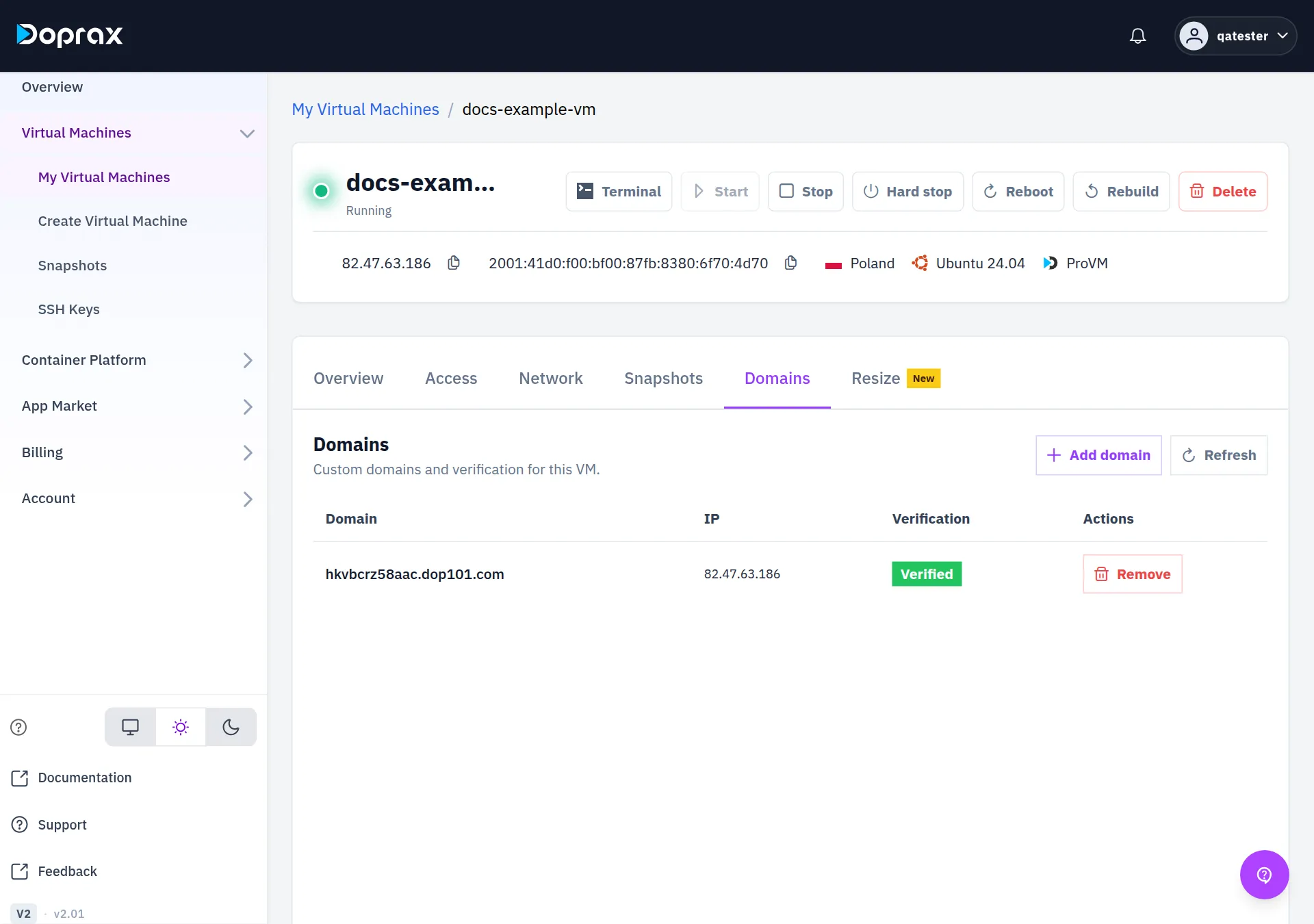
Names that are accepted:
* A domain or one subdomain of it: `example.com`, `app.example.com`, `example.co.uk`.
* A leading `www.` is dropped: `www.example.com` is stored as `example.com`.
* A name with more than three parts, such as `app.example.co.uk` or `a.b.example.com`, is refused as an invalid domain name.
## How verification works
[Section titled “How verification works”](#how-verification-works)
When you select **Verify**, Doprax asks a public DNS server (Google’s, 8.8.8.8) for the A records of the name. If one of them is the VM’s IPv4 address, the domain becomes **Verified**.
If it fails with “Failed to verify domain”:
* **The record is not visible yet.** A new DNS record can take some time to reach public DNS servers. Wait and select **Verify** again. See [How DNS works](/docs/learn/how-dns-domain-name-system-works/).
* **The record points somewhere else.** Compare its value with the **IP** column.
* **A proxy is in front.** If your DNS provider answers with its own address instead of your VM’s (the proxy option of Cloudflare does this), the check cannot find the VM’s address. Switch the proxy off for this record, verify, and switch it on again if you want it.
* **Only an AAAA record exists.** The check reads A records, so the name needs an A record with the IPv4 address.
Verification is done once, when you ask for it. It is not repeated later.
## What a domain on a VM does, and does not do
[Section titled “What a domain on a VM does, and does not do”](#what-a-domain-on-a-vm-does-and-does-not-do)
* **It is a record in the dashboard.** Adding a domain changes nothing inside the VM: no web server is set up and no certificate is requested. The software on your VM has to answer for the name.
* **App Market apps use it.** An app that you install from the App Market and that needs a domain is given the domain that was added to the VM first. Normally that is the automatic subdomain.
* **Your own DNS stays yours.** If the VM’s IP address changes, update the A record of your own domains yourself. See [Change the IP address](/docs/virtual-machines/change-ip-of-virtual-machines/).
## Remove a domain
[Section titled “Remove a domain”](#remove-a-domain)
On the **Domains** tab, select **Remove** on the domain. It is removed at once, without a confirmation. For your own domain, also delete the A record at your DNS provider if you no longer need it.
## More automatic subdomains
[Section titled “More automatic subdomains”](#more-automatic-subdomains)
A VM has the one automatic subdomain it was created with. The **Add domain** dialog has no option to request another.
**Account**, **Security** lists **Number of Extra Subdomains per month** under **Account quota** (5 unless it was raised for your account). The platform’s rule behind that number is: the first automatic subdomain of a VM is free, and each further one costs $0.50, charged when it is created. With the dashboard as it is today you cannot request a further one, so you are not charged for one. To put more names on a VM, add your own domains.
# Add more IPv4 addresses to a ProVM
> How to attach up to five additional public IPv4 addresses to a ProVM, what they cost, and how to remove one.
A ProVM comes with one public IPv4 address and one IPv6 address. You can attach up to 5 more public IPv4 addresses to it, one at a time.
## Before you start
[Section titled “Before you start”](#before-you-start)
* **ProVM only.** VMs of the other providers do not have the **Add IP** button.
* **IPv4 only.** There are no additional IPv6 addresses.
* **Up to 5 per VM.** The **Network** tab shows how many are in use, for example **2 of 5 used**.
* **Each one reboots the VM.** Adding an address restarts the VM, and so does removing one. The VM must be **Running**.
* **You cannot choose the address.**
## What it costs
[Section titled “What it costs”](#what-it-costs)
The dashboard states the price in the **Add an additional IP** dialog:
| Charge | Price | When |
| ----------- | ------------ | ------------------------------------------- |
| Setup | $1 | Once, when the address has been attached |
| The address | $1 per month | Billed hourly for as long as it is attached |
To add an address, your credit must cover the setup charge and one month of the address. If it does not, the request is refused and the VM is not restarted.
The setup charge is not paid back when you remove the address.
## Add an address
[Section titled “Add an address”](#add-an-address)
1. Open the VM from **Virtual Machines**, **My Virtual Machines**, and select the **Network** tab.
2. Under **IP addresses**, select **Add IP**.
3. Read the dialog: it says how many addresses the VM has, that the VM will reboot, and the price.
4. Select **Add & reboot**.
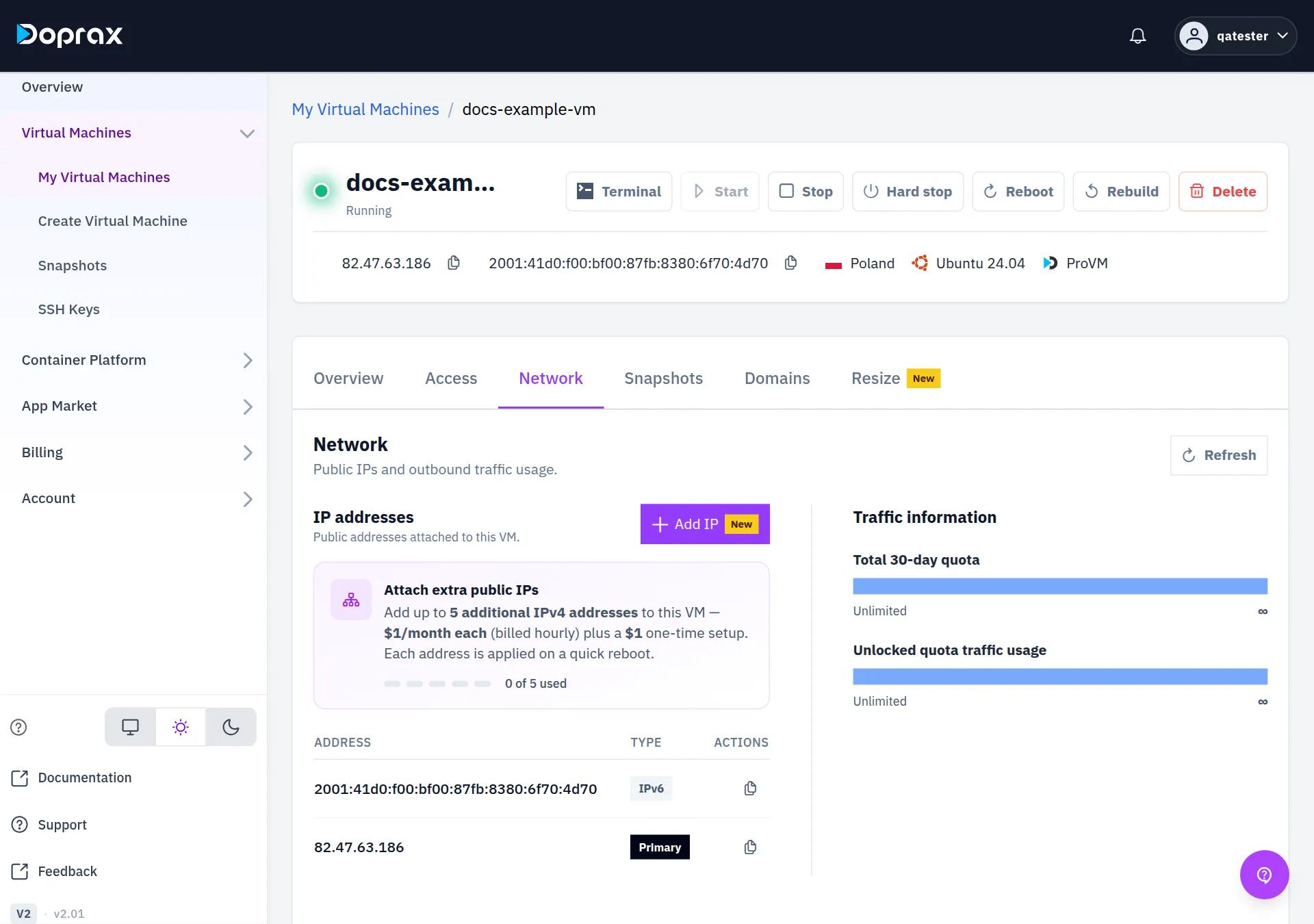
The VM restarts. When it is done, the new address is in the **IP addresses** table with the type **Additional**, next to the **Primary** address and the **IPv6** address.
The dashboard’s own description of this step is that each address “is applied on a quick reboot”. After the reboot, check inside the VM that the address is there:
```bash
ip -4 addr
```
## Remove an address
[Section titled “Remove an address”](#remove-an-address)
1. On the **Network** tab, select the bin icon on the row of the **Additional** address.
2. Select **Remove & reboot**.
The VM restarts, the address is released, and its monthly charge stops. The **Primary** address has no bin icon: it cannot be removed.
## What else to know
[Section titled “What else to know”](#what-else-to-know)
* Deleting the VM releases its additional addresses. Their charge ends with the VM.
* The primary address stays the address of the VM everywhere in the dashboard: on the **Access** tab, in the **Terminal** button and in the VM’s automatic subdomain.
# Change the IP address of a Hetzner virtual machine
> How to give a Hetzner VM a new public IPv4 or IPv6 address, what it costs, and what you have to update afterwards.
You can replace the public IP address of a Hetzner VM with a new one, for IPv4 or for IPv6. The VM is switched off, gets the new address, and is started again. Its disk and its data are not touched.
## Before you start
[Section titled “Before you start”](#before-you-start)
* **Hetzner only.** VMs of the other providers, ProVM included, have no IP change. To get another address there, create a new VM. A ProVM can get [additional IP addresses](/docs/virtual-machines/additional-ips/).
* **It costs a fee each time**, the same for IPv4 and for IPv6. The **Change IP** dialog shows the price before you confirm: $4.50 per change when this page was checked. Your credit must cover it, or the change is refused.
* **You cannot choose the address,** and you cannot get the old one back.
* **The VM goes down** for the change.
* The VM must be **Running** or **Stopped**.
## Change the address
[Section titled “Change the address”](#change-the-address)
1. Open the VM from **Virtual Machines**, **My Virtual Machines**, and select the **Network** tab.
2. In the **IP addresses** table, select **Change** on the row marked **Primary**. The same dialog opens from **Change IP** on the **Access** tab.
3. Under **IP version**, choose **IPv4** or **IPv6**.
4. Check the price under **Pricing**.
5. Select **Confirm change**.
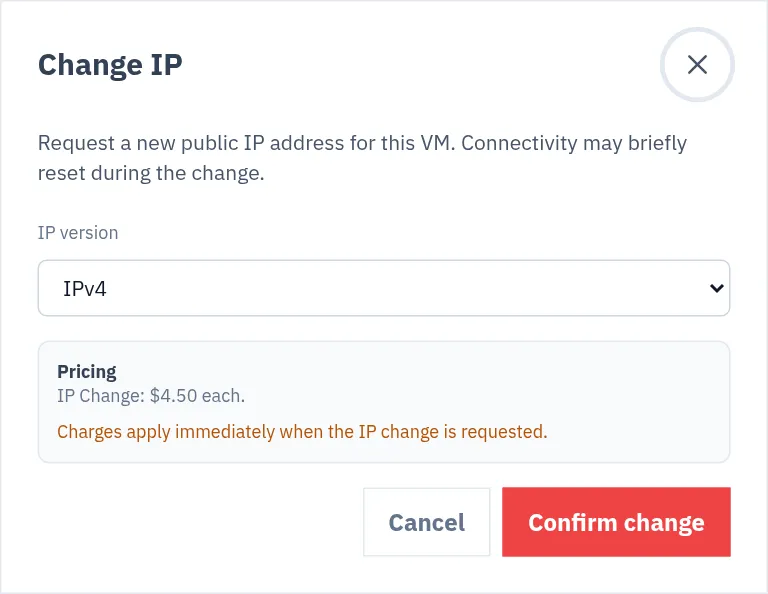
The new address is on the **Network** tab and at the top of the VM’s page when the change is done. The fee is charged once the address has changed. If the change fails, nothing is charged.
## What happens to the VM
[Section titled “What happens to the VM”](#what-happens-to-the-vm)
1. The VM is shut down.
2. The old address is taken off and the new one is attached. The new address comes from the same location.
3. The VM is started. It is running afterwards, also if it was stopped before.
For 90 seconds after the change, other actions on the VM are refused, so that it can finish starting.
## What you have to update
[Section titled “What you have to update”](#what-you-have-to-update)
| | After an IPv4 change |
| ---------------------------------------------------------------------------------------------------- | --------------------------------------------------------------------------- |
| The automatic subdomain of the VM | Follows by itself: its DNS record is set to the new address |
| Your own domains | Change the A record at your DNS provider to the new address |
| Anything that has the old address written down: firewall rules, allow lists, bookmarks, app settings | Change it yourself |
| `ssh` on your computer | Connect to the new address. `ssh` asks you to confirm the fingerprint again |
Nothing else about the VM changes: the same disk, the same plan and price, and the other IP version keeps its address.
## How often
[Section titled “How often”](#how-often)
**Account**, **Security** lists **Number of IP changes per month** under **Account quota**: 5, unless it was raised for your account. **Request quota increase** on the same page asks for more.
# Connect to a virtual machine
> Where to find the IP address, the username and the password of a VM, and how to log in from the browser, from Linux or macOS, and from Windows.
You can log in to a VM in two ways: with the **Terminal** button in the dashboard, which needs nothing installed, or with an SSH program on your own computer.
Wait until the VM’s status, shown under its name, is **Running**. A new VM shows **Starting** while it is being set up.
## What you need
[Section titled “What you need”](#what-you-need)
Open the VM from **Virtual Machines**, **My Virtual Machines**, and select the **Access** tab.
| What | Where it is |
| ---------- | ----------------------------------------------------------------------------------------------------------------------------- |
| IP address | **Public IPv4** and **Public IPv6** on the **Access** tab. Both are also at the top of the VM’s page, each with a copy button |
| Username | **Username** on the **Access** tab. It is `root`. On a MikroTik image it is `admin` |
| Password | Under **ROOT PASSWORD**: select **Show password** to read it, or **Copy password** to copy it without showing it |
The password is generated when the VM is created. The dashboard does not load it until you select one of the two buttons.
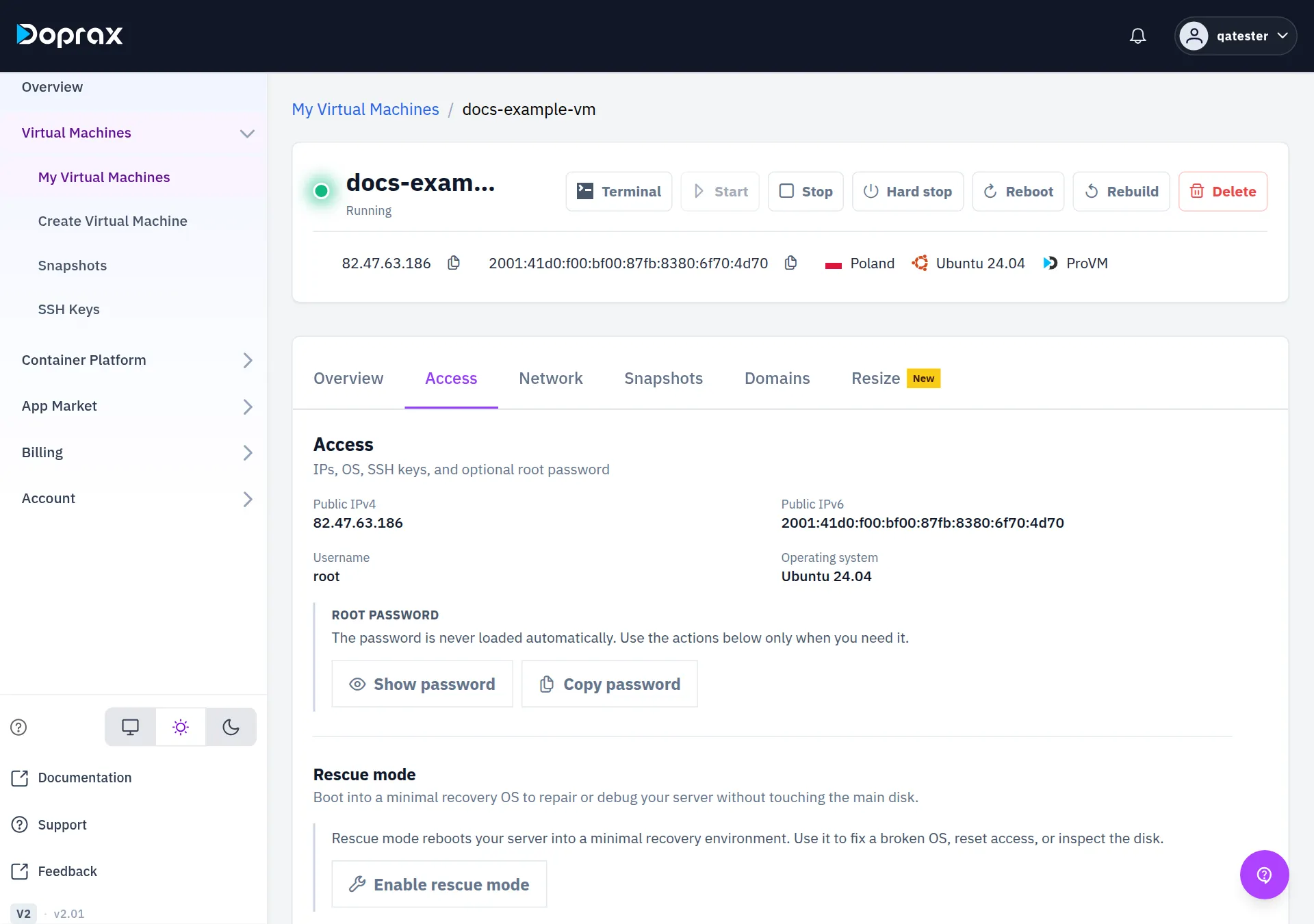
A VM created with an SSH key has no password
If you chose **SSH Key (recommended)** when you created the VM, the **Access** tab says that a root password is not provided, and shows the key under **SSH key in use**. You log in with that key. See [SSH keys](/docs/virtual-machines/ssh-keys/).
If you change the root password inside the VM, the dashboard keeps showing the one it generated.
## In the browser: the Terminal button
[Section titled “In the browser: the Terminal button”](#in-the-browser-the-terminal-button)
1. Open the VM’s page.
2. Select **Terminal**. A terminal opens in a new browser tab, already logged in. It does not ask for a password.
The terminal logs in with a key that Doprax put on the VM when it was created, so it works for VMs created with a password and for VMs created with an SSH key. It stops working if the VM is stopped, if SSH on the VM is switched off or blocked, or if that key was removed from the VM. While a VM is in [rescue mode](/docs/virtual-machines/using-rescue-mode-for-your-vm/) the button is switched off.
## From Linux or macOS
[Section titled “From Linux or macOS”](#from-linux-or-macos)
1. Open a terminal.
2. Run this, with the VM’s IP address in place of `YOUR_VM_IP`:
```bash
ssh root@YOUR_VM_IP
```
3. The first time, `ssh` shows the VM’s fingerprint and asks whether to continue. Type `yes`.
4. Paste the password and press Enter. Nothing is shown while you type or paste.
With an SSH key there is no step 4. If your private key is not in the default place, name it:
```bash
ssh -i ~/.ssh/my_key root@YOUR_VM_IP
```
## From Windows
[Section titled “From Windows”](#from-windows)
Windows 10 and Windows 11 have the same `ssh` command. Open **PowerShell** or **Terminal** and follow the steps for Linux and macOS above.
If you use PuTTY instead: type the VM’s IP address in **Host Name (or IP address)**, leave **Port** at 22 and the connection type at **SSH**, and select **Open**. Log in as `root` with the password from the **Access** tab.
## MikroTik
[Section titled “MikroTik”](#mikrotik)
A VM created from the MikroTik image has the user `admin`, not `root`. Its **Access** tab also shows a **Web UI** link to the router’s web page at the VM’s address. Sign in there with the same username and password.
## If it does not connect
[Section titled “If it does not connect”](#if-it-does-not-connect)
* **The status is not Running.** Start the VM, or wait until it has finished starting.
* **It is a Hetzner VM.** On a Hetzner VM only TCP ports 80, 443 and 19000 to 19100 are reachable from the internet. SSH uses port 22 unless you change it. If `ssh` from your computer to a Hetzner VM gets no answer, check this first. See [Which ports and protocols work](/docs/virtual-machines/which-ports-protocols-survive-bad-network/).
* **`ssh` warns that the host identification has changed.** This happens after a [rebuild](/docs/virtual-machines/rebuild/), because the new system has a new fingerprint. Remove the old one, then connect again:
```bash
ssh-keygen -R YOUR_VM_IP
```
* **The VM is in rescue mode.** The normal login details are greyed out. Use the ones in the rescue panel: see [Rescue mode](/docs/virtual-machines/using-rescue-mode-for-your-vm/).
# Plans and prices
> Every ProVM plan with its size and its price per hour and per month.
The tables on this page are produced from the platform’s catalogue each time the docs are built. Nobody types these numbers.
## ProVM
[Section titled “ProVM”](#provm)
ProVM is Doprax’s own hardware. For the standard plans, traffic in and out is free.
| Plan | CPU | Memory | Disk | Per month | Per hour |
| ---- | --- | ------ | ----- | --------- | -------- |
| P1 | 1 | 1 GB | 20 GB | $7.95 | $0.0110 |
| P2 | 1 | 2 GB | 30 GB | $12.95 | $0.0180 |
| P3 | 2 | 4 GB | 50 GB | $18.95 | $0.0263 |
| P4 | 4 | 8 GB | 64 GB | $29.95 | $0.0416 |
| P5 | 8 | 16 GB | 80 GB | $52.95 | $0.0735 |
Available in: Canada, France, Germany, Poland, UK.
Prices are in US dollars. You are charged by the hour for as long as the VM exists, so the monthly price is what a VM costs if you keep it for a whole month (720 hours).
### Turbo
[Section titled “Turbo”](#turbo)
The same sizes on a faster hardware tier.
| Plan | CPU | Memory | Disk | Per month | Per hour |
| -------- | --- | ------ | ----- | --------- | -------- |
| P1 Turbo | 1 | 1 GB | 20 GB | $14.95 | $0.0208 |
| P2 Turbo | 1 | 2 GB | 30 GB | $23.95 | $0.0333 |
| P3 Turbo | 2 | 4 GB | 50 GB | $34.95 | $0.0485 |
| P4 Turbo | 4 | 8 GB | 64 GB | $53.95 | $0.0749 |
| P5 Turbo | 8 | 16 GB | 80 GB | $95.95 | $0.1333 |
Available in: Canada, France, Germany, Poland, UK.
## App Space
[Section titled “App Space”](#app-space)
| Plan | CPU | Memory | Disk | Per month | Per hour |
| ---------- | --- | ------ | ------ | --------- | -------- |
| Standard 1 | 1 | 1 GB | 20 GB | $5.95 | $0.0083 |
| Standard 2 | 1 | 2 GB | 40 GB | $11.95 | $0.0166 |
| Standard 3 | 2 | 4 GB | 60 GB | $17.95 | $0.0249 |
| Standard 4 | 4 | 8 GB | 100 GB | $26.95 | $0.0374 |
| Standard 5 | 6 | 12 GB | 150 GB | $35.95 | $0.0499 |
| Standard 6 | 8 | 16 GB | 200 GB | $44.95 | $0.0624 |
See [What App Space is](/docs/app-space/).
## Other providers
[Section titled “Other providers”](#other-providers)
You can create VMs at seven other providers from the same account and the same credit.
| Provider | Plans | From, per month | Locations |
| ------------ | ----- | --------------- | ------------------------------------------------------------------------------------------------------------------------------------------------------------------------------------------------------------ |
| ProVM | 10 | $7.95 | Canada · France · Germany · Poland · UK |
| Digitalocean | 47 | $7.28 | Australia, Sydney · Canada, Toronto · Germany, Frankfurt · India, Bangalore · Netherlands, Amsterdam · Singapore, Singapore · UK, London · USA, Atlanta · USA, New York · USA, Richmond · USA, San Francisco |
| Gcore | 335 | $17.76 | 29 locations |
| Google Cloud | 1144 | $16.67 | 43 locations |
| Hetzner | 19 | $11.93 | Ashburn, VA, US · Falkenstein, DE · Helsinki, FI · Hillsboro, OR, US · Nuremberg, DE · Singapore, SG |
| OVH | 16 | $20.79 | Canada, Montreal · France, Gravelines · France, Paris · France, Roubaix · France, Strasbourg · Germany, Frankfurt · Italy, Milan · Poland, Warsaw · UK, London |
| Scaleway | 29 | $18.52 | France, Paris 1 · France, Paris 2 · France, Paris 3 · Netherlands, Amsterdam 1 · Netherlands, Amsterdam 2 · Netherlands, Amsterdam 3 · Poland, Warsaw 1 · Poland, Warsaw 2 · Poland, Warsaw 3 |
| Vultr | 32 | $5.95 | 31 locations |
Their plans are listed with prices on the [Create Virtual Machine](https://www.doprax.com/v/virtual-machines/new) page once you pick the provider and a location, and through the API:
```bash
curl -sS "https://www.doprax.com/api/v3/catalogue/plans/?service_type=vm&provider=hetzner" \
-H "X-API-Key: $DOPRAX_API_KEY"
```
# ProVM reference
> The plans, locations, operating systems, IP addresses, traffic rules and billing of ProVM, the virtual machines on Doprax's own hardware.
ProVM is the virtual machine offer that runs on Doprax’s own hardware. It is the provider marked **Recommended** on the [Create Virtual Machine](https://www.doprax.com/v/virtual-machines/new) page. The other providers on that page are other companies’ clouds; they are compared on [Providers and locations](/docs/virtual-machines/virtual-machine-providers/).
This page is the reference for ProVM. To create one, follow [Create your first virtual machine](/docs/get-started/first-vm/).
## Plans
[Section titled “Plans”](#plans)
There are two tiers with the same five sizes. The tables come from the platform’s catalogue.
### Standard
[Section titled “Standard”](#standard)
| Plan | CPU | Memory | Disk | Per month | Per hour |
| ---- | --- | ------ | ----- | --------- | -------- |
| P1 | 1 | 1 GB | 20 GB | $7.95 | $0.0110 |
| P2 | 1 | 2 GB | 30 GB | $12.95 | $0.0180 |
| P3 | 2 | 4 GB | 50 GB | $18.95 | $0.0263 |
| P4 | 4 | 8 GB | 64 GB | $29.95 | $0.0416 |
| P5 | 8 | 16 GB | 80 GB | $52.95 | $0.0735 |
### Turbo
[Section titled “Turbo”](#turbo)
| Plan | CPU | Memory | Disk | Per month | Per hour |
| -------- | --- | ------ | ----- | --------- | -------- |
| P1 Turbo | 1 | 1 GB | 20 GB | $14.95 | $0.0208 |
| P2 Turbo | 1 | 2 GB | 30 GB | $23.95 | $0.0333 |
| P3 Turbo | 2 | 4 GB | 50 GB | $34.95 | $0.0485 |
| P4 Turbo | 4 | 8 GB | 64 GB | $53.95 | $0.0749 |
| P5 Turbo | 8 | 16 GB | 80 GB | $95.95 | $0.1333 |
The Turbo plans are on their own tab of the create page, which describes them as “Advance-gen CPU · up to 3 Gbps networking”.
Prices are in US dollars. The price per hour is the monthly price divided by 720.
## Locations
[Section titled “Locations”](#locations)
Canada · France · Germany · Poland · UK
A ProVM location is a country. You do not choose a city or a data centre.
## Operating systems
[Section titled “Operating systems”](#operating-systems)
| System | Versions |
| ------------ | ------------ |
| Ubuntu | 22.04, 24.04 |
| Debian | 12 |
| AlmaLinux | 9 |
| Rocky Linux | 10 |
| Fedora | 41 |
| MikroTik CHR | 7.17 |
MikroTik is offered on ProVM only. Instead of an operating system you can also start a new VM from a [snapshot](/docs/virtual-machines/snapshots-in-virtual-machines/) that you took of a ProVM. A snapshot can only be used at the provider it was taken on.
To put another system on an existing VM, use [Rebuild](/docs/virtual-machines/rebuild/). It replaces the disk, so the data on it is lost.
## IP addresses
[Section titled “IP addresses”](#ip-addresses)
* Every ProVM gets **one public IPv4 address and one public IPv6 address** of its own. Both are shown at the top of the VM’s page and on its **Access** tab.
* You can add **up to 5 additional IPv4 addresses** to a VM, on the **Network** tab with **Add IP**. Each costs $1 once for setup and $1 a month, charged by the hour while it is attached. Adding one reboots the VM. See [Additional IPs](/docs/virtual-machines/additional-ips/).
* **You cannot change the primary IP address of a ProVM.** IP change exists only on Hetzner.
## Ports
[Section titled “Ports”](#ports)
All ports are open on ProVM. A service is reachable on any port it listens on, unless a firewall inside your VM blocks it.
## Traffic
[Section titled “Traffic”](#traffic)
Traffic is free on every ProVM plan, in both directions. The create page shows **Free** under **Outbound traffic** and **Inbound traffic**, and the **Network** tab of a ProVM shows **Unlimited**. ProVM traffic is not measured for billing, so there is no charge for it at any volume.
## What you can do with a ProVM
[Section titled “What you can do with a ProVM”](#what-you-can-do-with-a-provm)
| Action | Where | Notes |
| ------------------- | ------------------------ | ----------------------------------------------------------------------------- |
| Start, Stop, Reboot | Buttons on the VM’s page | **Stop** acts at once, without a confirmation |
| Hard stop | Button on the VM’s page | A forced power-off, for a VM that does not react to **Stop**. ProVM only |
| Terminal | Button on the VM’s page | A shell in your browser |
| Rebuild | Button on the VM’s page | A new operating system or a snapshot on the same VM. Destroys the disk’s data |
| Snapshot | **Snapshots** tab | $0.20 per snapshot, and $0.20 per GB per month while you keep it |
| Resize | **Resize** tab | Another ProVM plan, same IP, data kept. ProVM only |
| Add IP | **Network** tab | Up to 5 additional IPv4 addresses. ProVM only |
| Add domain | **Domains** tab | Point your own domain at the VM |
| Delete | Button on the VM’s page | Cannot be undone |
Two things ProVM does not have: **rescue mode** (Hetzner and OVH only) and **IP change** (Hetzner only).
### Resize rules
[Section titled “Resize rules”](#resize-rules)
* A resize moves the VM to another plan of the same tier: Standard to Standard, Turbo to Turbo.
* The disk can only grow. Plans with a smaller disk than the current one are not offered.
* The VM is stopped, changed and started again. The dashboard gives about 60 to 90 seconds for the reboot.
* The IP addresses and the data stay.
See [Resize a VM](/docs/virtual-machines/resize/).
## Billing
[Section titled “Billing”](#billing)
* **By the hour, from your credit.** A ProVM is charged for the time it exists, at its monthly price divided by 720 per hour. A VM you delete is charged up to the moment you delete it.
* **A stopped VM costs the same as a running one.** Its disk and its IP addresses stay reserved for you. Only deleting the VM ends the charge.
* **Snapshots and additional IPs are charged separately**, at the prices above.
* **When your credit reaches zero**, your VMs are stopped and then frozen. See [When your credit runs low](/docs/billing/when-credit-runs-low/).
What you need on your account before you can create one is on [What a VM costs](/docs/virtual-machines/what-a-virtual-machine-costs/).
## Limits
[Section titled “Limits”](#limits)
An account can have 10 virtual machines by default, across all providers. The number for your account is under **Account**, **Security**, with **Request quota increase** next to it.
# Rebuild a virtual machine
> Replace the disk of a VM with a fresh operating system or with one of its snapshots: what is lost, what stays, and the steps.
**Rebuild** replaces what is on a VM’s disk, either with a freshly installed operating system or with a snapshot of the same VM. The VM itself stays: you keep its IP address and go on paying the same plan.
A rebuild erases the disk
Everything on the VM’s disk is replaced: the system, your programs and your data. This cannot be undone. Copy what you need somewhere else first, or [take a snapshot](/docs/virtual-machines/snapshots-in-virtual-machines/).
## What stays and what is lost
[Section titled “What stays and what is lost”](#what-stays-and-what-is-lost)
| Stays | Lost |
| ---------------------------------------- | --------------------------------------------------------- |
| The VM, its name, its plan and its price | Everything on the disk |
| Its location | The list of apps installed from the App Market on this VM |
| Its IP addresses | |
| Its domains | |
| Its snapshots | |
A rebuild is not charged separately.
## Which VMs can be rebuilt
[Section titled “Which VMs can be rebuilt”](#which-vms-can-be-rebuilt)
* Not VMs on **Gcore** and **Scaleway**: a rebuild is not available for these two providers.
* The VM must be **Running**. A ProVM can also be rebuilt while it is **Stopped**.
## Rebuild with a fresh operating system
[Section titled “Rebuild with a fresh operating system”](#rebuild-with-a-fresh-operating-system)
1. Open the VM from **Virtual Machines**, **My Virtual Machines**, and select **Rebuild**.
2. On the **Operating system** tab of the **Rebuild VM** dialog, select a system and its **Version**. The systems offered are the ones the VM’s plan offers when you create a VM. You may choose a different system from the one the VM has now.
3. Select **Rebuild**.
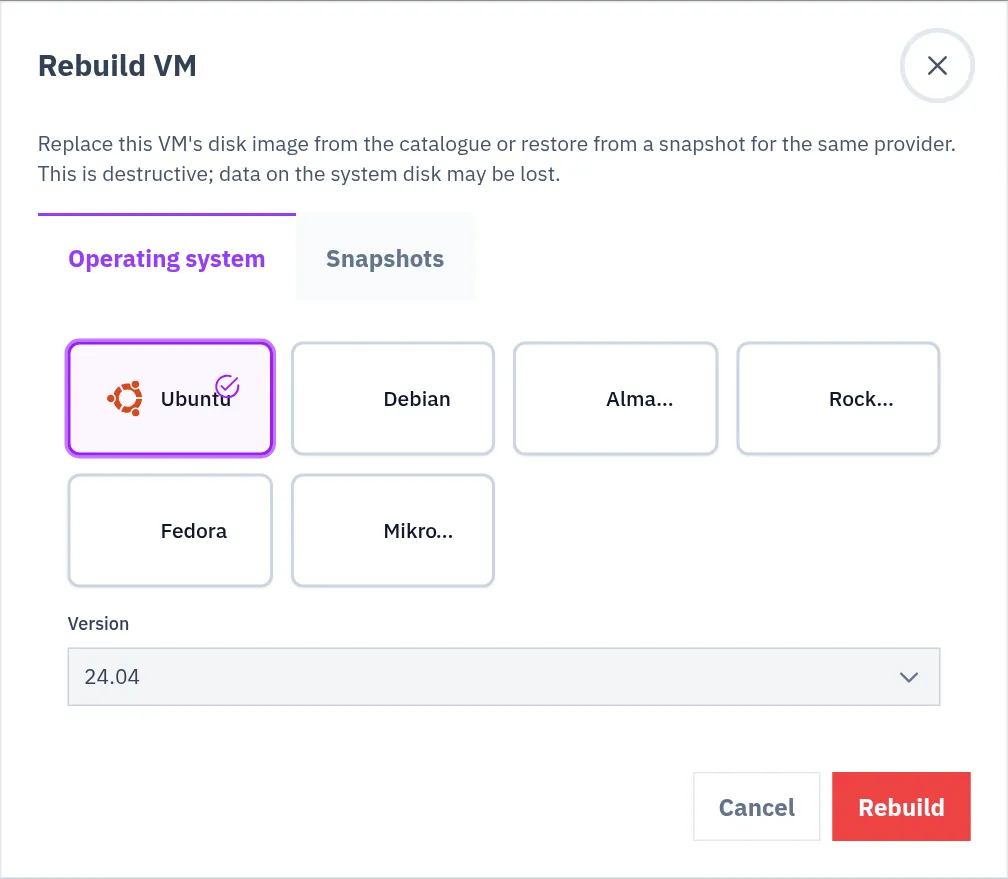
## Rebuild from a snapshot
[Section titled “Rebuild from a snapshot”](#rebuild-from-a-snapshot)
This puts the VM back to the state of one of its own snapshots.
1. On the VM’s page, select **Rebuild**, then the **Snapshots** tab of the dialog.
2. Select the snapshot. Only snapshots taken from this VM, with the status **Available**, can be used.
3. Type `REBUILD` in the field that appears.
4. Select **Rebuild**.
To use a snapshot of another VM, create a new VM from it instead: see [Snapshots](/docs/virtual-machines/snapshots-in-virtual-machines/).
## While it runs, and after
[Section titled “While it runs, and after”](#while-it-runs-and-after)
With a fresh operating system, the VM’s status is **Starting** while the disk is replaced and the new system starts. When the system accepts SSH connections again, the status becomes **Running**.
With a snapshot, the dashboard confirms with **Rebuild started**. The VM cannot be reached until its disk has been restored.
After a rebuild:
* The **Access** tab shows the username and how to log in. See [Connect to a VM](/docs/virtual-machines/connect-to-virtual-machines-using-ssh/).
* The **Installed apps** list on the **Overview** tab is emptied. After a fresh operating system the apps themselves are gone with the disk: install them again.
* After a fresh operating system, `ssh` on your computer warns that the host identification has changed, because the new system has a new fingerprint. Remove the old one and connect again:
```bash
ssh-keygen -R YOUR_VM_IP
```
## Rebuild, restore or a new VM
[Section titled “Rebuild, restore or a new VM”](#rebuild-restore-or-a-new-vm)
| You want | Use |
| ---------------------------------------------- | ---------------------------------------- |
| The same VM and IP address with a clean system | **Rebuild**, **Operating system** |
| The same VM back at an earlier state | **Rebuild**, **Snapshots** |
| A second VM with the content of a snapshot | **Restore (new VM)** on the snapshot |
| More CPU, memory or disk without losing data | [Resize](/docs/virtual-machines/resize/) |
# Resize a virtual machine to another plan
> Move a ProVM to a larger plan without rebuilding it: which plans are offered, what you pay, and how long the VM is down.
**Resize** moves a VM to another plan of the same provider. The VM is not rebuilt: its data stays on the disk and its IP address stays the same. It is switched off for about 60 to 90 seconds while the plan is changed.
## Which VMs and which plans
[Section titled “Which VMs and which plans”](#which-vms-and-which-plans)
* **ProVM only.** The **Resize** tab is on every VM’s page, but on a VM of another provider the dialog says that only ProVM VMs can be resized in place.
* **The same tier.** A standard plan can change to another standard plan, and a Turbo plan to another Turbo plan. A standard VM cannot become a Turbo VM or the other way round, because the two tiers run on different hardware.
* **The disk can only grow.** A plan with a smaller disk than the one you have is never offered.
* The VM must be **Running** or **Stopped**.
Every ProVM plan with less CPU and memory also has a smaller disk. So in practice a resize goes to a larger plan of your tier, and you cannot go back to a smaller one afterwards. Compare the plans on [Plans and prices](/docs/virtual-machines/plans/) before you choose.
For a smaller VM, or for a VM of another provider, create a new VM with the plan you want and move your data to it.
## What you pay
[Section titled “What you pay”](#what-you-pay)
Nothing extra for the resize itself. You pay each plan for the time you used it:
* The old plan is charged up to the moment of the resize. The dialog shows this as **Tail charge (old plan)**.
* From then on the VM is charged at the new plan’s price, hour by hour. The dialog shows **First hour (new plan)** and **New monthly**.
To move to a more expensive plan, your credit must cover the tail charge plus 24 hours of the new plan. If it does not, the resize is refused and nothing changes.
## Resize a VM
[Section titled “Resize a VM”](#resize-a-vm)
1. Open the VM from **Virtual Machines**, **My Virtual Machines**, and select the **Resize** tab.
2. Select **Resize VM…**. The **Resize VM** dialog lists the plans you can move to, each with its CPU, RAM, disk and monthly price, and the difference to your current price.
3. Choose a plan with its **Select** button. The dialog works out the charges and shows them, with a warning that the VM will be powered off briefly.
4. Select **Confirm upgrade**.
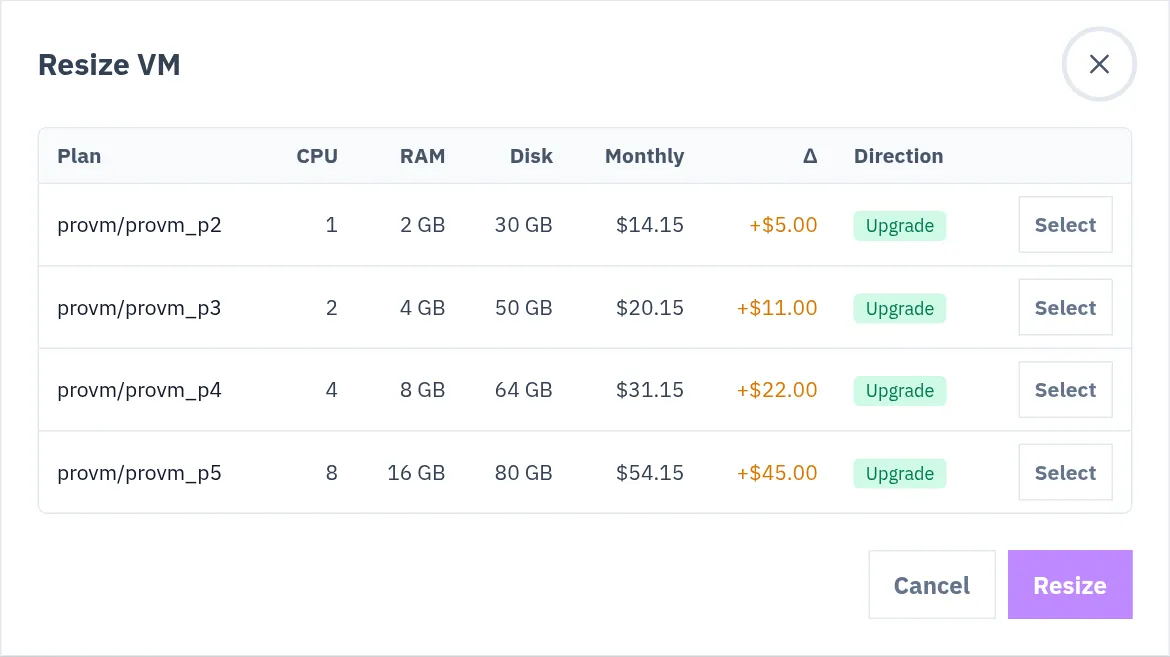
## What happens to the VM
[Section titled “What happens to the VM”](#what-happens-to-the-vm)
1. The VM is shut down. Open connections drop.
2. The plan is changed.
3. The VM is started again. If it was stopped before the resize, it stays stopped.
Afterwards, check inside the VM that the system sees its new size:
```bash
nproc # CPU cores
free -h # memory
df -h # disk
```
If the resize fails, the VM is put back on its old plan, and started again if it was running before. The short time in between is charged at the new plan’s price.
# Snapshots of a virtual machine
> What a snapshot is and costs, how to take one, how to make a new VM from it, and what happens to snapshots when the VM is deleted.
A snapshot is a copy of a VM’s disk as it is at one moment. It is stored on your account, apart from the VM. You take one when you ask for it; nothing takes snapshots for you.
Use a snapshot to:
* keep the state of a VM before a risky change, such as a system upgrade,
* create a second VM with the same content,
* keep what was on a VM after you delete the VM.
## Which VMs can have snapshots
[Section titled “Which VMs can have snapshots”](#which-vms-can-have-snapshots)
Snapshots work on **ProVM**. For VMs of the other providers the catalogue has no snapshot price, and a request to create a snapshot of one is refused.
## What a snapshot costs
[Section titled “What a snapshot costs”](#what-a-snapshot-costs)
The **Create snapshot** dialog shows the prices before you confirm:
| Charge | Price | When |
| -------------------- | ---------------------- | ------------------------------------------------- |
| **Create snapshot** | $0.20 each | Once, after the snapshot was created successfully |
| **Snapshot storage** | $0.20 per GB per month | For as long as the snapshot exists. Billed hourly |
* Storage is counted on the size of the snapshot image. It is shown as **Size** on **Virtual Machines**, **Snapshots**. If the image size is not known, the size of the VM’s disk is used.
* Storage is charged until you delete the snapshot. Deleting the VM does not end it.
* If your credit does not cover the creation charge, the snapshot is not kept.
## Take a snapshot
[Section titled “Take a snapshot”](#take-a-snapshot)
The VM must be **Running** or **Stopped**.
1. Open the VM from **Virtual Machines**, **My Virtual Machines**, and select the **Snapshots** tab.
2. Select **Create snapshot**.
3. Type a **Description**, for example `before upgrade`. It is required.
4. Tick **I understand the snapshot creation cost and any recurring storage charge shown above.**
5. Select **Create**.
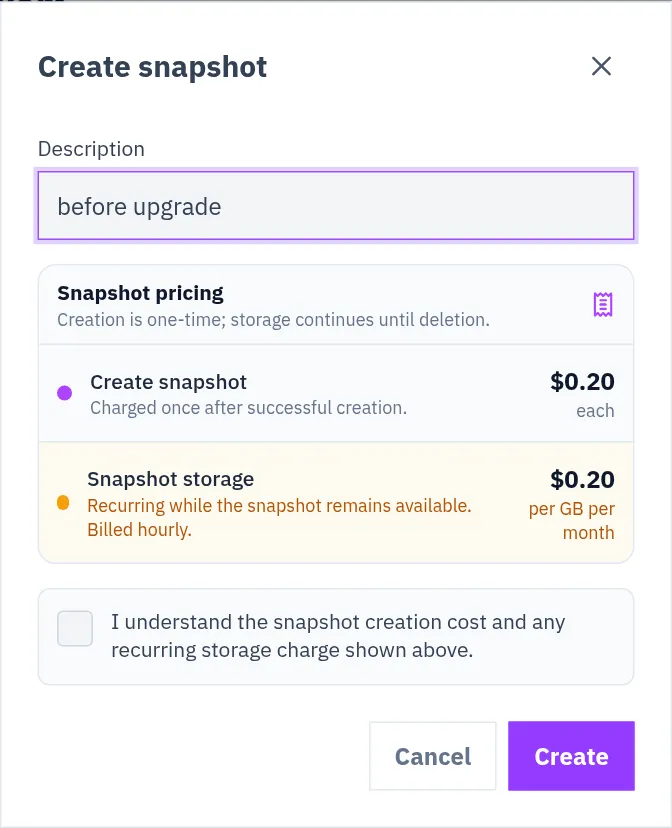
The snapshot appears in the list on the tab with its status. You can use it when the status is **Available**.
You can do the same from **Virtual Machines**, **Snapshots**, the page that lists the snapshots of all your VMs: select **Take a Snapshot** (the button reads **Take Snapshot** once you have snapshots), choose the VM under **Select Service**, type a description and select **Take Snapshot**.
## Restore: a new VM from a snapshot
[Section titled “Restore: a new VM from a snapshot”](#restore-a-new-vm-from-a-snapshot)
**Restore creates a new VM.** It does not change the VM the snapshot was taken from.
1. On the **Snapshots** tab of the VM, or on **Virtual Machines**, **Snapshots**, select **Restore (new VM)** on the snapshot.
2. On the VM’s tab a dialog tells you that the create page will open: select **Continue**. The **Create Virtual Machine** page opens with the provider and the snapshot already selected.
3. Choose location, size, access method and name, and create the VM.
The new VM is a VM like any other: it has its own IP addresses and its own price, and the first VM keeps running.
You can also start on the create page: under **Choose an image source**, select **Snapshots** and pick one. A snapshot can only be used with the provider it was taken on.
Two limits:
* **Another location.** A new snapshot can at first only be restored in the location of its VM. A copy that can be restored in the other locations is prepared automatically after the snapshot was taken. If you get the message that the snapshot is “region-bound”, try again later or select the original location.
* **No room.** If the dashboard says the snapshot’s host is out of capacity, choose a smaller plan or try again later.
## Put a snapshot back on the same VM
[Section titled “Put a snapshot back on the same VM”](#put-a-snapshot-back-on-the-same-vm)
To replace a VM’s disk with one of its own snapshots, use **Rebuild** on the VM’s page and choose the snapshot there. Everything now on the disk is lost. See [Rebuild](/docs/virtual-machines/rebuild/).
## Delete a snapshot
[Section titled “Delete a snapshot”](#delete-a-snapshot)
1. On the **Snapshots** tab of the VM, select **Delete** on the snapshot. On **Virtual Machines**, **Snapshots**, select the bin icon.
2. Confirm.
A deleted snapshot cannot be brought back. Its storage charge ends.
## When the VM is deleted
[Section titled “When the VM is deleted”](#when-the-vm-is-deleted)
Deleting a VM does not delete its snapshots.
* They stay on **Virtual Machines**, **Snapshots**.
* You can still create a new VM from them.
* **You keep paying their storage price** until you delete them.
If your account has no credit, the storage of such snapshots is not charged and not added up as a debt, and our team can remove them. See [When your credit runs low](/docs/billing/when-credit-runs-low/).
# SSH keys for your virtual machines
> How to add a public SSH key to your account, create a VM that accepts it, and what deleting a key does and does not do.
Keep your public SSH keys in your Doprax account and choose one when you create a VM. The VM then accepts your key and has no root password.
If you have no key yet, or want to know why a key is safer than a password, read [SSH keys explained](/docs/learn/ssh-keys-explained-stop-using-passwords/) first.
## Add a key
[Section titled “Add a key”](#add-a-key)
1. On your own computer, print your **public** key. For a key made with `ssh-keygen -t ed25519` in the default place:
```bash
cat ~/.ssh/id_ed25519.pub
```
It is one line that starts with the key type, for example `ssh-ed25519 AAAA...`.
2. In the dashboard, open **Virtual Machines**, then **SSH Keys**.
3. Select **Add SSH key**.
4. Type a **Title** that tells you which computer the key belongs to, and paste the line into **Public key**.
5. Select **Add SSH key**.
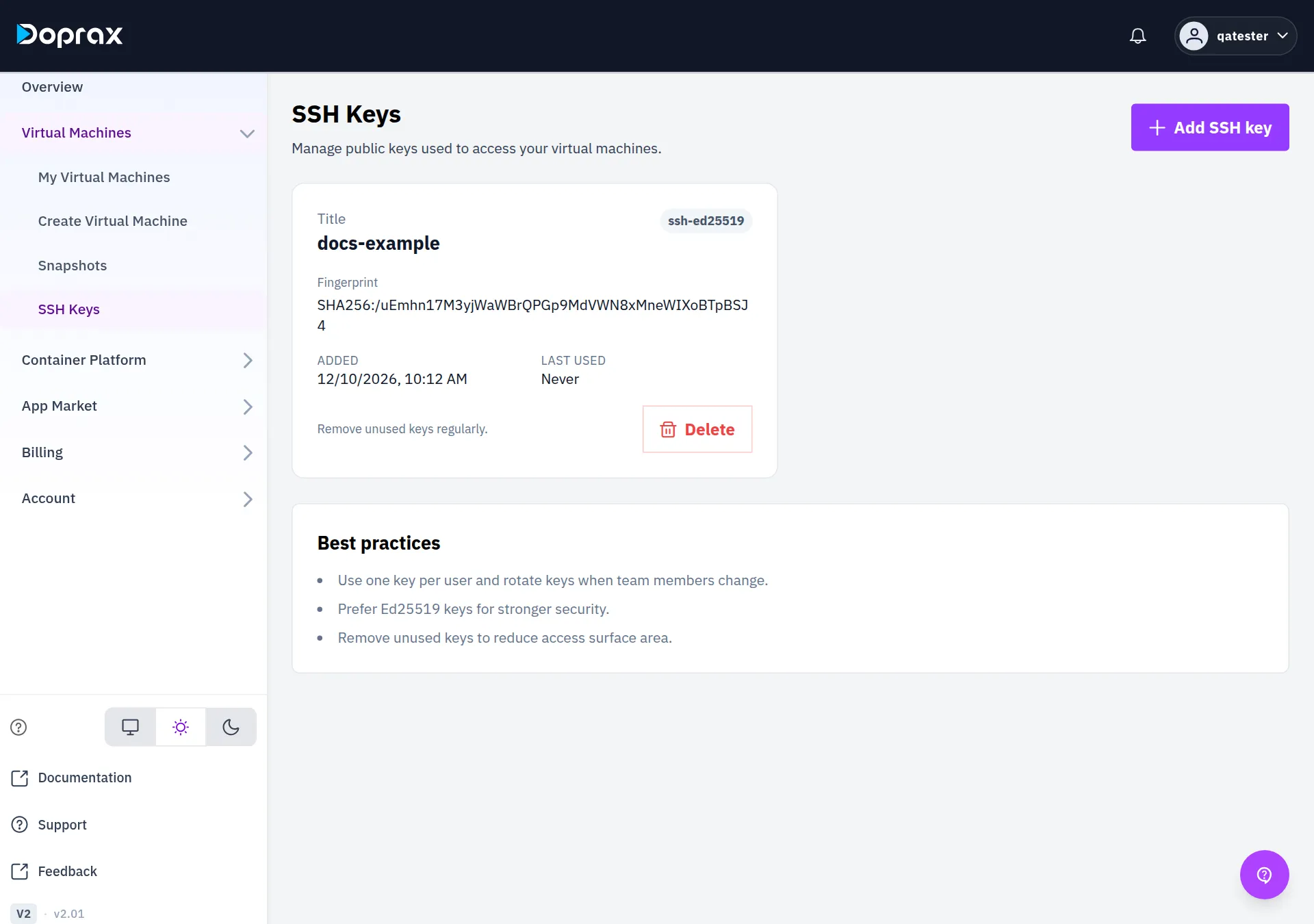
What is accepted:
* One line only. A private key is refused: never paste one anywhere.
* These key types: `ssh-ed25519`, `ssh-rsa`, `ecdsa-sha2-nistp256`, `ecdsa-sha2-nistp384`, `ecdsa-sha2-nistp521`.
* Each key once. A key that is already registered cannot be added a second time.
Each key is shown with its title, type and fingerprint. **Last used** is the last time a VM was created with the key, not the last time someone logged in with it.
## Create a VM with a key
[Section titled “Create a VM with a key”](#create-a-vm-with-a-key)
1. Open **Virtual Machines**, then **Create Virtual Machine**, and choose provider, location, size and image as usual. See [Create your first virtual machine](/docs/get-started/first-vm/).
2. Under **Choose an access method**, select **SSH Key (recommended)**.
3. Under **Your keys**, select the key. If the list is empty, **Add key** opens the same dialog as on the **SSH Keys** page.
4. Create the VM.
You select one key per VM. The new VM has no root password: its **Access** tab says so and names the key under **SSH key in use**. Log in with:
```bash
ssh root@YOUR_VM_IP
```
More in [Connect to a VM](/docs/virtual-machines/connect-to-virtual-machines-using-ssh/).
## Keys and VMs that already exist
[Section titled “Keys and VMs that already exist”](#keys-and-vms-that-already-exist)
A key is put on a VM only when the VM is created.
* **Adding a key to your account does not add it to your existing VMs.** To let another key log in to a VM that is already running, add its public line to the file `/root/.ssh/authorized_keys` on that VM.
* **A VM created with a password stays a password VM** in the dashboard. You can still add a key to it yourself in the same file.
## Delete a key
[Section titled “Delete a key”](#delete-a-key)
1. Open **Virtual Machines**, then **SSH Keys**.
2. Select **Delete** on the key, and **Delete** again in the dialog.
The key is removed from your account and can no longer be chosen for a new VM. The **Access** tab of VMs that were created with it no longer names it.
Deleting a key here does not lock it out of your VMs
Nothing is changed on the VMs themselves. A VM that was created with the key still has it and still accepts it. To take a key’s access away, log in to each VM and remove the key’s line from `/root/.ssh/authorized_keys`.
# Start, stop, reboot and delete a virtual machine
> What each button on a VM's page does, which ones act at once, how long you wait between them, and what is kept when a VM is deleted.
The buttons at the top of a VM’s page control its power and its life: **Start**, **Stop**, **Hard stop**, **Reboot**, **Rebuild** and **Delete**. Open the VM from **Virtual Machines**, **My Virtual Machines** to see them.

## The buttons
[Section titled “The buttons”](#the-buttons)
| Button | What it does | Asks you to confirm |
| ------------- | --------------------------------------------------------------------------------------------------- | -------------------- |
| **Start** | Powers on a stopped VM. Needs credit on your account | No |
| **Stop** | Shuts the VM down. Its disk and its IP addresses stay yours | No. It acts at once |
| **Hard stop** | Cuts the power of the VM without shutting the system down. ProVM only | Yes, with a tick box |
| **Reboot** | Restarts a running VM | No. It acts at once |
| **Rebuild** | Replaces the disk with a fresh system or a snapshot. See [Rebuild](/docs/virtual-machines/rebuild/) | Yes |
| **Delete** | Removes the VM for good | Yes, with a tick box |
**Stop** and **Reboot** have no “are you sure” step. The moment you select one, the VM goes down.
Every action is listed with its result under **Recent activity** on the **Overview** tab.
## A stopped VM costs the same
[Section titled “A stopped VM costs the same”](#a-stopped-vm-costs-the-same)
A stopped VM is charged at the same price as a running one. Its disk and its IP addresses stay reserved for you. To stop paying for a VM, delete it. See [What a virtual machine costs](/docs/virtual-machines/what-a-virtual-machine-costs/).
## Stop or Hard stop
[Section titled “Stop or Hard stop”](#stop-or-hard-stop)
On a ProVM, **Stop** asks the system to shut down in the normal way, so it can close its programs and write its data first. Use it whenever the VM still responds.
**Hard stop** is for a ProVM that is stuck and does not shut down. It is the same as pulling the plug:
* Data that was only in memory is lost.
* The filesystem may need a check at the next start.
* It also works while the VM hangs in **Starting** or **Stopping**, or shows an error.
To use it, select **Hard stop**, tick **I understand this is a forced power-off and may cause data loss.** and select **Hard stop** again. VMs of other providers do not have this button.
On the other providers, **Stop** and **Reboot** send that provider’s own command, and it is not a clean shutdown everywhere: on DigitalOcean **Stop** is a power-off, and on OVH **Reboot** is a hard reboot. If such a VM runs a database, shut the system down from inside the VM first.
## Waits between actions
[Section titled “Waits between actions”](#waits-between-actions)
A VM needs time to settle after its power state changed. During that time every other action on the same VM is refused with a message that says how many seconds are left.
| After | You wait |
| ----------------------------------------------------------------------------- | ---------- |
| **Start** | 60 seconds |
| **Reboot** | 90 seconds |
| **Stop** or **Hard stop** | 15 seconds |
| [An IP address change](/docs/virtual-machines/change-ip-of-virtual-machines/) | 90 seconds |
Two more rules:
* **One action at a time.** While an action is running, the buttons are switched off.
* **3 seconds** must pass between any two requests for the same VM.
## When a button is switched off
[Section titled “When a button is switched off”](#when-a-button-is-switched-off)
Which buttons work depends on the VM’s status. Hover over a greyed-out button to read the reason.
| Status | What you can do |
| ----------------------------------------- | ------------------------------------------------------------------------------------------------------------------------- |
| **Running** | **Stop**, **Reboot**, **Rebuild**, **Delete** |
| **Stopped** | **Start**, **Rebuild**, **Delete** |
| **Starting**, **Stopping**, **Rebooting** | Nothing until it has finished. On a ProVM, **Hard stop** |
| **Error**, **Failed** | **Reboot**, **Delete**. On a ProVM, also **Hard stop** |
| **Frozen** | **Delete**. A VM is frozen when your credit ran out: see [When your credit runs low](/docs/billing/when-credit-runs-low/) |
| Rescue mode | Nothing until you [leave rescue mode](/docs/virtual-machines/using-rescue-mode-for-your-vm/) |
**Start** is also refused when your account has no credit left.
## Delete a VM
[Section titled “Delete a VM”](#delete-a-vm)
1. If you want to keep what is on the disk, copy it somewhere else first, or [take a snapshot](/docs/virtual-machines/snapshots-in-virtual-machines/).
2. On the VM’s page, select **Delete**.
3. Tick **I understand this deletion is permanent, billing may finalize, and this cannot be undone.**
4. Select **Delete**.
The VM is charged up to the moment it is deleted, and then no more.
| Gone with the VM | Kept |
| --------------------------------------------------------- | ------------------------ |
| The VM and its disks | Your snapshots of the VM |
| Its IP addresses, also additional ones | Your SSH keys |
| Its domains and the DNS record of its automatic subdomain | |
Deleting cannot be undone
There is no way to get a deleted VM, its disk or its IP address back.
**Snapshots stay, and they still cost storage.** After the VM is gone they are listed on **Virtual Machines**, **Snapshots**. You can create a new VM from one, and you pay their storage price until you delete them.
# Repair a virtual machine in rescue mode
> What rescue mode is for, which VMs have it, how to enter it, how to log in to the rescue system and how to leave it.
Rescue mode starts a VM from a small, temporary recovery system instead of its own disk. You log in to that system and repair the VM’s disk from outside. Use it when the VM no longer starts, or when you have locked yourself out.
Typical uses:
* repair a system that does not boot,
* get back in after a wrong firewall or SSH setting,
* look at the disk, or copy files off it before a rebuild.
Your disk is not changed by entering or leaving rescue mode. Only what you do yourself while you are logged in changes it.
## Which VMs have it
[Section titled “Which VMs have it”](#which-vms-have-it)
**Hetzner and OVH only.** Rescue mode does not work on ProVM or on any other provider. On those, a VM that does not start can be put back with a [rebuild](/docs/virtual-machines/rebuild/), which erases the disk, or, on ProVM, replaced by a new VM made from a [snapshot](/docs/virtual-machines/snapshots-in-virtual-machines/).
## Enter rescue mode
[Section titled “Enter rescue mode”](#enter-rescue-mode)
Do this while the VM’s status is **Running**.
1. Open the VM from **Virtual Machines**, **My Virtual Machines**, and select the **Access** tab.
2. Under **Rescue mode**, at the bottom of the tab, select **Enable rescue mode**.
The VM restarts into the recovery system. While it is in rescue mode:
* The VM’s status reads **Rescue mode**, and a notice **Server is in rescue mode** is shown at the top of its page.
* The software on the VM’s own disk is not running: your websites and services are down.
* All other actions are switched off: **Start**, **Stop**, **Reboot**, **Rebuild**, **Delete** and the **Terminal** button. Leave rescue mode first.
* The VM is charged as usual.
## Log in to the rescue system
[Section titled “Log in to the rescue system”](#log-in-to-the-rescue-system)
A **Rescue mode** panel is now at the top of the **Access** tab. Under **How to connect** it shows the command to run, and below that the login details.

1. Open a terminal on your own computer.
2. Run the command from the panel. It has this form:
```bash
ssh root@YOUR_VM_IP
```
3. Log in with what the panel shows:
| Provider | How you log in |
| ------------------------------- | ------------------------------------------------------------------------------ |
| Hetzner | With the **Temporary password**. Select **Show password** or **Copy password** |
| OVH, VM created with a password | With the password shown under **Temporary password** |
| OVH, VM created with an SSH key | With your SSH key. The panel shows its fingerprint and no password |
If `ssh` warns that the host identification has changed, that is because the recovery system has another fingerprint than your VM. Remove the stored one and run the command again:
```bash
ssh-keygen -R YOUR_VM_IP
```
If the connection gets no answer at all, see [Connect to a VM](/docs/virtual-machines/connect-to-virtual-machines-using-ssh/): the same limits apply as for a normal login.
You are now in the recovery system, not in your own system. Your VM’s disk is attached but not in use. To work on its files you have to mount it: the steps are in [Save your files from a broken VM](/docs/guides/data-recovery-save-your-files-from-a-broken-vm/).
## Leave rescue mode
[Section titled “Leave rescue mode”](#leave-rescue-mode)
1. Log out of the recovery system.
2. On the **Access** tab, select **Exit rescue mode** in the **Rescue mode** panel.
The VM restarts from its own disk, and the normal login details on the **Access** tab are valid again.
Do not leave a VM in rescue mode longer than the repair takes: nothing on its own disk runs, and you still pay for it.
# VM providers and locations
> What each of the eight VM providers offers: its locations, which operations work there, its port rules and how traffic is charged.
You can create virtual machines at eight providers from one Doprax account and one credit balance. ProVM is Doprax’s own hardware. The other seven are clouds that Doprax runs for you: you do not need an account with them.
All eight are created on the same **Create Virtual Machine** page and managed on the same VM page. They differ in where they are, what they cost, what you can do with the VM afterwards, which ports are reachable and how traffic is charged. This page lists those differences.
## Providers, prices and locations
[Section titled “Providers, prices and locations”](#providers-prices-and-locations)
| Provider | Plans | From, per month | Locations |
| ------------ | ----- | --------------- | ------------------------------------------------------------------------------------------------------------------------------------------------------------------------------------------------------------ |
| ProVM | 10 | $7.95 | Canada · France · Germany · Poland · UK |
| Digitalocean | 47 | $7.28 | Australia, Sydney · Canada, Toronto · Germany, Frankfurt · India, Bangalore · Netherlands, Amsterdam · Singapore, Singapore · UK, London · USA, Atlanta · USA, New York · USA, Richmond · USA, San Francisco |
| Gcore | 335 | $17.76 | 29 locations |
| Google Cloud | 1144 | $16.67 | 43 locations |
| Hetzner | 19 | $11.93 | Ashburn, VA, US · Falkenstein, DE · Helsinki, FI · Hillsboro, OR, US · Nuremberg, DE · Singapore, SG |
| OVH | 16 | $20.79 | Canada, Montreal · France, Gravelines · France, Paris · France, Roubaix · France, Strasbourg · Germany, Frankfurt · Italy, Milan · Poland, Warsaw · UK, London |
| Scaleway | 29 | $18.52 | France, Paris 1 · France, Paris 2 · France, Paris 3 · Netherlands, Amsterdam 1 · Netherlands, Amsterdam 2 · Netherlands, Amsterdam 3 · Poland, Warsaw 1 · Poland, Warsaw 2 · Poland, Warsaw 3 |
| Vultr | 32 | $5.95 | 31 locations |
This table is produced from the platform’s catalogue each time the docs are built. The plans of a provider are listed on the [Create Virtual Machine](https://www.doprax.com/v/virtual-machines/new) page after you pick the provider and a location. The ProVM plans are also on [Plans and prices](/docs/virtual-machines/plans/).
## What works at which provider
[Section titled “What works at which provider”](#what-works-at-which-provider)
Start, stop, reboot, delete and snapshots work at every provider. The rest depends on the provider:
| Provider | Rebuild | Resize | Additional IPs | Change IP | Rescue mode | Outbound traffic |
| ------------ | ------- | ------ | -------------- | --------- | ----------- | ---------------------------------- |
| ProVM | Yes | Yes | Yes | No | No | Free |
| Vultr | Yes | No | No | No | No | Allowance, then $0.02 per GB |
| DigitalOcean | Yes | No | No | No | No | Allowance, then $0.02 per GB |
| Hetzner | Yes | No | No | Yes | Yes | Allowance, then a price per 100 GB |
| Google Cloud | Yes | No | No | No | No | Every GB is charged |
| Gcore | No | No | No | No | No | Free |
| Scaleway | No | No | No | No | No | Not charged |
| OVH | Yes | No | No | No | Yes | Free |
Inbound traffic is free at every provider. The traffic rules are explained on [Traffic](/docs/virtual-machines/virtual-machine-traffic-usage/).
The operating systems on offer also differ per provider. The create page lists them after you have picked a provider, a location and a plan.
Check the ports before you choose
On Hetzner only TCP ports 80, 443 and 19000 to 19100 are reachable from the internet. On ProVM and OVH all ports are open. If your service needs UDP or another port, see [Ports and protocols](/docs/virtual-machines/which-ports-protocols-survive-bad-network/).
## ProVM
[Section titled “ProVM”](#provm)
Doprax’s own hardware. It is marked **Recommended** on the create page.
Canada · France · Germany · Poland · UK
* **The only provider with [resize](/docs/virtual-machines/resize/)**: you can move a VM to another ProVM plan without rebuilding it.
* **The only provider with [additional IPs](/docs/virtual-machines/additional-ips/)**: up to 5 extra IPv4 addresses per VM.
* **The only provider with Hard stop**: a forced power-off for a VM that does not react to **Stop**.
* **Traffic is free**, in and out, on every ProVM plan.
* **All ports are open.**
* No rescue mode and no IP change.
Details are on [ProVM reference](/docs/virtual-machines/provm-technical-reference/).
## Vultr
[Section titled “Vultr”](#vultr)
AU, Melbourne · AU, Sydney · BR, São Paulo · CA, Toronto · CL, Santiago · DE, Frankfurt · ES, Madrid · FR, Paris · GB, London · GB, Manchester · IL, Tel Aviv · IN, Bangalore · IN, Delhi NCR · IN, Mumbai · JP, Osaka · JP, Tokyo · KR, Seoul · MX, Mexico City · NL, Amsterdam · PL, Warsaw · SE, Stockholm · SG, Singapore · US, Atlanta · US, Chicago · US, Dallas · US, Honolulu · US, Los Angeles · US, Miami · US, New Jersey · US, Seattle · US, Silicon Valley
* Each plan includes an amount of outbound traffic per month. The create page shows it for each plan, as **Included** and a number of TB. Beyond it, each GB costs $0.02.
* Rebuild works. Resize, additional IPs, IP change and rescue mode do not.
## DigitalOcean
[Section titled “DigitalOcean”](#digitalocean)
Australia, Sydney · Canada, Toronto · Germany, Frankfurt · India, Bangalore · Netherlands, Amsterdam · Singapore, Singapore · UK, London · USA, Atlanta · USA, New York · USA, Richmond · USA, San Francisco
* Each plan includes an amount of outbound traffic per month. The create page shows it for each plan. Beyond it, each GB costs $0.02.
* Rebuild works. Resize, additional IPs, IP change and rescue mode do not.
## Hetzner
[Section titled “Hetzner”](#hetzner)
Ashburn, VA, US · Falkenstein, DE · Helsinki, FI · Hillsboro, OR, US · Nuremberg, DE · Singapore, SG
* **Ports are limited.** Only TCP ports 80, 443 and 19000 to 19100 are reachable from the internet. UDP is not reachable. Choose another provider for a service that needs other ports.
* **The only provider where you can [change the IP address](/docs/virtual-machines/change-ip-of-virtual-machines/)** of a VM. Each change costs $4.50; the price is shown next to the **Change IP** button before you confirm. Your account has a quota of IP changes per month, 5 unless you asked for more. It is listed under **Account**, **Security**.
* **[Rescue mode](/docs/virtual-machines/using-rescue-mode-for-your-vm/) works.**
* Each plan includes an amount of outbound traffic per month, and you have all of it from the first day. Beyond it you pay per started 100 GB. See [Traffic](/docs/virtual-machines/virtual-machine-traffic-usage/).
* Rebuild works. Resize and additional IPs do not.
## Google Cloud
[Section titled “Google Cloud”](#google-cloud)
Bangkok, Thailand · Berlin, Germany · Changhua, Taiwan · Columbus, USA · Dallas, USA · Dammam, Saudi Arabia · Delhi, India · Doha, Qatar · Eemshaven, Netherlands · Frankfurt, Germany · Hamina, Finland · Hong Kong, Hong Kong · Iowa, USA · Jakarta, Indonesia · Johannesburg, South Africa · Las Vegas, USA · London, UK · Los Angeles, USA · Madrid, Spain · Melbourne, Australia · Milan, Italy · Montréal, Canada · Mumbai, India · Oregon, USA · Osaka, Japan · Paris, France · Querétaro, Mexico · Salt Lake City, USA · Santiago, Chile · Seoul, South Korea · Singapore, Singapore · South Carolina, USA · St. Ghislain, Belgium · Stockholm, Sweden · Sydney, Australia · São Paulo, Brazil · Tel Aviv, Israel · Tokyo, Japan · Toronto, Canada · Turin, Italy · Virginia, USA · Warsaw, Poland · Zürich, Switzerland
* **There is no included traffic.** Every GB that leaves the VM is charged. The create page shows the rate on each plan, as **Pay-per-use** and a price per GB. The rate depends on the location.
* The **Network** tab of a Google Cloud VM shows the outbound traffic of this month and what it has cost so far.
* Rebuild works. Resize, additional IPs, IP change and rescue mode do not.
## Gcore
[Section titled “Gcore”](#gcore)
Almaty · Amsterdam · Baku · Chester · Chicago · Dubai · Frankfurt-2 · Helsinki · Hong Kong · Incheon · Istanbul · Johannesburg · London · London-2 · Luxembourg-2 · Luxembourg-3 · Manassas · Mumbai · Paris-2 · Santa Clara · Sao Paulo · Sao Paulo-2 · Sines-2 · Sines-3 · Singapore · Sydney · Tashkent · Tokyo · Warsaw
* Outbound traffic is shown as **Free** on every Gcore plan.
* The price of a plan depends on the location: the list of plans changes when you change the location.
* **Rebuild does not work.** To change the operating system, create a new VM.
* Resize, additional IPs, IP change and rescue mode do not work either.
## Scaleway
[Section titled “Scaleway”](#scaleway)
France, Paris 1 · France, Paris 2 · France, Paris 3 · Netherlands, Amsterdam 1 · Netherlands, Amsterdam 2 · Netherlands, Amsterdam 3 · Poland, Warsaw 1 · Poland, Warsaw 2 · Poland, Warsaw 3
* Outbound traffic is not charged: no Scaleway plan has a traffic price.
* **Rebuild does not work.** To change the operating system, create a new VM.
* Resize, additional IPs, IP change and rescue mode do not work either.
## OVH
[Section titled “OVH”](#ovh)
Canada, Montreal · France, Gravelines · France, Paris · France, Roubaix · France, Strasbourg · Germany, Frankfurt · Italy, Milan · Poland, Warsaw · UK, London
* **All ports are open.**
* Outbound traffic is shown as **Free** on every OVH plan.
* **[Rescue mode](/docs/virtual-machines/using-rescue-mode-for-your-vm/) works.**
* Rebuild works. Resize, additional IPs and IP change do not.
## Ports at the other providers
[Section titled “Ports at the other providers”](#ports-at-the-other-providers)
This page states a port rule only for ProVM, OVH and Hetzner. For Vultr, DigitalOcean, Google Cloud, Gcore and Scaleway, test the port you need before you rely on it. The two commands for that are on [Ports and protocols](/docs/virtual-machines/which-ports-protocols-survive-bad-network/).
# Traffic on virtual machines
> Which traffic is counted, how much each provider includes, what the traffic beyond it costs and when it is charged.
Traffic is the data that goes in and out of your virtual machine over the network. On Doprax, traffic into the VM is always free. Traffic out of the VM is free on some providers, included up to an allowance on others, and charged from the first GB on one. This page gives the rule for each provider.
## In short
[Section titled “In short”](#in-short)
| Provider | Outbound traffic included per month | Beyond it |
| ------------ | ------------------------------------- | --------------------------------------------------------------------- |
| ProVM | Free | No charge |
| OVH | Free | No charge |
| Gcore | Free | No charge |
| Scaleway | Not charged | No charge |
| Vultr | An allowance that depends on the plan | $0.02 per GB |
| DigitalOcean | An allowance that depends on the plan | $0.02 per GB |
| Hetzner | An allowance that depends on the plan | From $0.22 per 100 GB; $1.66 per 100 GB in Singapore |
| Google Cloud | Nothing | Every GB is charged: $0.22 to $0.36 per GB, depending on the location |
Inbound traffic is free at every provider.
The allowance and the Google Cloud rate differ from plan to plan. The [Create Virtual Machine](https://www.doprax.com/v/virtual-machines/new) page shows the figure for each plan in the **Outbound traffic** column:
* **Free**: outbound traffic is not charged.
* **Included** and a number of TB: the monthly allowance of that plan.
* **Pay-per-use** and a price per GB: no allowance; every GB is charged at that price.
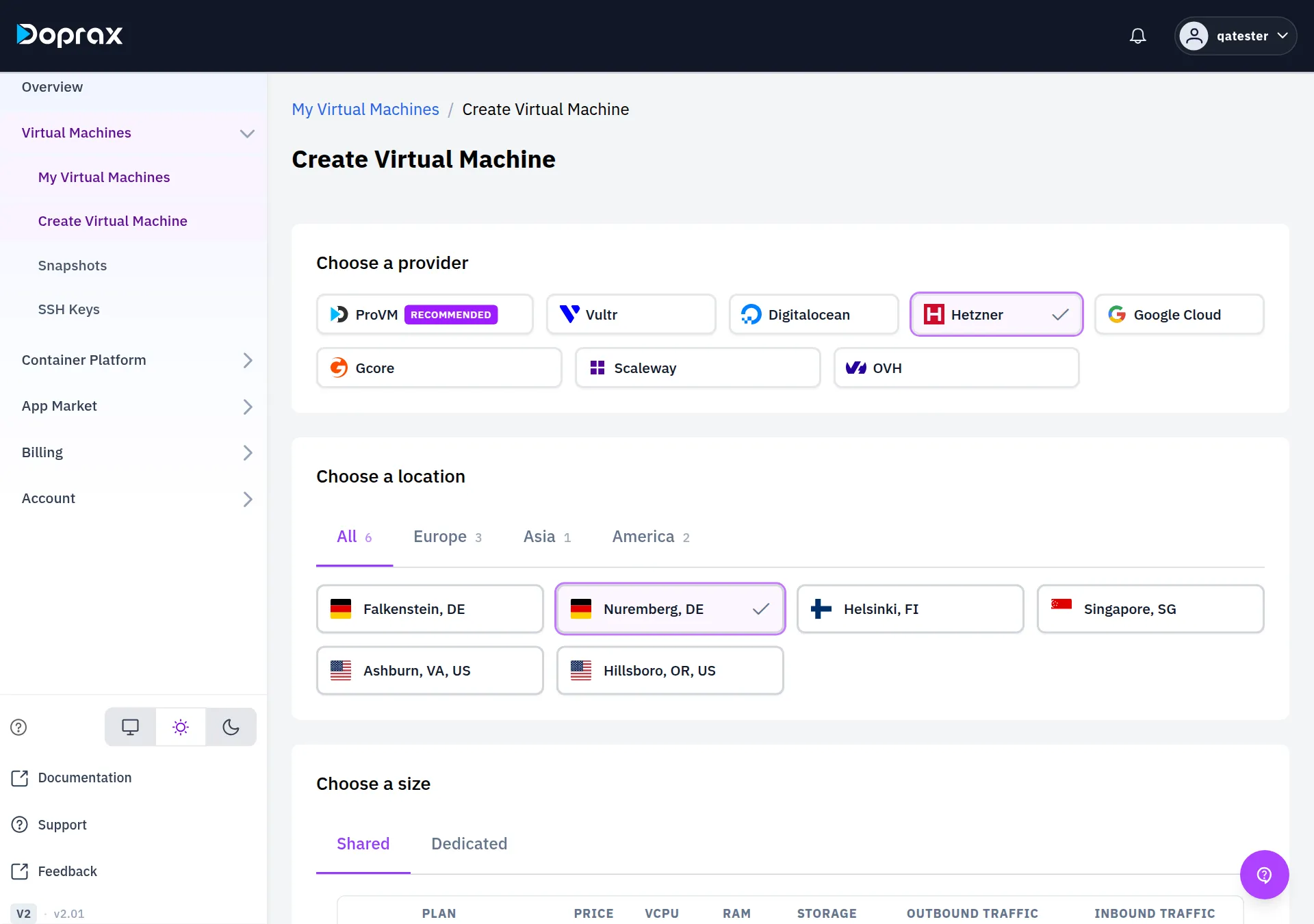
## What counts as traffic
[Section titled “What counts as traffic”](#what-counts-as-traffic)
* **Outbound traffic is what leaves your VM**: pages and files your VM sends to visitors, the answers of an API, backups you push to another place, requests your VM makes to other services. Only this direction is ever charged.
* **Inbound traffic is what arrives at your VM**: uploads from your users, package updates, deploys. It is free and without limit at every provider.
Traffic is added up over the calendar month. The count starts on the 1st of each month, whatever day the VM was created.
In the allowance, 1 TB is 1,024 GB.
## Providers with free traffic: ProVM, OVH, Gcore, Scaleway
[Section titled “Providers with free traffic: ProVM, OVH, Gcore, Scaleway”](#providers-with-free-traffic-provm-ovh-gcore-scaleway)
On these four providers nothing is charged for traffic, in either direction and at any volume. Doprax does not measure the traffic of these VMs.
* **ProVM, OVH and Gcore** plans show **Free** in the **Outbound traffic** column.
* **Scaleway** plans have no traffic price at all.
The **Network** tab of a ProVM shows **Unlimited** under **Traffic information**.
## Providers with an allowance: Vultr, DigitalOcean, Hetzner
[Section titled “Providers with an allowance: Vultr, DigitalOcean, Hetzner”](#providers-with-an-allowance-vultr-digitalocean-hetzner)
Each plan includes an amount of outbound traffic per month. Larger plans include more. You pay only for what goes out beyond that amount.
### How it is charged
[Section titled “How it is charged”](#how-it-is-charged)
* **The allowance is for the whole month.** A busy day costs nothing as long as the total of the month stays inside the allowance. A quiet week makes up for a busy one.
* **Traffic beyond the allowance is charged once a day.** Each day you are charged for the traffic beyond the allowance so far this month, minus what was already charged this month. So a traffic charge can only appear after the whole allowance is used up.
* **The amount is rounded up to whole units.** On Vultr and DigitalOcean the unit is 1 GB. On Hetzner the unit is 100 GB: 1 GB beyond the allowance costs one full block of 100 GB.
### Prices beyond the allowance
[Section titled “Prices beyond the allowance”](#prices-beyond-the-allowance)
| Provider | Price |
| -------------------------------------------------- | ----------------------------------------------------------------------------- |
| Vultr | $0.02 per GB |
| DigitalOcean | $0.02 per GB |
| Hetzner, locations in Germany, Finland and the USA | $0.22 per started 100 GB ($0.26 on the Arm plans, whose names start with CAX) |
| Hetzner, Singapore | $1.66 per started 100 GB |
An example: a DigitalOcean plan includes 2 TB, which is 2,048 GB. In one month the VM sends 2,448 GB. The 400 GB beyond the allowance cost 400 × $0.02 = $8.00.
### If you delete the VM during the month
[Section titled “If you delete the VM during the month”](#if-you-delete-the-vm-during-the-month)
This is where the three providers differ.
* **Hetzner**: you have the whole monthly allowance from the first day, and you keep all of it even if the VM exists for only a few days.
* **Vultr and DigitalOcean**: when you delete a VM, its allowance for that month is counted in proportion to the time the VM existed in that month. A VM that existed for half of the month gets half of the allowance. Traffic beyond that part is charged when the VM is deleted.
Heavy traffic on a short-lived Vultr or DigitalOcean VM is charged
If you create a VM, send a large part of the monthly allowance in a few days and delete it, the traffic beyond those few days’ share of the allowance is charged at $0.02 per GB.
A VM that you keep until the end of the month has the whole allowance for that month, also when it was created in the middle of it.
### What the Network tab shows
[Section titled “What the Network tab shows”](#what-the-network-tab-shows)
Open the VM and select **Network**. Under **Traffic information**:
* **Total 30-day quota** is the monthly allowance of the plan, and how much of it is *unlocked*. On Vultr and DigitalOcean the unlocked part grows through the month, in proportion to the time the VM has existed in it. The tab says: “Your traffic quota unlocks gradually over 30 days.” On Hetzner the tab shows the same sentence, but the whole allowance is unlocked from the start.
* **Unlocked quota traffic usage** is the outbound traffic of this month, compared with the unlocked part.
* When the traffic is above the unlocked part, the tab shows **Over unlocked quota** and an **Extra traffic charge**. That amount is set aside from your available balance. On Vultr and DigitalOcean it becomes a charge if the traffic of the whole month ends above the whole allowance, or if you delete the VM while it is above the unlocked part. If the unlocked part grows past your traffic again, the amount goes back to zero.
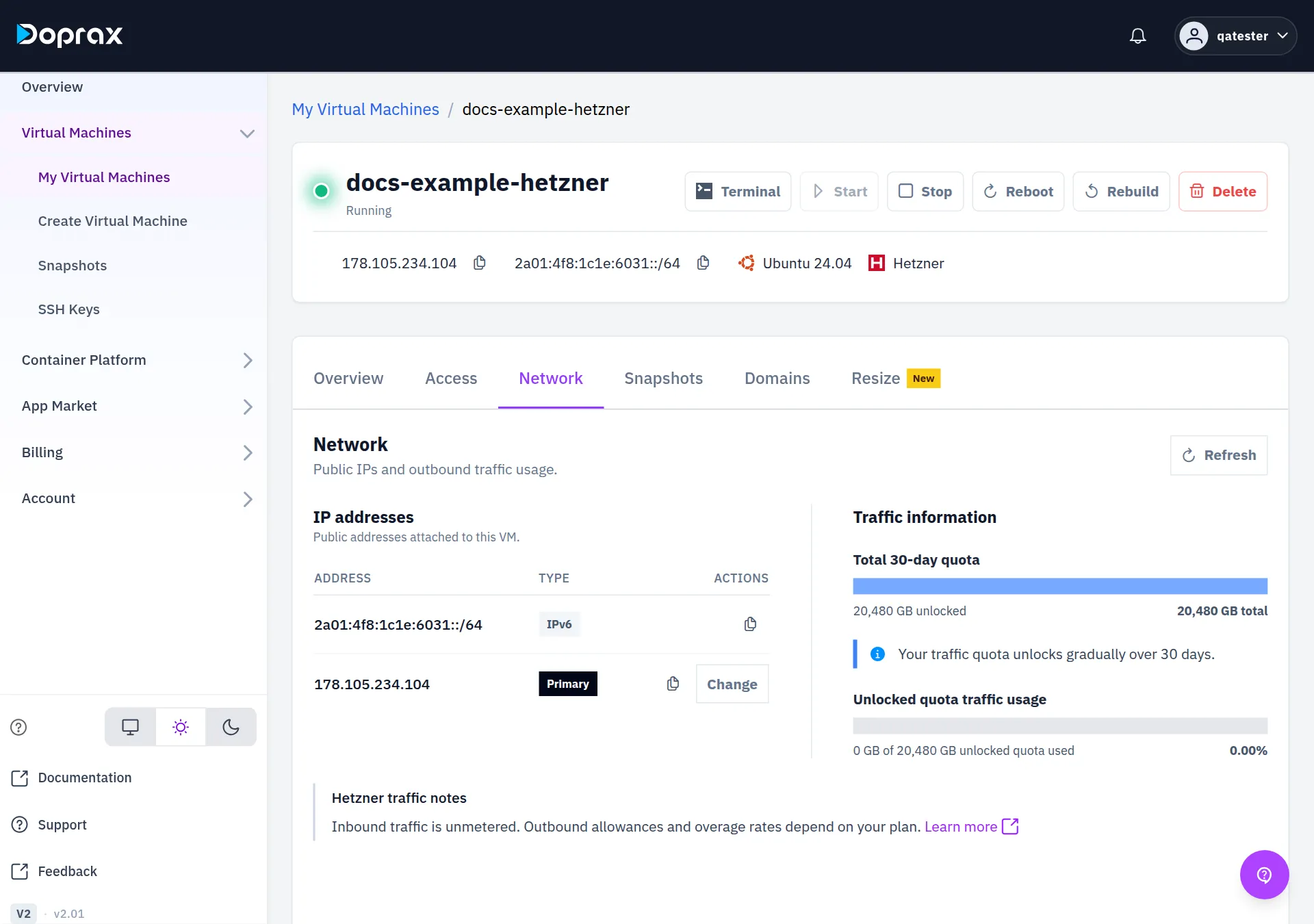
## Google Cloud: every GB is charged
[Section titled “Google Cloud: every GB is charged”](#google-cloud-every-gb-is-charged)
Google Cloud plans include no traffic. Every GB that leaves the VM is charged, at a rate between $0.22 and $0.36 per GB that depends on the location. The create page shows the rate on each plan as **Pay-per-use** and the price per GB.
The charge is made once a day, for the traffic of the month so far minus what was already charged, rounded up to whole GB.
On the **Network** tab, a Google Cloud VM shows **Traffic usage & cost** in place of the quota bars: **Outbound this month**, **Charged this month**, the **Rate**, and a chart of the outbound traffic per day.
## Keep the cost down
[Section titled “Keep the cost down”](#keep-the-cost-down)
* Choose the provider by the traffic you expect. A service that sends a lot of data (downloads, video, a proxy) costs nothing extra on ProVM, OVH and Gcore.
* On a plan with an allowance, look at the **Network** tab during the month, not only at its end.
* A traffic charge comes out of your credit like any other charge. It shortens the time your credit lasts: see [When your credit runs low](/docs/billing/when-credit-runs-low/).
Other costs of a VM are on [What a VM costs](/docs/virtual-machines/what-a-virtual-machine-costs/). The providers are compared on [Providers and locations](/docs/virtual-machines/virtual-machine-providers/).
# What a virtual machine costs
> How a VM is charged, how much credit you need before you can create one, and the extras that cost money.
A virtual machine is charged by the hour, from credit you have added to your account beforehand. This page says what you need on your account before you create a VM, what the VM costs while it exists, and which extras cost money.
## How a VM is charged
[Section titled “How a VM is charged”](#how-a-vm-is-charged)
* **Doprax is prepaid.** You [add credit](/docs/billing/add-credit/) first. Charges are taken from it. There is no overdraft and no bill at the end of the month.
* **You pay for the time the VM exists.** Every plan has a price per month. The price per hour is that price divided by 720. A VM that you delete after three days costs three days.
* **A stopped VM costs the same as a running one.** Its disk and its IP address stay reserved for you. To stop paying for a VM, delete it.
The create page shows both prices for every plan, per hour and per month. The ProVM plans are listed on [Plans and prices](/docs/virtual-machines/plans/). The plans of the other providers are on the [Create Virtual Machine](https://www.doprax.com/v/virtual-machines/new) page.
## What you need before you can create a VM
[Section titled “What you need before you can create a VM”](#what-you-need-before-you-can-create-a-vm)
1. **A minimum available balance.** Today that is $1.00. The amount is a setting of the platform and can change; the API reports it as `min_required_cents` in the answer of `/api/v2/finance/available-balance/`.
2. **For a plan of about $30 a month or more: 10% of its monthly price.** For a plan of $60 a month you need $6.00 available. If you have less, the VM is not created and the message gives both amounts: what the plan costs per month and what you need.
3. **Credit for more than 2 days.** When your credit will last 2 days or less at what your services cost now, the create page shows “Runway is critically low” and does not let you create another service until you add credit.
4. **Room in your quota.** An account can have 10 virtual machines by default. You can ask for more under **Account**, **Security**, with **Request quota increase**.
Your *available balance* is your credit minus what your services have used since the last charge. It is shown on **Billing**, **Billing overview**.
## Extras that cost money
[Section titled “Extras that cost money”](#extras-that-cost-money)
The plan price covers the VM, its disk and its public IP address. These things are charged on top:
| Extra | Price | Where it applies |
| -------------------------------------------- | ------------------------------------------------------------------------------------ | ---------------------------- |
| A snapshot | $0.20 once when it is created, and $0.20 per GB per month for as long as you keep it | Every provider |
| An additional IPv4 address | $1 once for setup, and $1 a month while it is attached | ProVM only, up to 5 per VM |
| A change of the IP address | $4.50 per change | Hetzner only |
| Outbound traffic beyond the plan’s allowance | $0.02 per GB on Vultr and DigitalOcean; from $0.22 per 100 GB on Hetzner | Vultr, DigitalOcean, Hetzner |
| Outbound traffic on Google Cloud | $0.22 to $0.36 per GB, from the first GB | Google Cloud |
| A second automatic subdomain on a VM | $0.50 each; the first one on a VM is free | Every provider |
The monthly prices in this table are charged by the hour, like the plan.
* **Snapshots**: the dashboard shows both prices in the **Create snapshot** dialog and asks you to accept them. The storage price is charged until you delete the snapshot. See [Snapshots](/docs/virtual-machines/snapshots-in-virtual-machines/).
* **Additional IPs**: the price is shown in the **Add IP** dialog. See [Additional IPs](/docs/virtual-machines/additional-ips/).
* **IP change**: the price is shown next to the **Change IP** button. See [Change the IP address](/docs/virtual-machines/change-ip-of-virtual-machines/).
* **Traffic**: inbound traffic is free everywhere. Outbound traffic is free on ProVM, OVH and Gcore and is not charged on Scaleway. See [Traffic](/docs/virtual-machines/virtual-machine-traffic-usage/).
* **Domains**: adding your own domain to a VM is free. See [Add domains](/docs/virtual-machines/add-domains-to-your-virtual-machines/).
The price list of one VM is on its **Resize** tab, under **Pricing components**.
## When the credit runs out
[Section titled “When the credit runs out”](#when-the-credit-runs-out)
You are warned when your credit will last 7 days or less, and again at 2 days. At zero your VMs are stopped and then frozen, and they start again by themselves after you add credit. The full sequence is on [When your credit runs low](/docs/billing/when-credit-runs-low/).
A VM you no longer need keeps costing money for as long as it exists, running or stopped. Delete it: see [Start, stop and delete](/docs/virtual-machines/start-stop-delete/).
# Ports and protocols: what is reachable at each provider
> Which ports are open at each VM provider, which port and protocol to choose for a service that must stay reachable, and how to check a port.
A service can run without a fault and still be unreachable, because its port or its protocol is blocked somewhere between the user and your virtual machine. From outside, that looks the same as a service that has crashed.
This page says which ports are reachable at each provider, which port and protocol to choose, and how to check a port in two commands.
## Which ports are open at each provider
[Section titled “Which ports are open at each provider”](#which-ports-are-open-at-each-provider)
| Provider | Reachable from the internet |
| -------------------------------------------------- | ---------------------------------------------- |
| ProVM | All ports |
| OVH | All ports |
| Hetzner | Only TCP ports 80, 443 and 19000 to 19100 |
| Vultr, DigitalOcean, Google Cloud, Gcore, Scaleway | No rule is stated here. Test the port you need |
### Hetzner
[Section titled “Hetzner”](#hetzner)
On a Hetzner VM, only these ports can be reached from the internet:
* TCP 80
* TCP 443
* TCP 19000 to 19100
Every other port is unreachable, and so is UDP on any port. The limit is applied in front of the VM, not inside it: opening a port in the VM’s own firewall does not change it.
On Hetzner, put a web service on 443 and any other TCP service on a port between 19000 and 19100. For a service that needs UDP or a fixed port outside this list, choose ProVM or OVH.
### ProVM and OVH
[Section titled “ProVM and OVH”](#provm-and-ovh)
All ports are open. A service is reachable on any port it listens on, unless a firewall inside your VM blocks it.
Note
The provider is chosen when the VM is created and cannot be changed afterwards. If you find out later that the port you need is not reachable, create a new VM at ProVM or OVH and move the service. See [Providers and locations](/docs/virtual-machines/virtual-machine-providers/).
## Which port to choose
[Section titled “Which port to choose”](#which-port-to-choose)
The rest of the way matters too: the networks of your users, such as offices, mobile carriers and public Wi-Fi, also block ports.
* **Ports 80 and 443 pass almost everywhere.** Nearly all web traffic uses them, so a network that blocked them would break the web for its own users.
* **High, unusual ports are blocked or slowed down by some networks**, without any message. A service on port 8443 can work from your office and fail from a phone.
So:
1. **A web service, an API or anything that can speak HTTPS: use TCP 443.** Use 80 only to redirect to 443.
2. **A TCP service that cannot use 443**: on Hetzner use a port between 19000 and 19100. On ProVM and OVH any port works.
3. **A service that needs UDP**, for example WireGuard: use ProVM or OVH.
## TCP or UDP
[Section titled “TCP or UDP”](#tcp-or-udp)
* **TCP checks that the data arrives.** A lost packet is sent again. On a bad network TCP gets slower, but the data arrives complete. Use it for websites, APIs, file transfer and anything where every byte counts.
* **UDP does not check.** A lost packet is gone. That is fine for a video call, where one lost frame does not matter, and wrong for anything that needs all the data.
On an unstable network TCP is the safer choice. Choose UDP only when the application deals with loss itself.
## Check a port
[Section titled “Check a port”](#check-a-port)
Do not assume that a port is reachable. Check it, with one command on the VM and one from outside.
**1. On the VM: is the service listening?**
```bash
sudo ss -tlnp
```
Each line is a TCP port that a program listens on. Use `sudo ss -ulnp` for UDP. Look at the address in front of the port:
* `0.0.0.0:8080` or `*:8080` or `[::]:8080`: the service accepts connections from outside.
* `127.0.0.1:8080`: the service accepts connections only from the VM itself. Change its configuration to listen on `0.0.0.0`.
* Your port is not in the list: the service is not running, or it listens on another port.
**2. From another computer: does a connection reach the port?**
Run this from your own computer, not from the VM. Replace the address and the port with yours.
```bash
nc -zv 203.0.113.10 8080
```
| Answer | What it means |
| ------------------------- | ------------------------------------------------------------------------------------------------ |
| `succeeded` or `open` | The port is reachable |
| `Connection refused` | The connection reached the VM, but nothing listens on that port, or the VM’s firewall rejects it |
| No answer, then a timeout | The connection is dropped on the way: by the VM’s firewall or by the provider’s port rule |
If the first command shows the service listening and the second one fails, the application is not the problem. Stop restarting it and look at the firewall and the port rule.
## If the port is not reachable
[Section titled “If the port is not reachable”](#if-the-port-is-not-reachable)
Go through these in order.
1. **Is the service listening on that port, and on `0.0.0.0`?** See the first command above.
2. **Does the VM’s own firewall allow the port?** Which firewall is active depends on the operating system.
```bash
sudo ufw status verbose # Ubuntu, Debian
sudo firewall-cmd --list-all # AlmaLinux, Rocky Linux, Fedora
sudo iptables -L INPUT -n --line-numbers # any system
```
A command that is not found means that firewall is not installed. Look for a rule that drops or rejects your port, or for a default of “deny” without a rule that allows your port.
3. **Does the provider allow the port?** On Hetzner only TCP 80, 443 and 19000 to 19100 get through. Move the service to one of these ports.
4. **Is the service in a container?** The port must be published to the VM, for example with `-p 8080:8080` in Docker, or the first command will not show it.
5. **Test from a second network**, for example a phone’s mobile data. If the port answers from one network and not from another, the network of the user blocks it. Move the service to 443.
If the VM does not answer at all, on any port, see [My VM is unreachable](/docs/guides/diagnosing-server-problems/).